
How to set parental controls with Sky Q
You will need a Sky Q box and Sky PIN to activate Safe mode.
How to set up Safe mode
How to set up Safe mode
Step 1 – Open your browser on your Sky box.
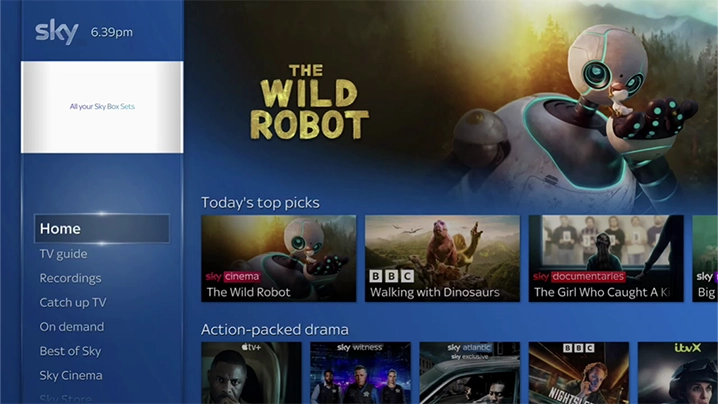
Step 2 – Go to the Kids section and you will see an option to select ‘Safe Mode’. Swipe right and press select.

Step 3 – Once prompted, enter your Sky PIN to confirm to turn safe mode on or off. Once you have done this your Sky Box will be locked and only allow your child access to the Kids section until you have turned Kids Mode off.

Limit buying and How to set up Family settings
Limit buying and How to set up Family settings
As well as Safe mode, you can use ‘Family setting’ to turn on PIN-protection for any rated shows you watch before the watershed.
Step 1 – Press Home on your Sky Q remote. Then, select Settings, then Parental.
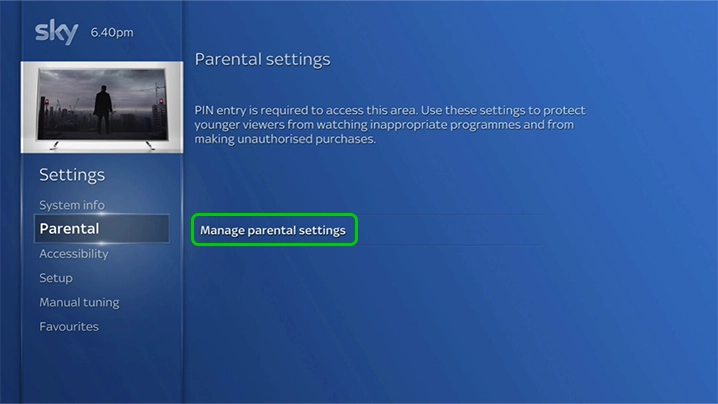
Step 2 – Enter your Sky TV PIN.
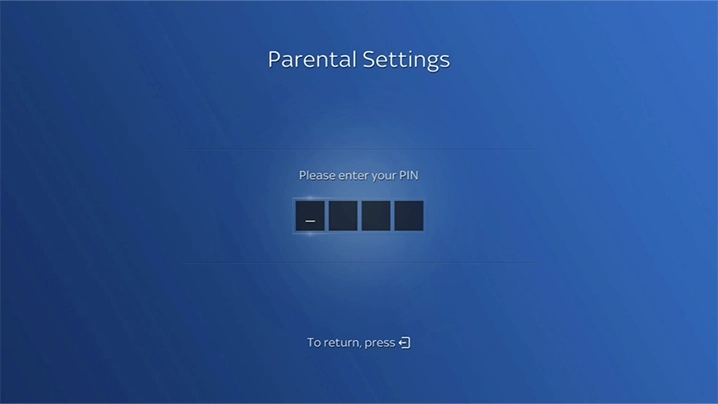
Step 3 – Select Family, then Family setting. Select On to PIN-protect all categories listed under Family, or Off to remove the need for a PIN.

How to use Age ratings
How to use Age ratings
Go to Age ratings to choose an age rating of shows that will need a pin to be watched

Using Apps & videos
Using Apps & videos
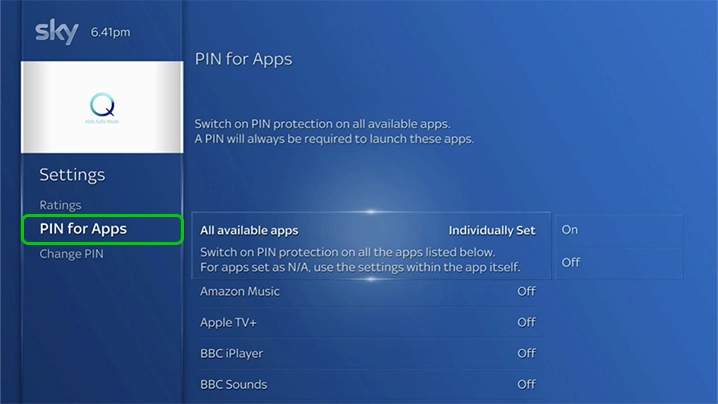
Go to PIN for Apps to switch on PIN protection for certain apps. A PIN will then always be requested to launch these apps. You can also choose to have a PIN requested for all apps.
How to set parental controls with Sky Q

View more guides
Discover more parental controls to manage children’s devices, apps and platforms for safer online experiences.