

Steps to Use Digital Wellbeing for Screen Time Management
You will need an Android device and a Google account for set up.
Find Digital Wellbeing on Android
Digital Wellbeing is a built-in tool that is part of your device settings. Digital Wellbeing features may vary depending on your device. If you have a Samsung device you can see the full Samsung smartphones and tablets guide.
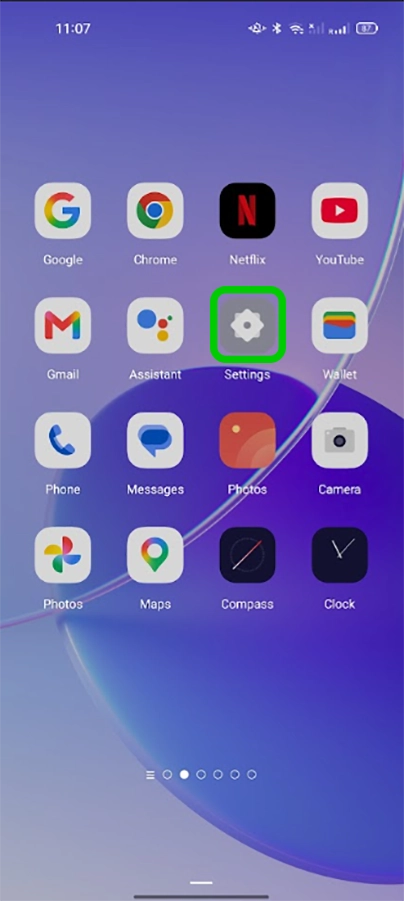
Step 1 – Open the Settings app on your Android device.
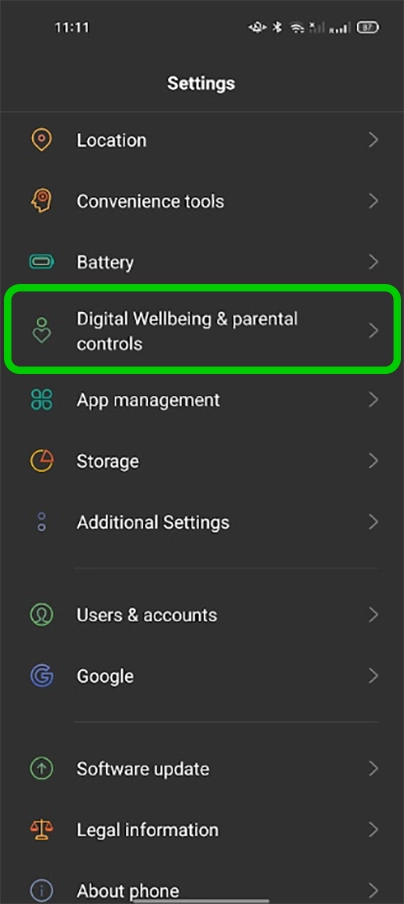
Step 2 – Scroll down and tap Digital Wellbeing & Parental Controls.
Check Your Dashboard
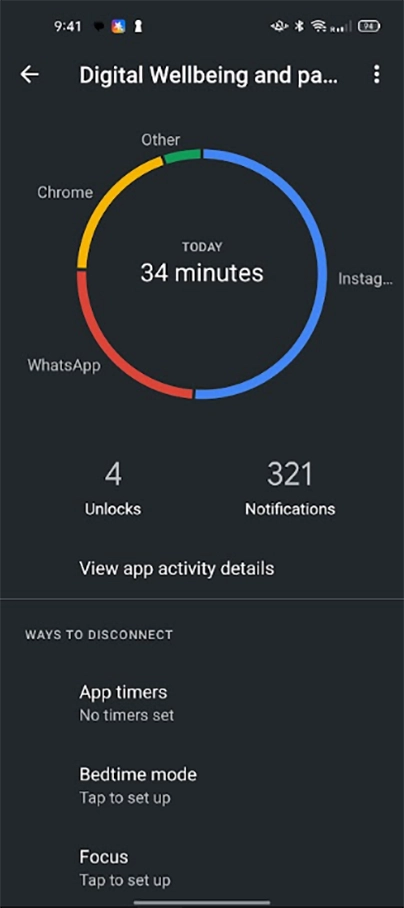
On the Digital Wellbeing screen, you’ll find a dashboard that shows screen time, app usage, unlocks and notifications received.
Step 1 – Tap Dashboard for a detailed breakdown of usage.
Set App Timers
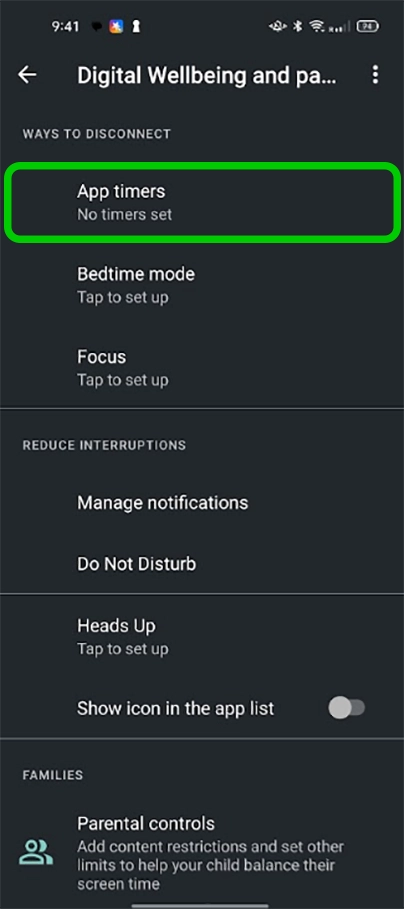
Step 1 – In the dashboard, tap App Timers.
Step 2 – Tap the hourglass icon next to an app.
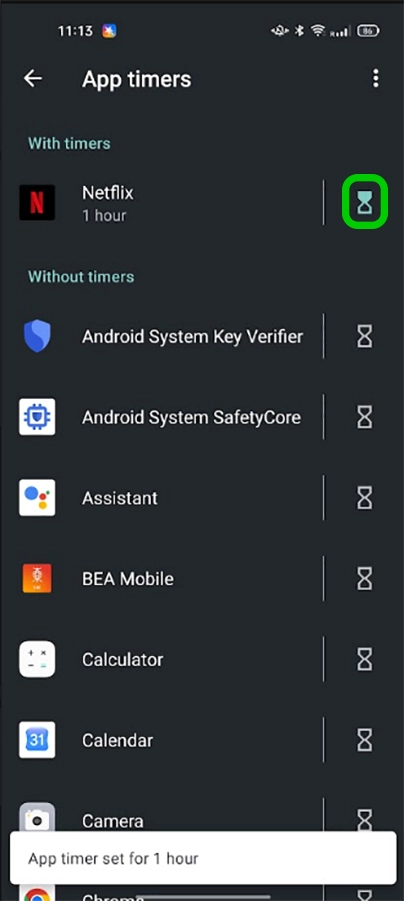
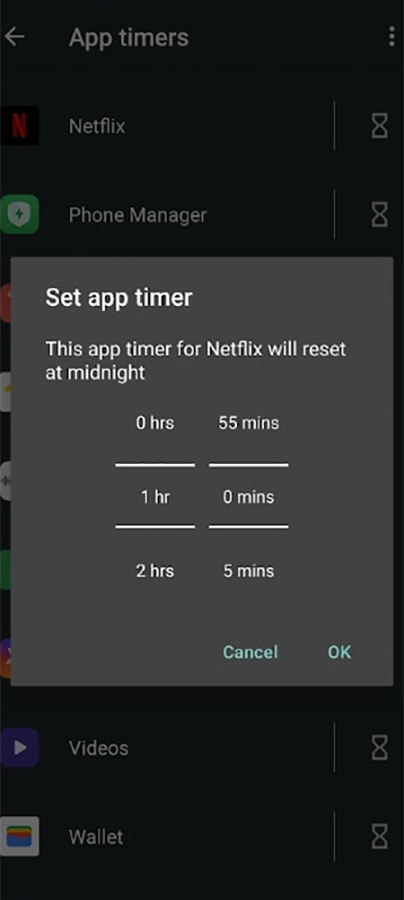
Step 3 – Set a daily time limit for that app (e.g. 1 hour per day) and tap OK. The timer resets at midnight, and once the time is up, the app will pause for the day.
Enable Focus Mode
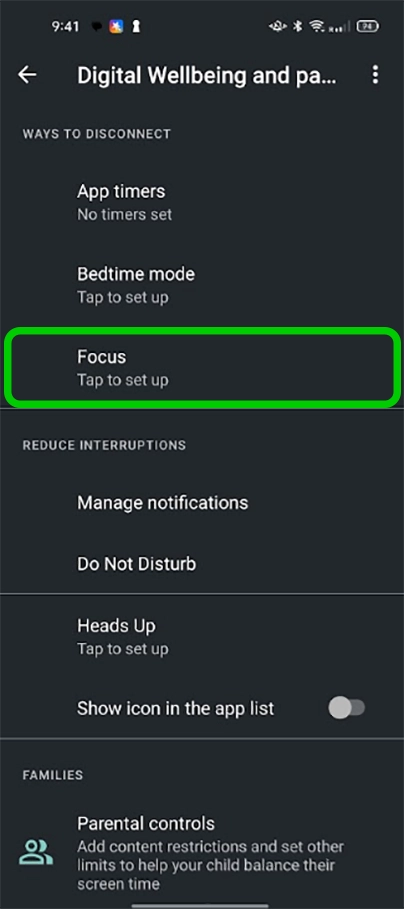
Step 1 – In Digital Wellbeing, tap Focus.
Step 2 – Under Your distracting apps, choose which apps to pause, or tap Select more apps to add others (e.g., Chrome, Gmail, Photos).
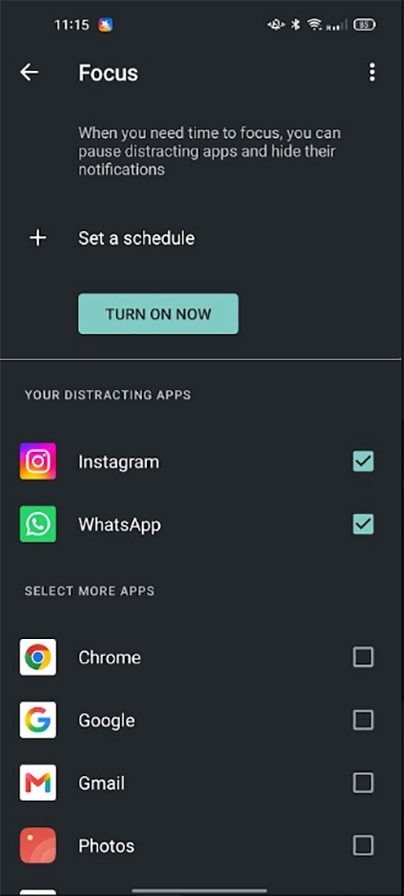
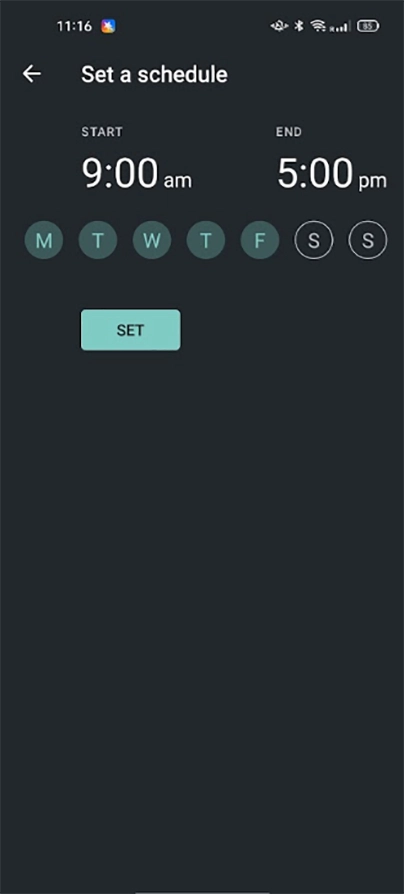
Step 3 – Tap Turn on now to start immediately, or tap Set a schedule to choose start and end times and the days. Tap Set to confirm.
Schedule Bedtime Mode
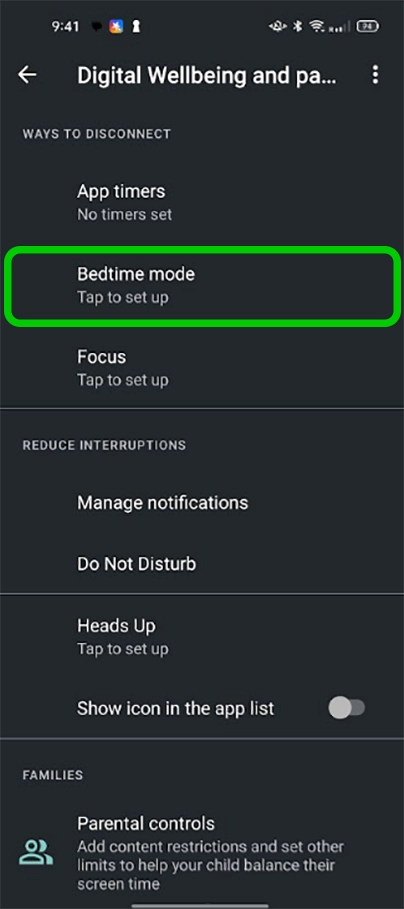
Step 1 – Tap Bedtime mode.
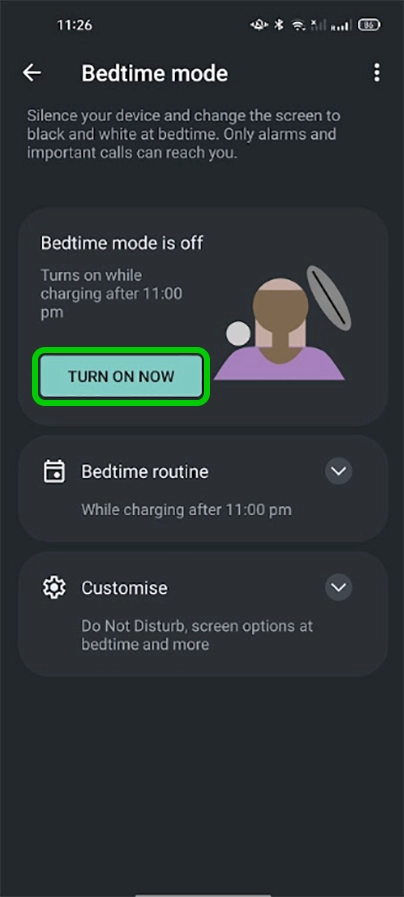
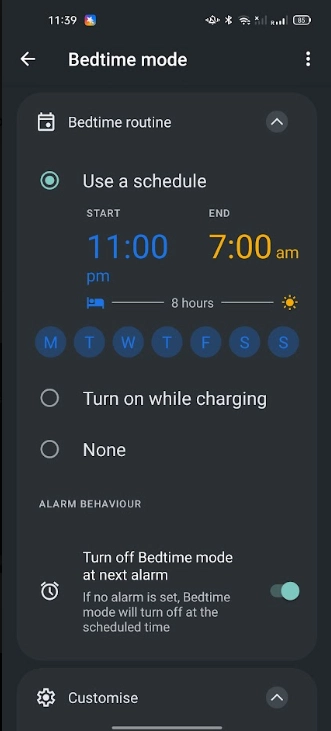
Step 2 – Tap Turn on now or tap Bedtime routine to set a schedule (e.g. turn on while charging after 11:00 pm).
Linking Digital Wellbeing to Google Family Link
Within Digital Wellbeing and parent controls you can set up Google Family Link and supervise your child’s account. The Digital Wellbeing and parental controls tool allows the child or teen to view their usage, limits and manage digital habits.
Google Family Link is another level of supervision that connects the parent and child’s devices. This allows the parent to have overall control over Digital Wellbeing settings and manage the child’s online experience across other platforms remotely.
First install Google Family Link on the parent device from the Play Store. See our full Google Family Link guide to set this up.
Steps to Use Digital Wellbeing for Screen Time Management
More resources
View more guides
Discover more parental controls to manage children’s devices, apps and platforms for safer online experiences.