

What you need to know
- Minimum age rating – 13+ (in the UK)
- Available on – iOS, Android, web browser
- Main features – Image sharing, finding inspiration, shopping
Quick advice
Help your teen stay safe on Pinterest by prioritising these settings.
Filter content
Help your teen set up their home feed with content that supports their wellbeing.
Review reporting tools
Together, review how to report and block users or content to help teens take charge of their safety.
How to set parental controls on Pinterest
You will need access to your teen’s Pinterest account.
How to set up profile visibility
Profile visibility is one of the most important Pinterest safety settings. A private profile means only approved followers can view their sharing and activities. These settings must be managed from your teen’s account.
To set up profile visibility:
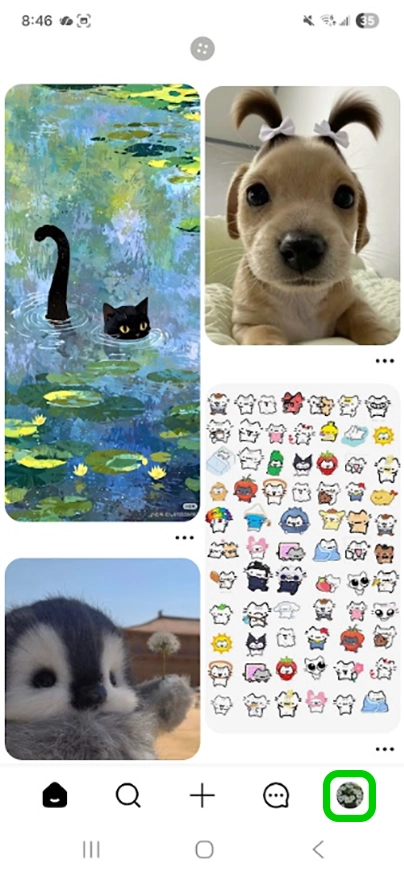
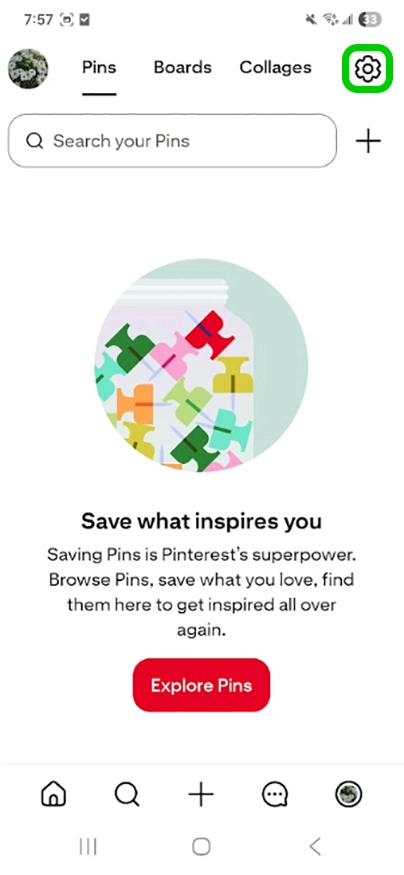
Step 1 – On the home screen tap the profile icon in the bottom right. From your profile, tap on the settings icon in the top right.
Step 2 – Go to Profile visibility then tap Private profile to turn it on. Only people your teen approves will then be able to view their profile, Pins, boards, followers and following lists.
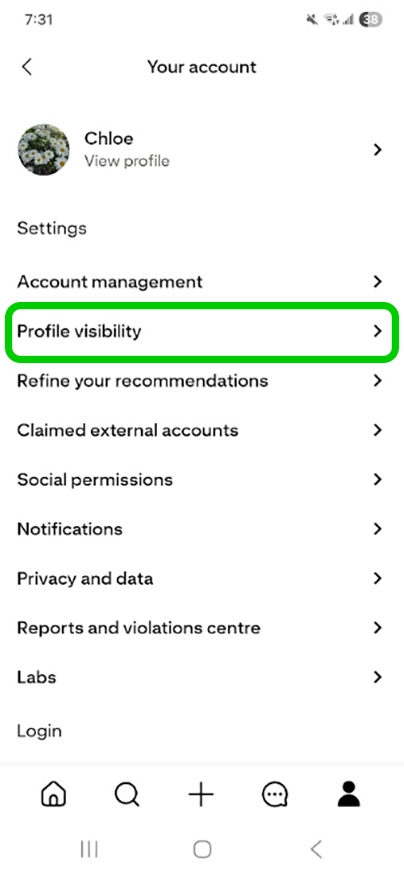
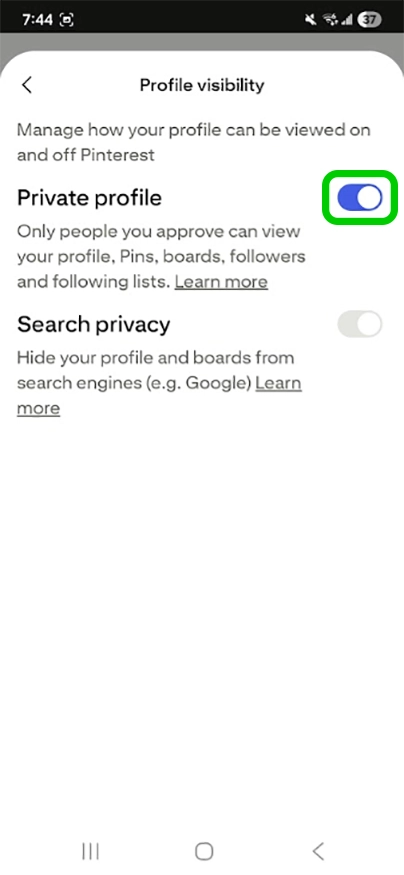
On a private profile the Search privacy is automatically toggled on. This hides your teen’s profile and boards from search engines like Google.
How to customise your home feed
Pinterest safety starts with ensuring that your teen has a positive online experience. This could involve discussing with your teen what content supports their wellbeing and is age-appropriate.
To customise your teen’s content:
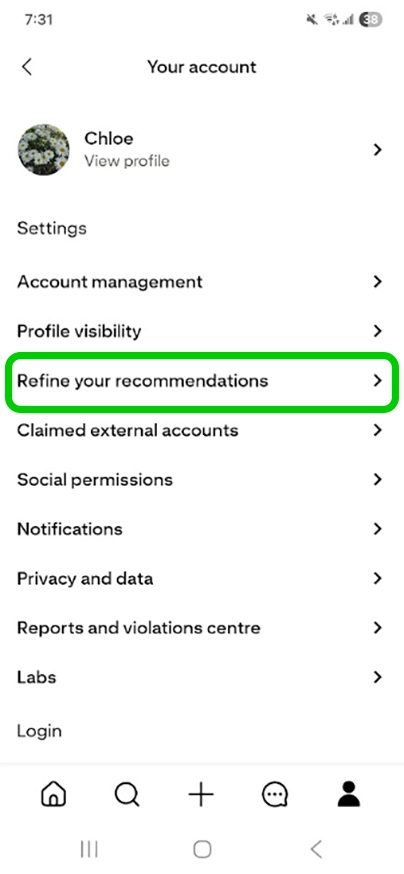
Step 1 – Go to Settings from your profile. Select Refine your recommendations.
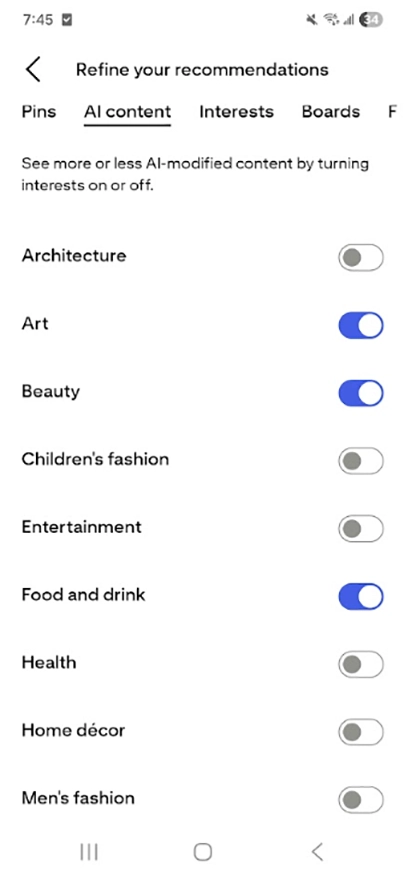
Step 2 – Tap AI content. Toggle each topic on or off depending on what AI content you would like to see.
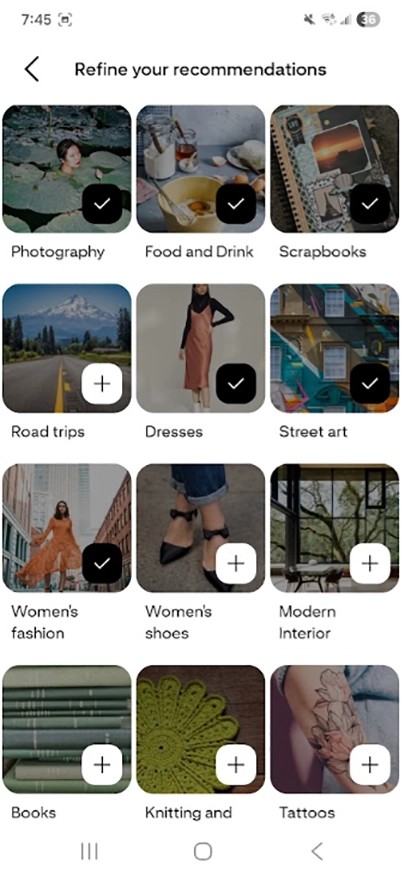
Step 3 – Tap Interests. Topics with a tick are currently followed and included in the feed. Tap the tick to remove a topic, or tap the plus icon to add a new one.
Where to manage social permissions
In the social permissions sections you can manage message settings and filter comments.
To manage message settings:
Pinterest lets you control who can send your teen messages, from friends going straight to their inbox, to everyone else being limited to requests or blocked entirely. This reduces the risk of messages from unwanted contacts.
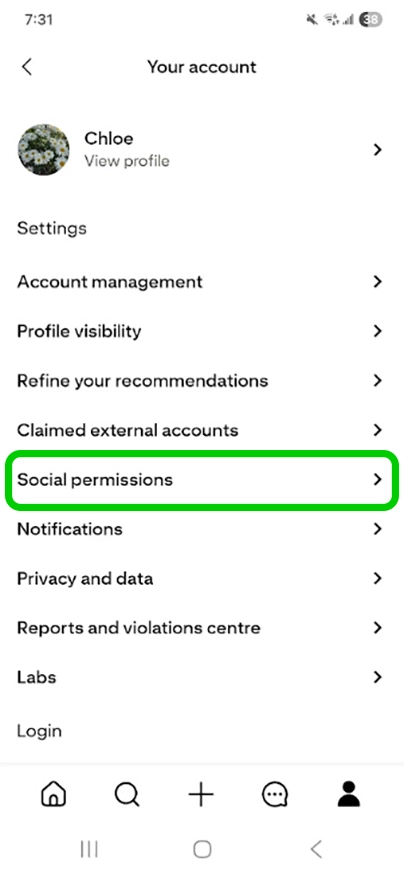
Step 1 – Go to Settings from your profile. Select Social permissions and tap Message settings.
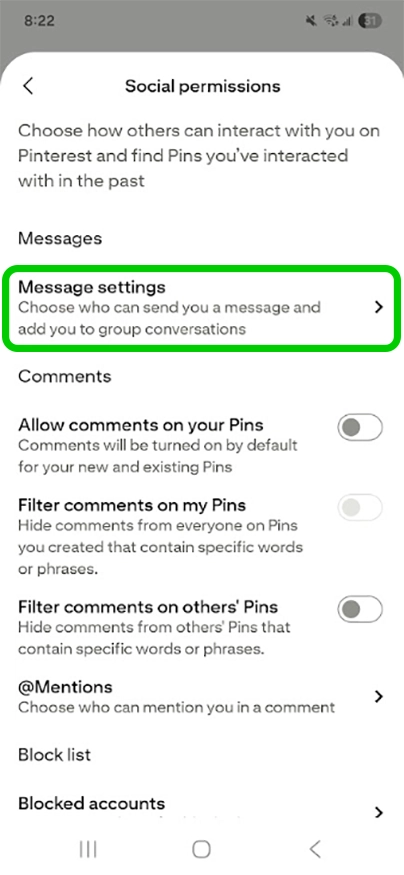
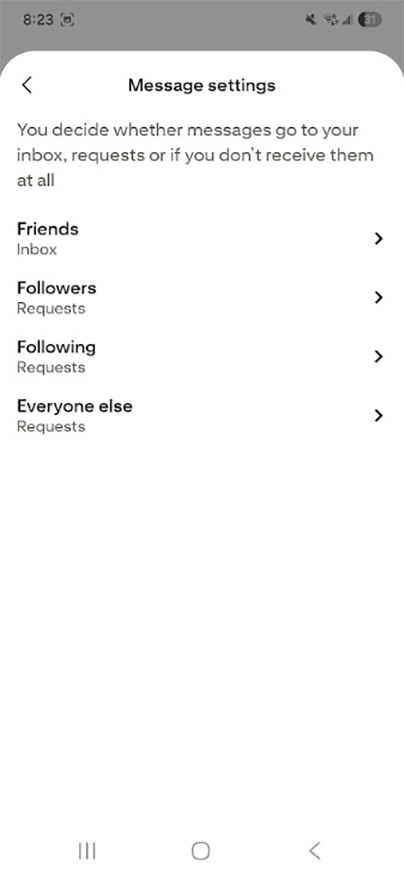
Step 2 – For Inbox, Followers, Following, or Everyone else, tap through and select Don’t deliver to block messages from that group entirely, or leave as Requests to review them first.
Where to filter comments:
You can set up a comment filter to hide specific words and phrases on the Pins (images or videos) your teen creates or views.
Step 1 – On the Social permissions screen, scroll to Comments. Tap the toggle next to Allow comments on your Pins to turn it on or off.

Step 2 – Tap the toggle next to Filter comments on my Pins or and/or Filter comments on others’ Pin to turn it on. In the Blocked words box, add the words or phrases you’d like to filter, separating each new one with a comma. Tap Save.

How to manage notifications
Many social media apps make use of push notifications to alert users of updates. However, these push notifications often distract and increase screen time. Ensure you’re not endlessly scrolling on Pinterest by turning off these notifications.
To turn off push notifications:
Step 1 – Go to Settings from your profile. Select Notifications. You may be asked to turn on push notifications for Pinterest in your device settings as well.
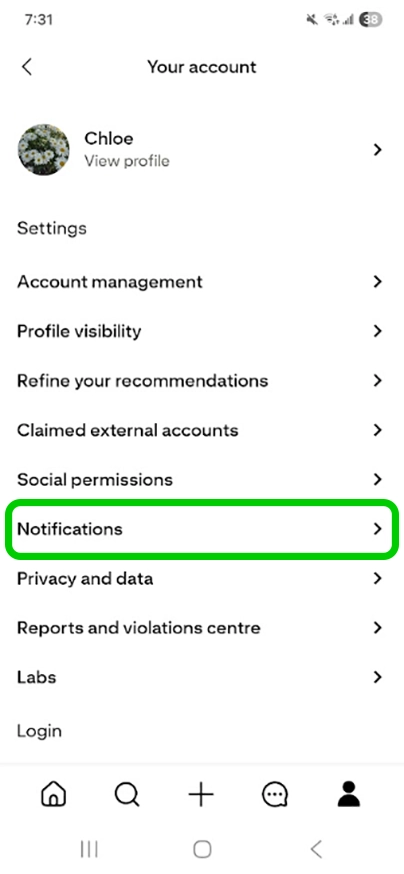
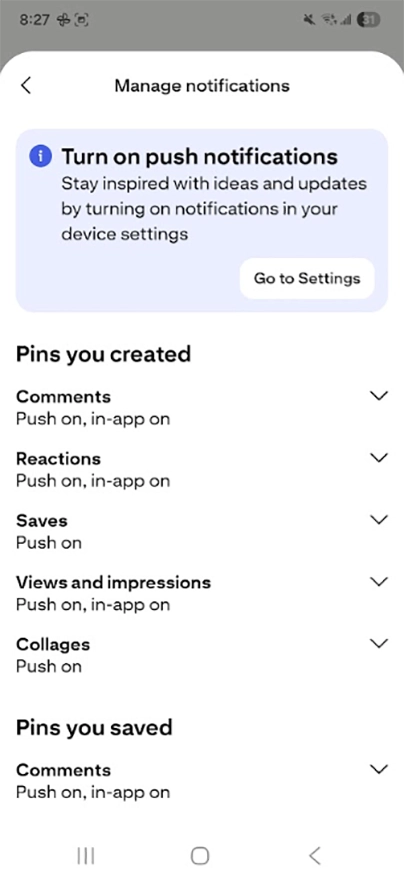
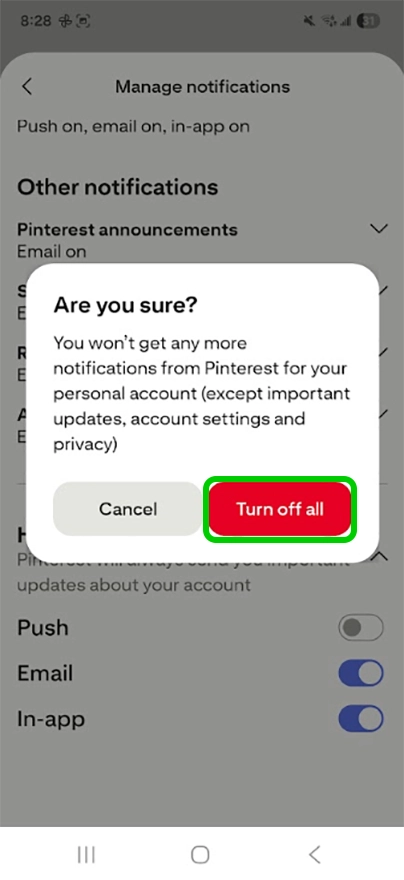
Step 2 – Select which push notifications you’d like to turn off and tap the toggle to grey. Or scroll down to the bottom, select How you get notifications, tap the toggle to grey and tap Turn off all to confirm.
Where to set up privacy permissions
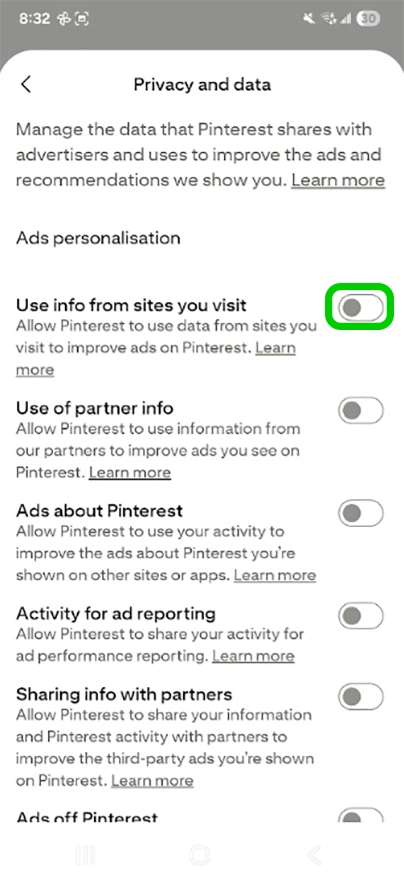
Managing data privacy limits how much of your teen’s activity Pinterest shares with advertisers and third parties, to personalise ads.
To set up privacy controls:
Step 1 – Go to Settings from your profile. Select Privacy and data.

Step 2 – Tap the toggle to grey to turn a setting off. For optimal privacy, toggle these settings off.
Turn on two-factor authentication
Two-factor authentication can enhance safety on Pinterest by providing additional security. Offered by many social media platforms and apps now, two-factor authentication requires new logins to enter a secret code in addition to regular login details.
To set up two-factor authentication:
Step 1 – Go to your Settings and tap Security and log ins.
Step 2 – Tap the toggle next to two-factor authentication to turn it on. Your email must be confirmed with a unique password for this to be turned on.

How to report a Pin
While Pinterest has clear community guidelines, some Pins that go against these policies might make their way into a user’s feed. As such, it’s important to report this content to have it removed.
To report a Pin:
Step 1 – On the Pin, tap the 3 dots in the bottom right corner. Tap Report.
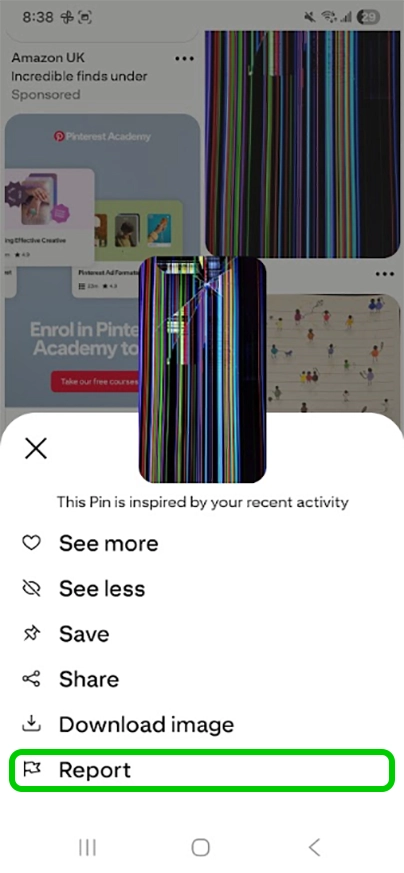
Step 2 – Select the reason that best describes how the content goes against the community guidelines.
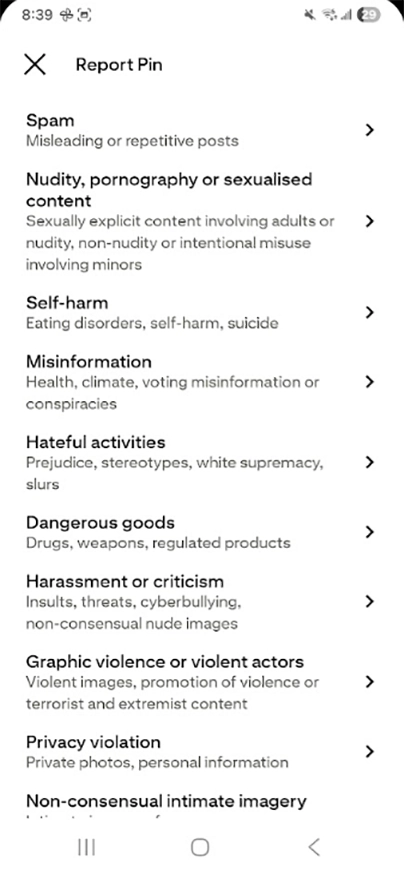
Step 3 – Tap Report to confirm reason e.g. spam. Tap Block and report if you want to report the user at the same time.

How to block or report a user
Blocking and reporting an account or pin enables you to manage unwanted contact and content on the platform. Blocking stops all interaction between accounts, while reporting flags content or an account for Pinterest to review against its Community Guidelines.
To block or report a user:
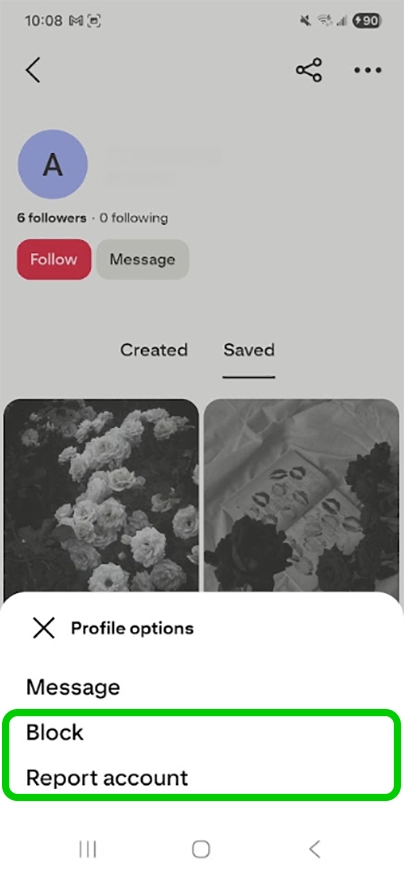
Step 1 – Go to the user’s profile. Tap the 3 dots in the top right and under Profile options, select Block or Report account
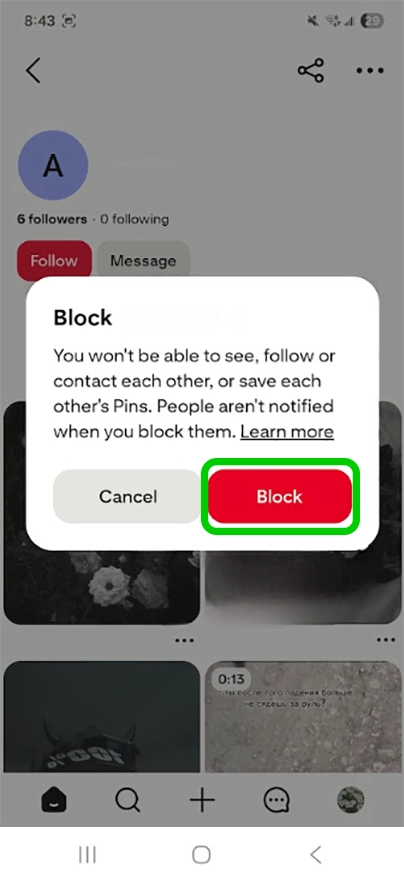
Step 2 – Tap Block to confirm you will block the account.
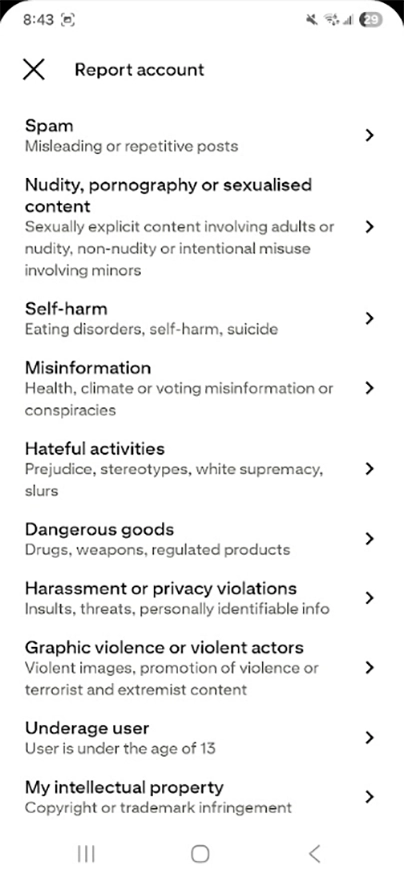
Step 3 – Tap Report account and select a reason from the list e.g. Spam or Hateful activities.
Delete or deactivate your account
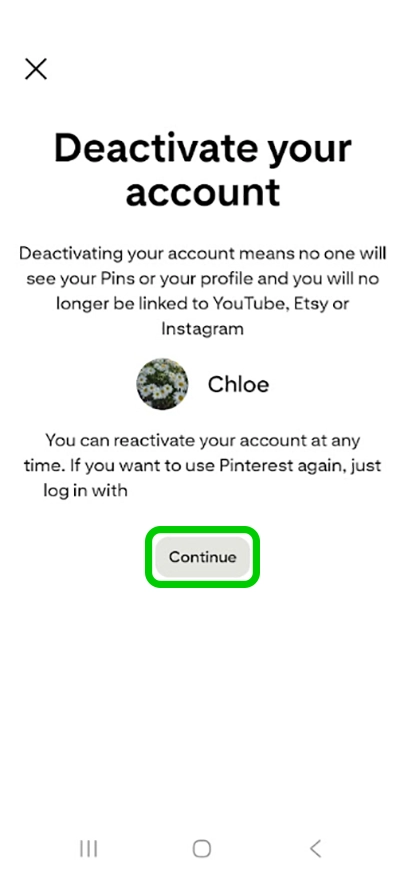
If you want to take a break from Pinterest, you can deactivate your account. You can reactivate it later. However, if you want to permanently get rid of all Pins and account information, you can delete your account.
To delete or deactivate your account:
Step 1 – Go to Settings from your profile. Select Account management.
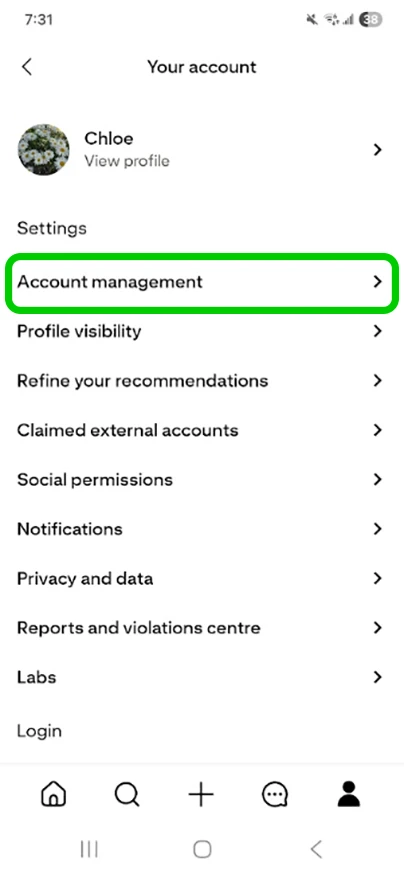
Step 2 – At the bottom, select the applicable option (Deactivate account or Delete your data and account). Follow in the instructions after tapping Continue.


How to set parental controls on Pinterest
View more guides
Discover more parental controls to manage children’s devices, apps and platforms for safer online experiences.