

How to set parental controls on Vodafone
You will need a credit card to verify you’re over 18 and a ‘My Vodafone’ account (username and password).
If you haven’t signed up, you will need a contact email address, mobile number and Vodafone account number.
Setting up content controls
You can begin setting content controls by logging into the My Vodafone app and turning on a content block.
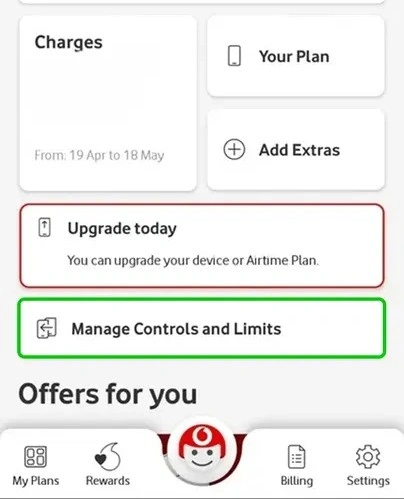
Step 1 – From the My Vodafone app homepage, select Manage Controls and Limits.
Step 2 – In the Controls and Limits menu, click Adult Content Controls.

Step 3 – On the pop-up, click Turn on to block access to 18+ rated content.
Step 4 – Click Continue to finish setting the control. It might take up to 6 hours for the control update to show in the app.

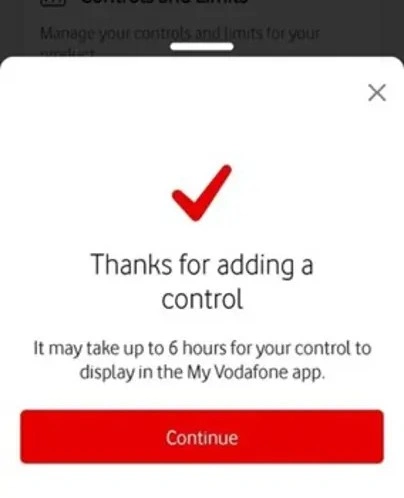
Your child will now be unable to access any content that is rated 18+.
How to set up Secure Net parental controls
Secure Net is available to any Vodafone customer. You can add it to your plan and then login using your regular Vodafone account login details. With Secure Net, you can set up additional parental controls to keep your family safer while they browse.
To set up parental controls:
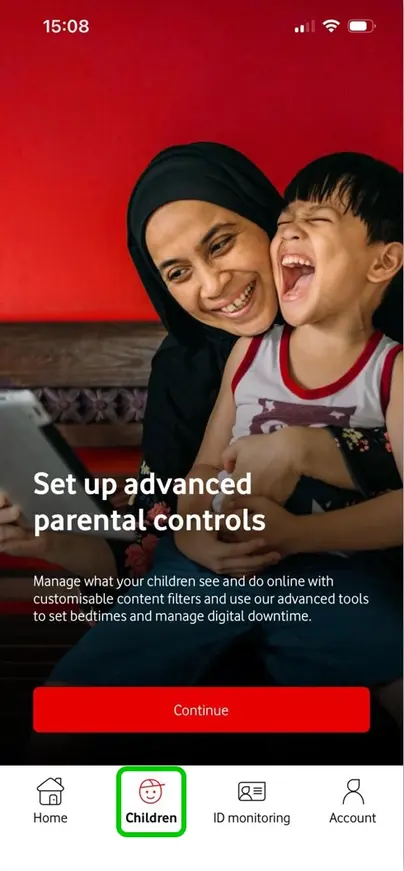
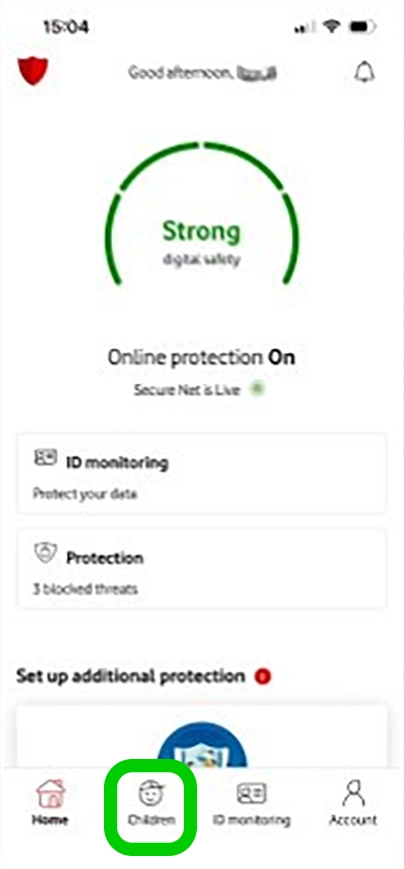
Step 1 – Login to your Secure Net app. For your first time logging in, read through and follow the prompts. Then select ‘Children‘ from the bottom menu.
Step 2 – Read through the features and then select ‘Set up child profile‘. Follow the prompts to add their name and an avatar.

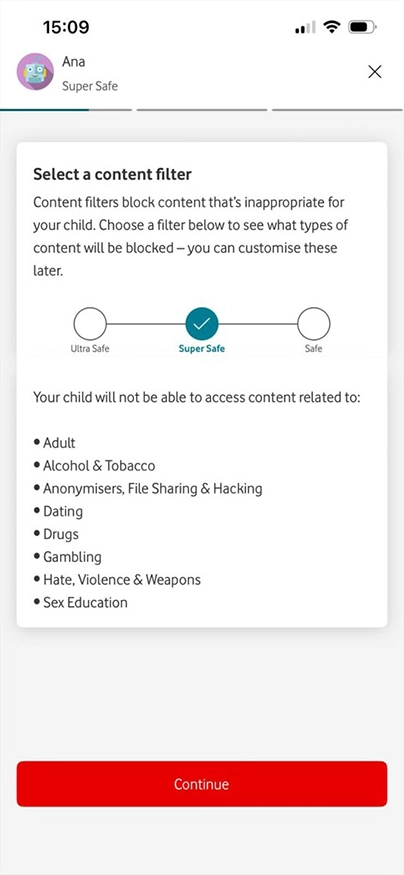
Step 3 – Select a content filter for your child’s profile:
- Ultra Safe: Your child cannot access content which is for adults or is a security risk. They also cannot access sex education content, social media or chat.
- Super Safe: Your child cannot access adult content, content which is a security risk or sex education content.
- Safe: Your child cannot access adult content or content that is a security risk.


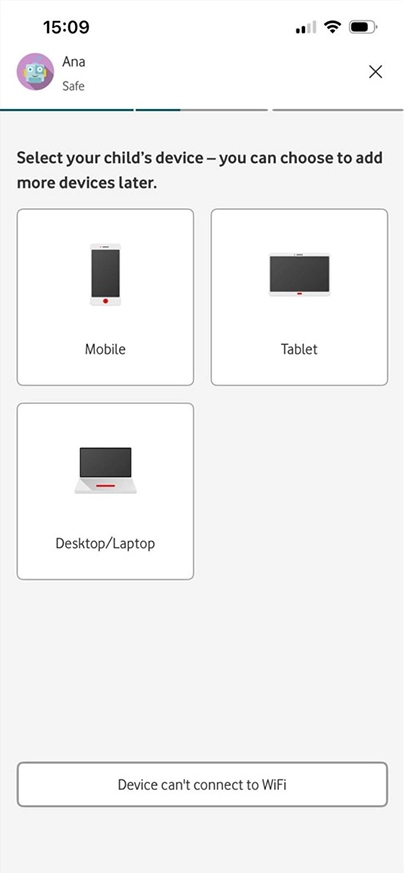
Step 4 – Add your child’s device(s) that you want protected under Secure Net. Continue to follow the on-screen prompts to complete setup or come back to them later.
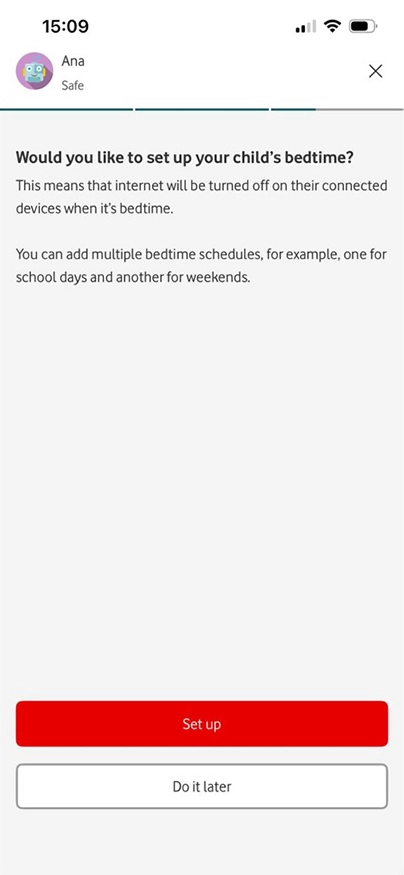
Step 5 – Choose whether you want to set up a bedtime for your child. This will turn off the internet on your child’s device when it’s bedtime.
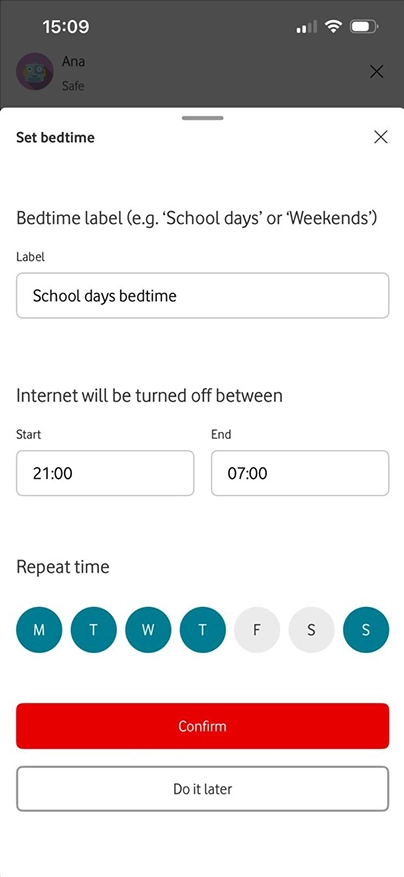
Step 6 – Select the dates and times that your child’s bedtime will be set and click Confirm.
Secure Net is now set up on your child’s devices. You can now begin managing their device.
Manage your child’s device use with Secure Net
Once you have set up your child’s Secure Net profile, you can manage how your child uses their device from the Secure Net app.
To use Secure Net to manage your child’s device:
Step 1 – Login to your Secure Net app and select Children from the bottom menu to be taken to your child’s profile.
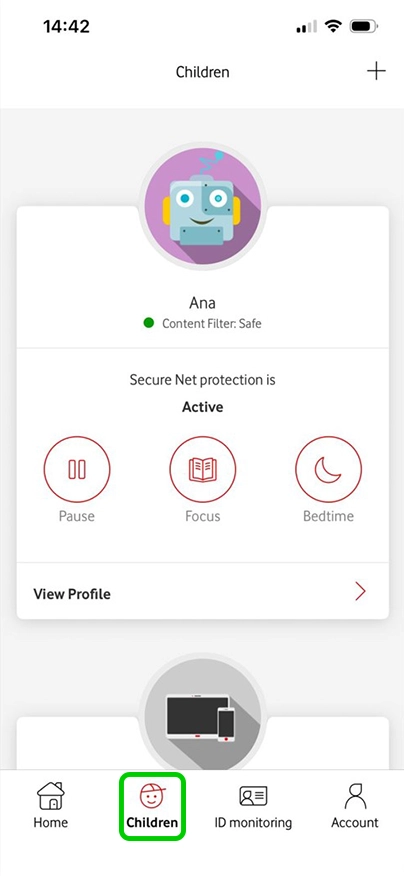
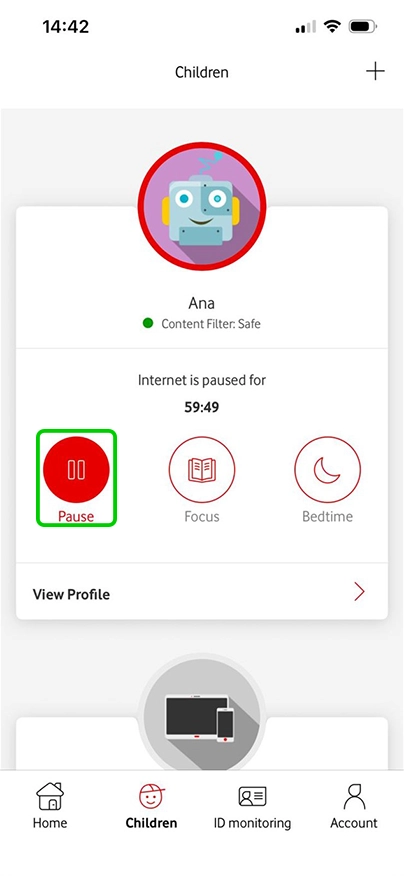
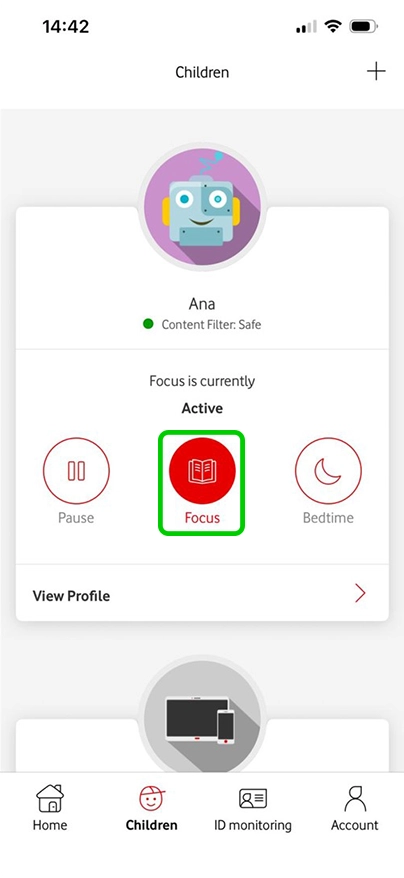
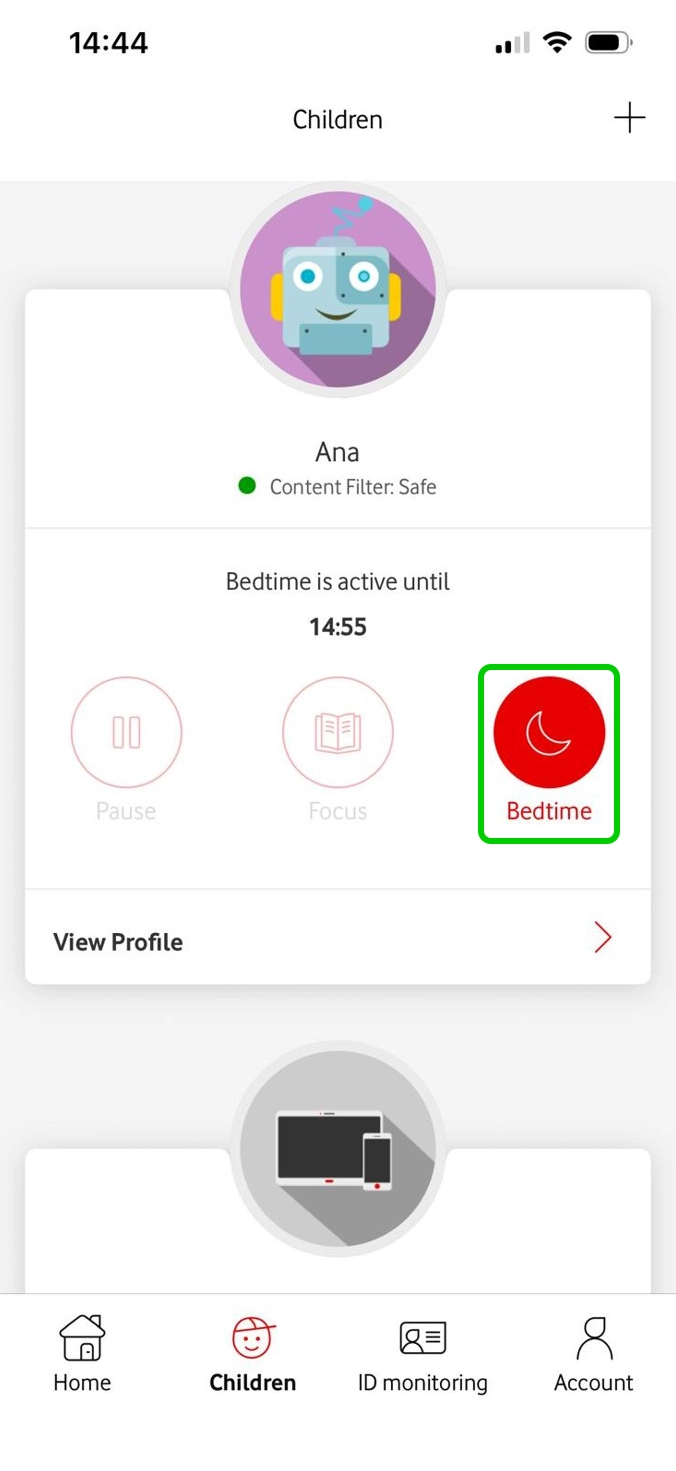
Step 2 – From your child’s profile, you can use the buttons to manage your child’s experience. These buttons are:
- Pause: Pauses your child’s internet access for a selected duration, or until you turn pause off.
- Focus: Blocks access to entertainment apps, such as social media, to prevent distractions during studying times.
- Bedtime: Turns off internet on your child’s device until the selected time.
How to set parental controls on Vodafone

View more guides
Discover more parental controls to manage children’s devices, apps and platforms for safer online experiences.