

Video guide
How to set parental controls on Netflix
You will need access to the Netflix app and family account (email and password). If your child has their own account, you will need access to that.
How to create a Kids profile
Step 1 – Open the app and select Add.
Step 2 – Input child’s name and toggle on Kids Profile.
Step 3 – Click Save.


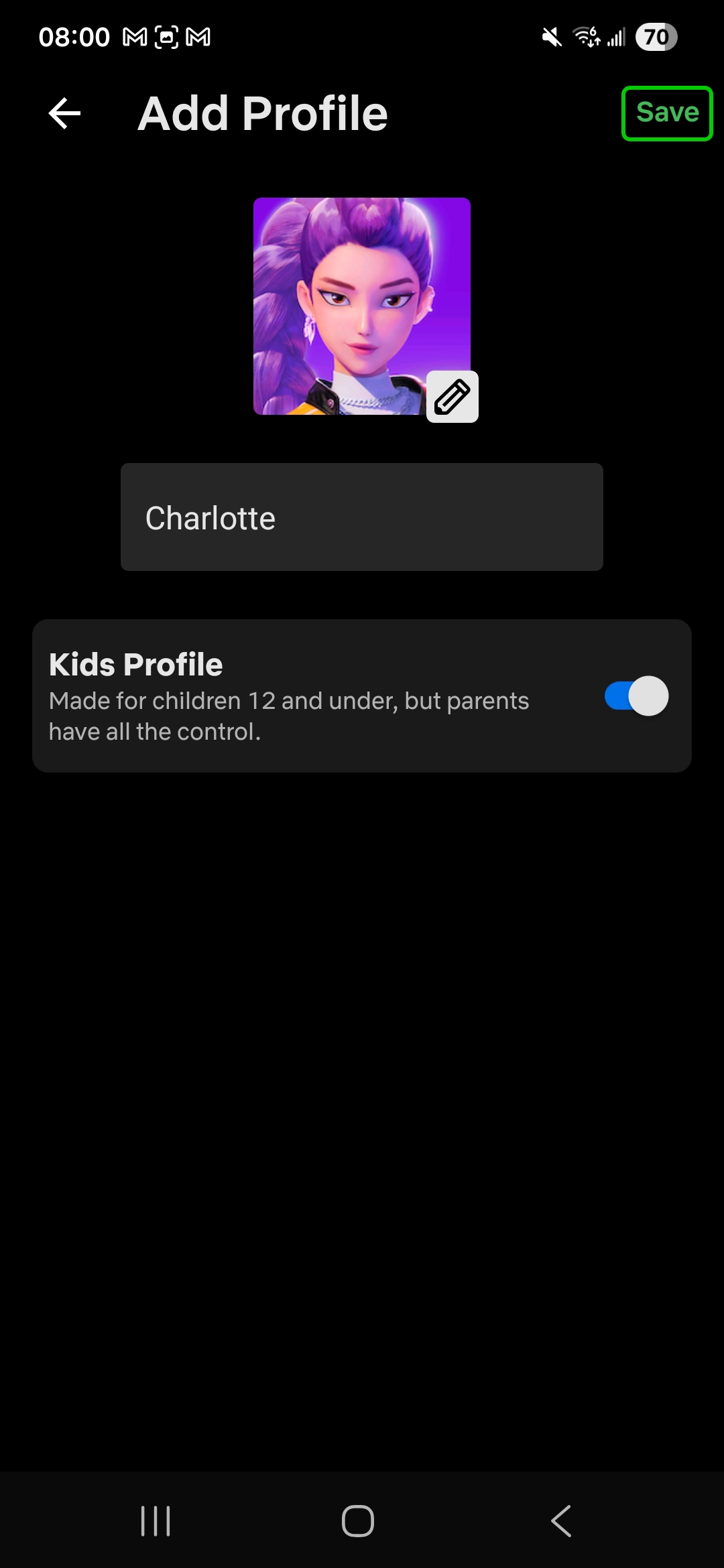
Your child will only be able to watch age-appropriate content on this profile.
How to manage a profile
Step 1 – On the Home page click My Netflix in the bottom right.

Step 2 – Click on your profile name in the top left corner.
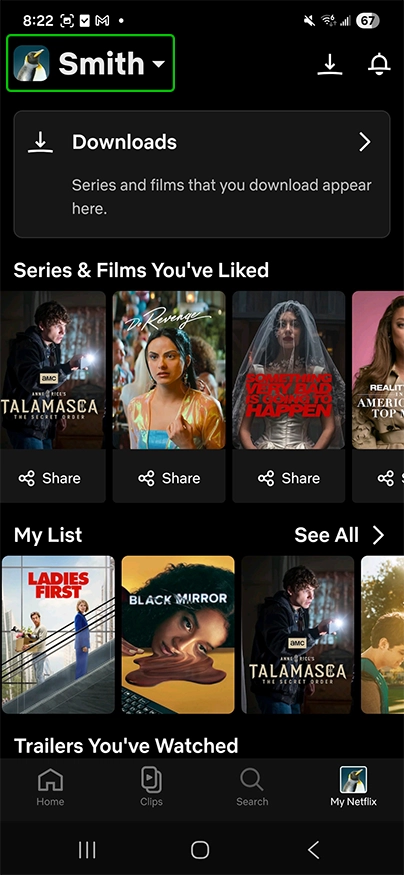
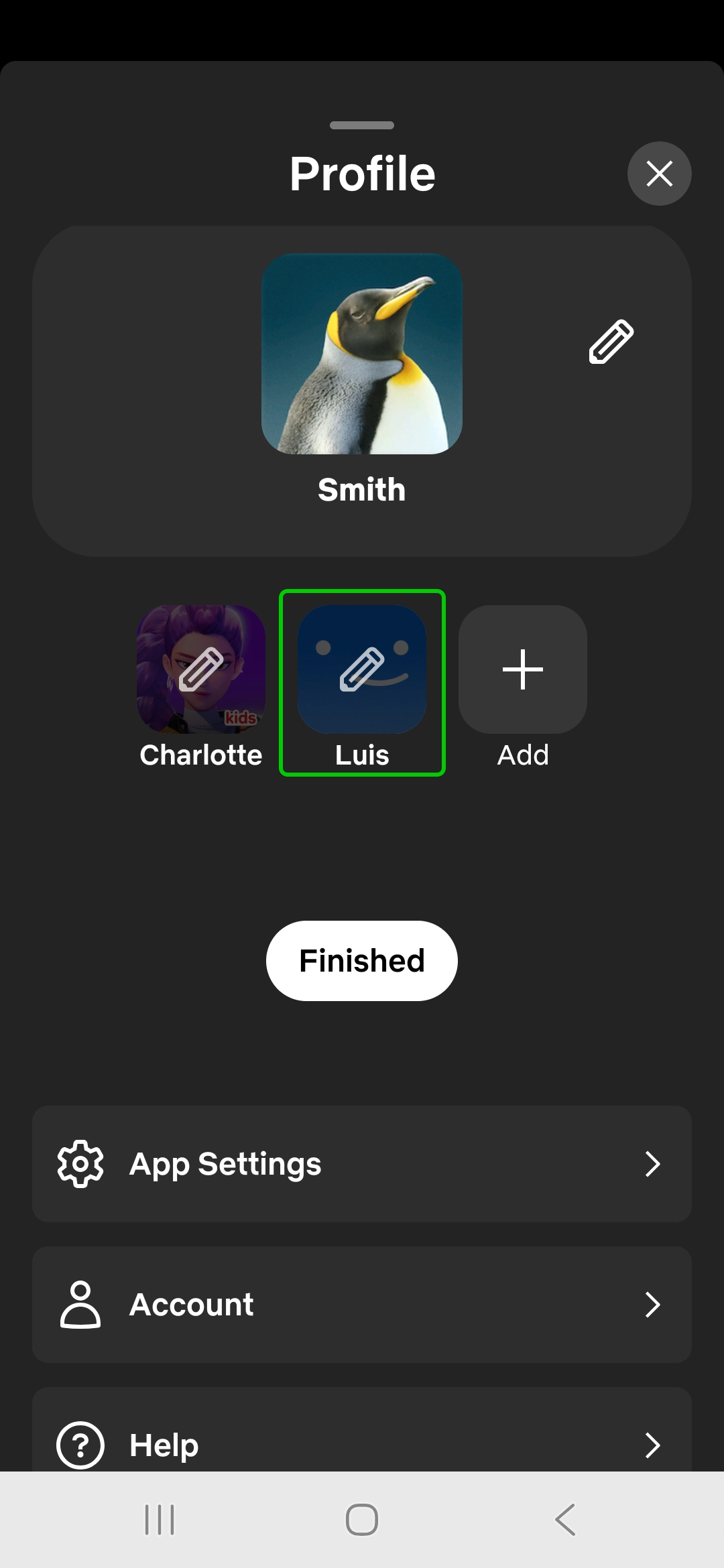
Step 3 – Click Manage Profiles and select your child’s profile.

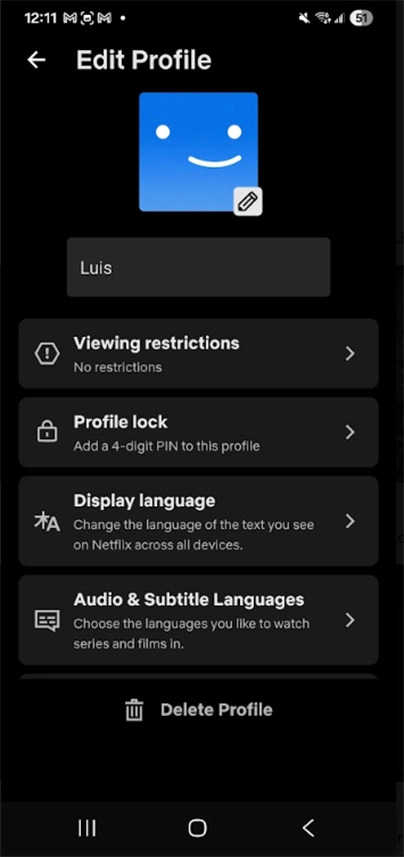
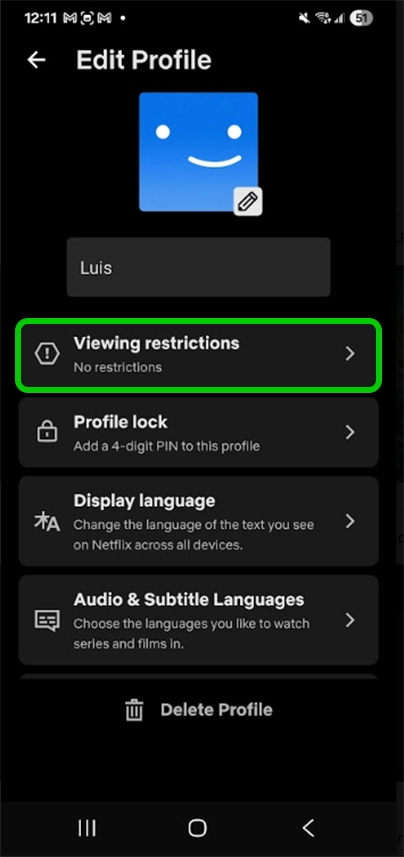
Step 4 – The Edit Profile page allows parents to manage the content access for the child profile selected.
Managing what your child can watch
To set an age rating:
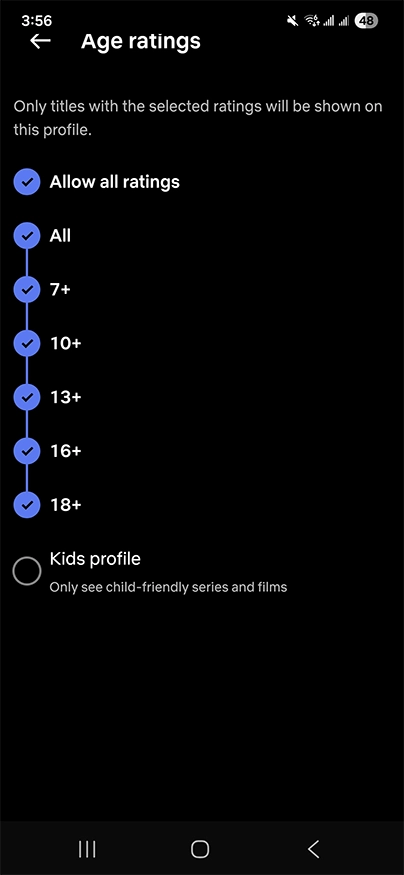
Step 1 – Go to the child’s Edit Profile page via My Profile and select Viewing restrictions, then Age ratings.
Step 2 – Here you can choose which age ratings you are comfortable with your child watching. You can also click the Children’s profile option, which will mean your child will only see child-friendly content.
To block specific titles:
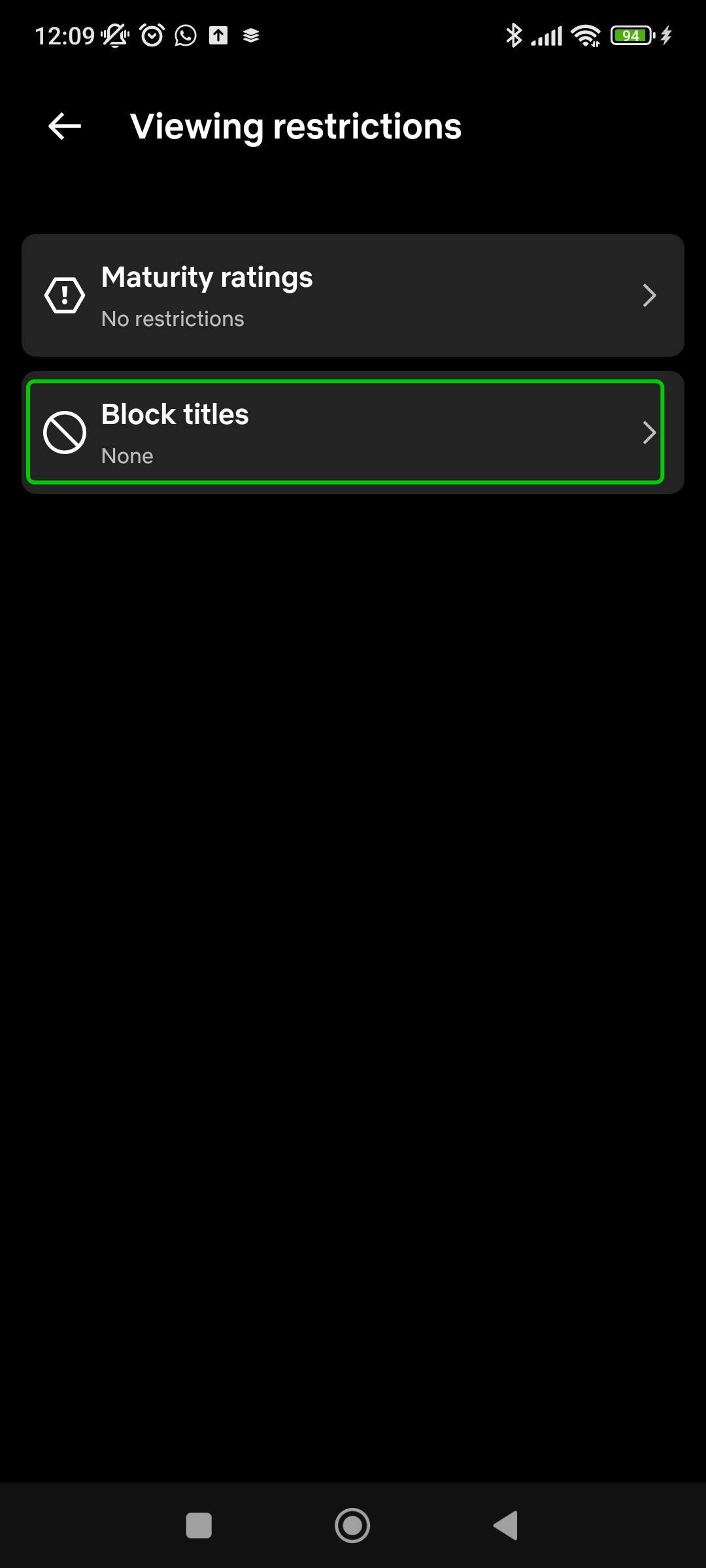
Step 1 – From the Viewing restrictions menu, click Block titles
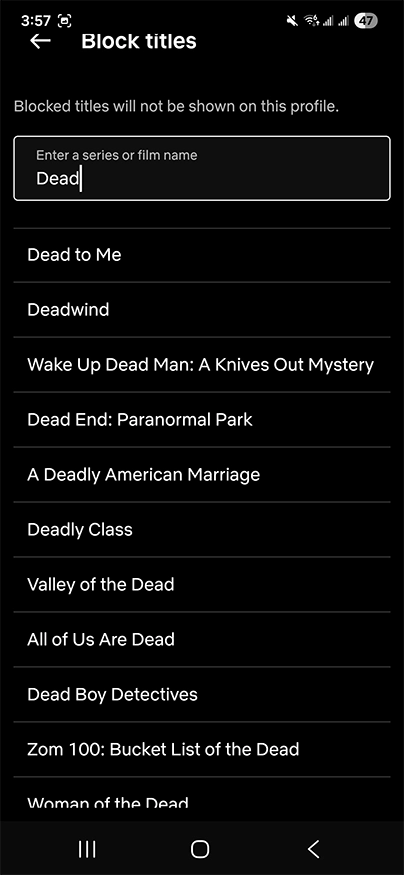
Step 2 – In the box, type in the title of any TV show or movie you do not want your child to access, and then click the title you want to block from the dropdown.
Set a PIN
To set a PIN:
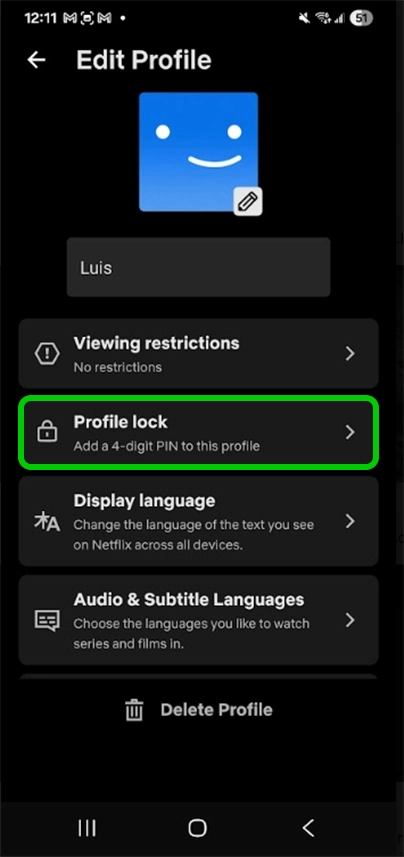
Step 1 – From your child’s Edit Profile page, select Profile
lock.
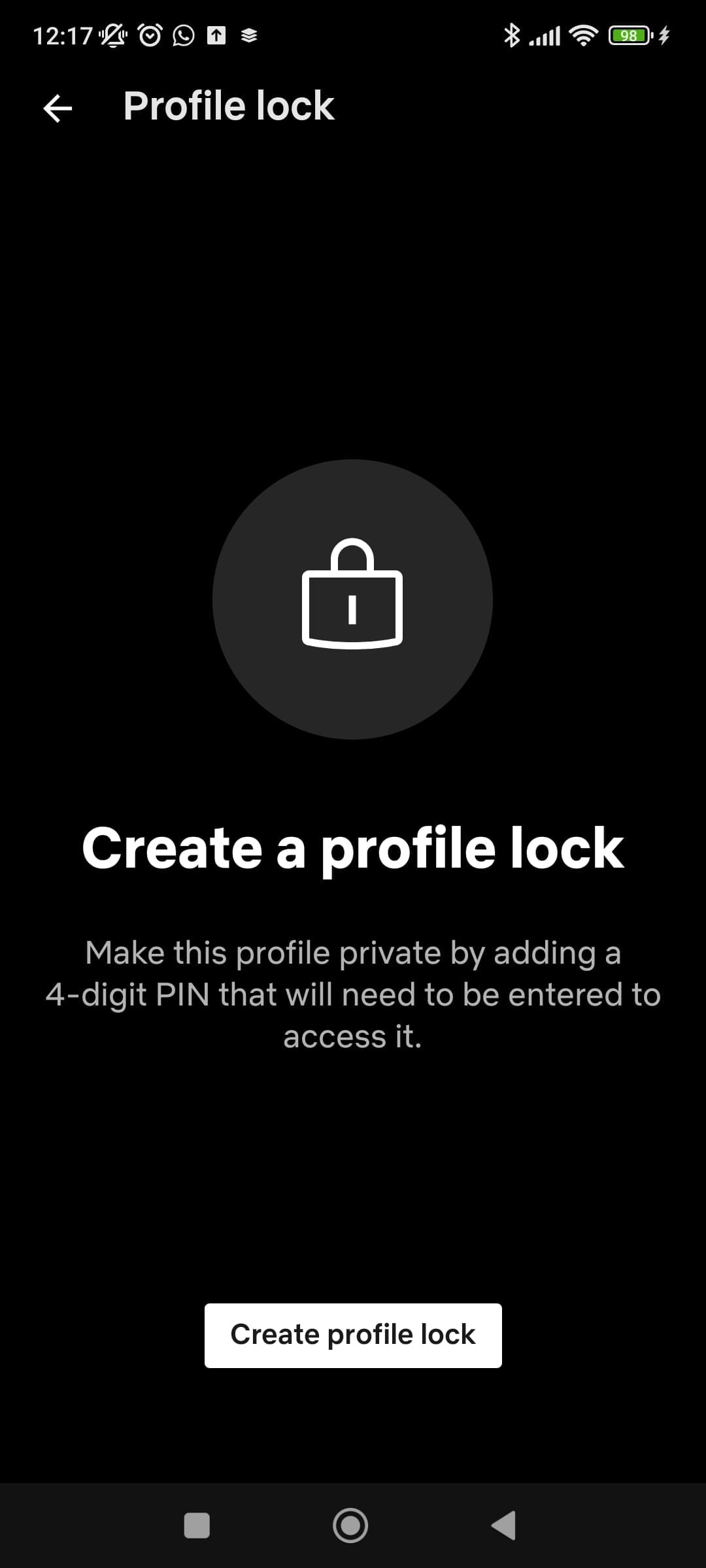
Step 2 – Click the Create profile lock button.
Step 3 – Type in your password and press Enter.

Step 4 – Choose a 4-digit PIN and click Save.

This PIN will now be required to access this account.
Turning off autoplay
Netflix’s autoplay feature, which automatically plays the next episode after watching an episode of a TV show, can cause people to watch Netflix for longer than they had originally planned. This feature can be turned off to help balance screen time.
To turn off autoplay:
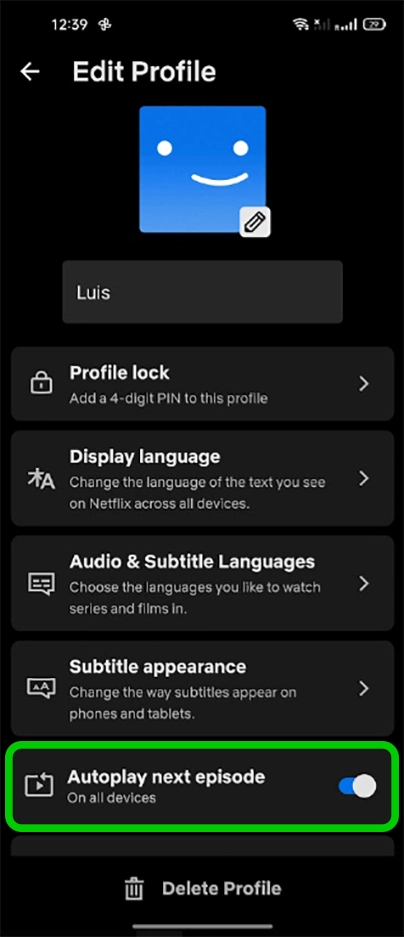
Step 1 – Step 1 – Go to your child’s Edit Profile page and scroll down to Autoplay next episode. Disable the toggle.
Turning off the autoplay preview can also help remove distraction as you scroll through the feed.
How to set parental controls on Netflix

View more guides
Discover more parental controls to manage children’s devices, apps and platforms for safer online experiences.