

Video guide
How to set parental controls on Discord
You will need access to your child’s Discord app and account. You will also need your own Discord account to set up Family Centre.
Discord Family Centre
Discord has a Family Centre feature that allows parents to link their Discord profile to their teen’s account. Linking profiles will let parents view and manage their child’s activity on Discord.
To set up Family Centre:
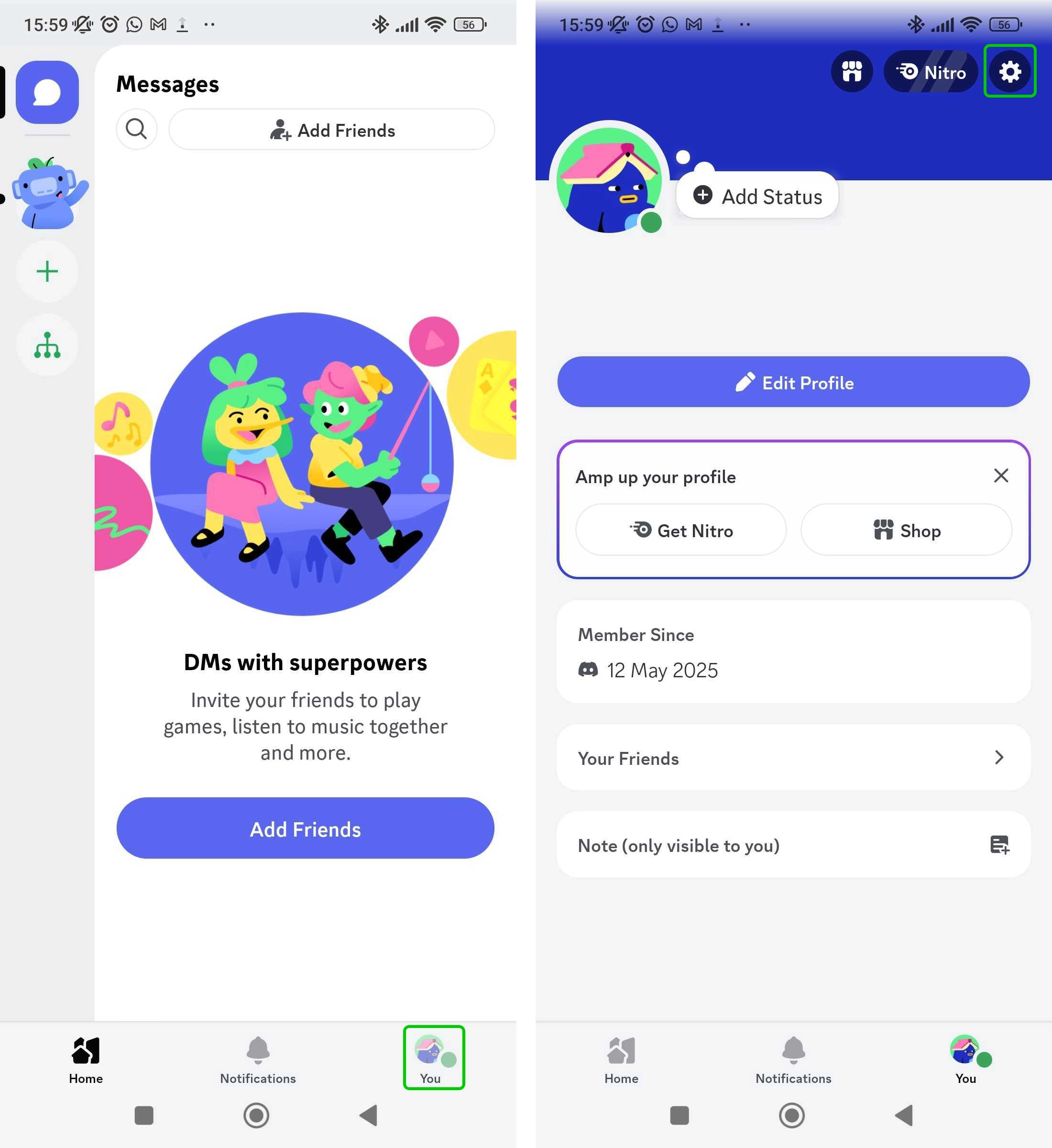
Step 1 – From the Discord Home Screen, click You in the bottom right corner.
Step 2 – On your profile page, click the gear icon in the top right of the screen.
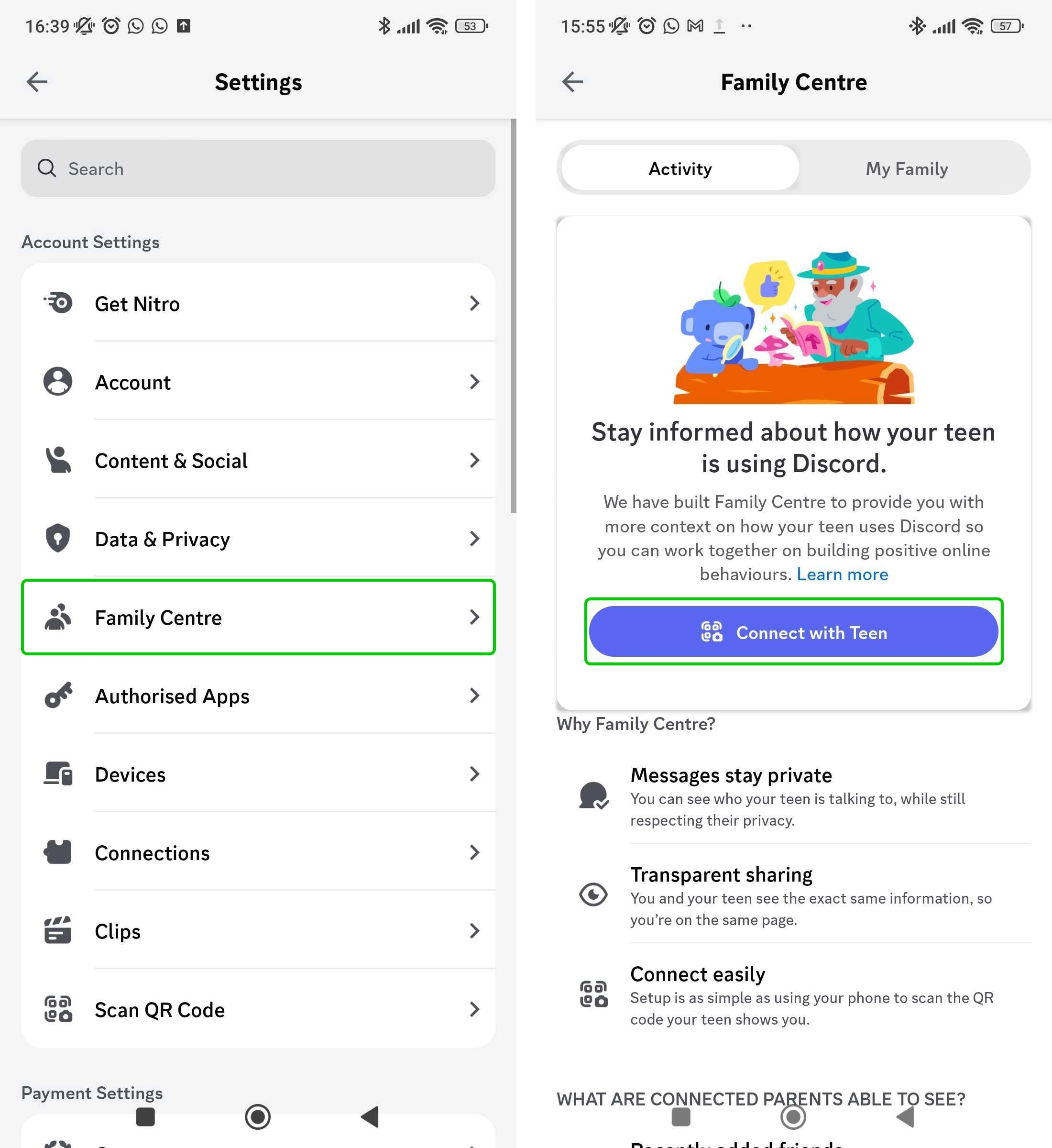
Step 3 – In the Settings, select Family Centre.
Step 4 – On the Family Centre screen, click Connect with Teen.
Step 5 – You will now have to scan a QR code on your child’s screen. This will send your child a request to link your profiles. Once your child accepts, Family Centre will be set up.
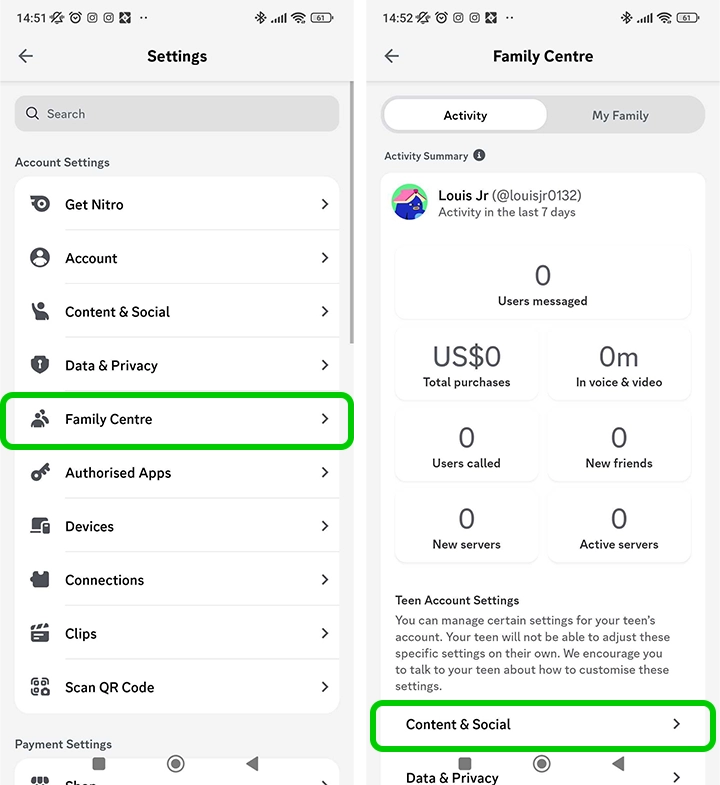
Step 6 – Now that Family Centre is set up, you can view how many users your child has messaged or called, any new friends and how many servers they are in.

Editing content and social features
In Family Centre you can edit the messaging and content settings on your child’s account.
To set up Family Centre:
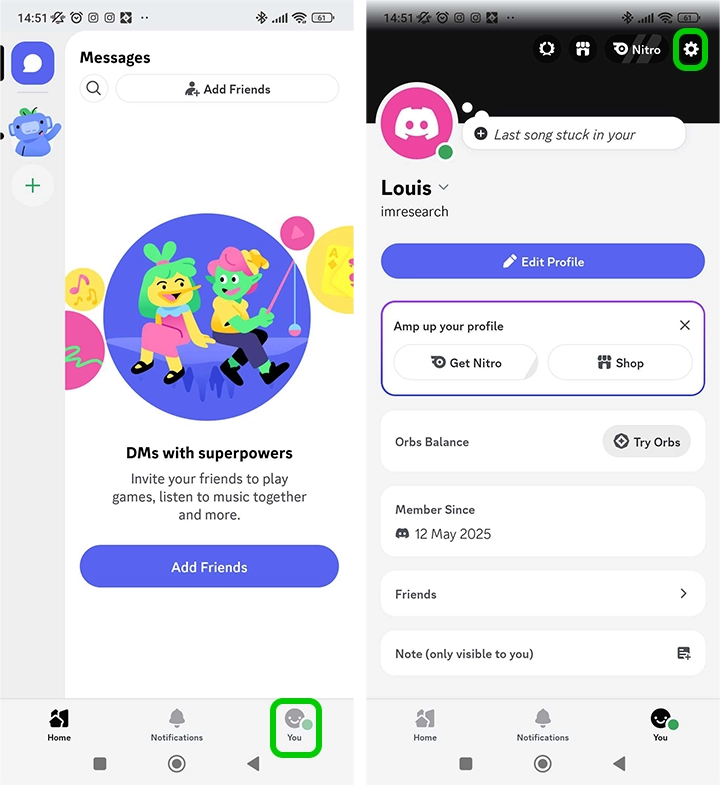
Step 1 – From the Discord Home Screen, click You in the bottom right corner.
Step 2 – On your profile page, click the gear icon in the top right of the screen.
Step 3 – In the Settings, select Family Centre.
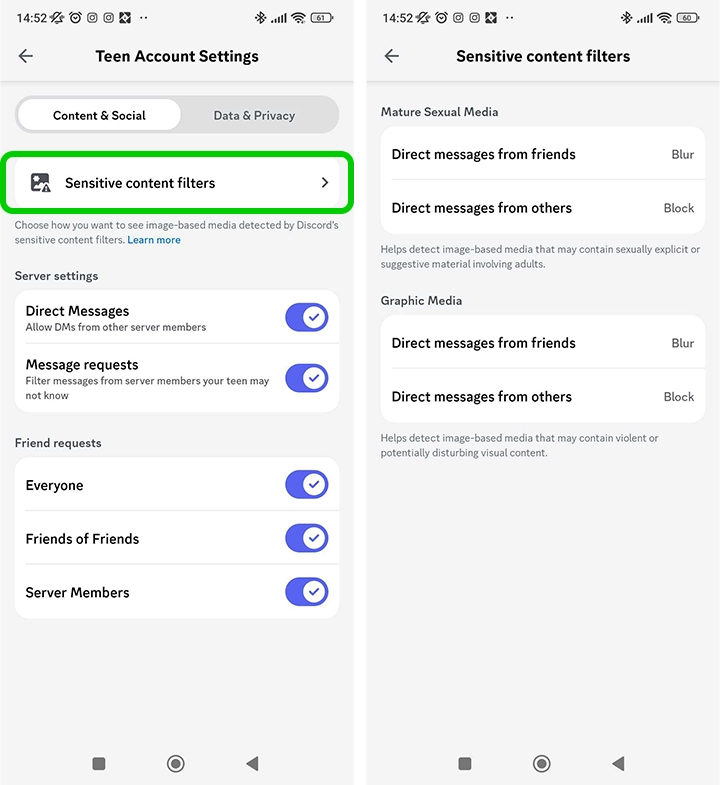
Step 4 – On the Family Centre screen, click Content & Social.
Step 5 – In the first page you can edit social settings using the toggles on the right. To set content filters, select Sensitive content filters.
Step 6 – Inside the Sensitive content filters, you can decide to blur or block sexual and graphic media by clicking on each option.
Filtering for spam
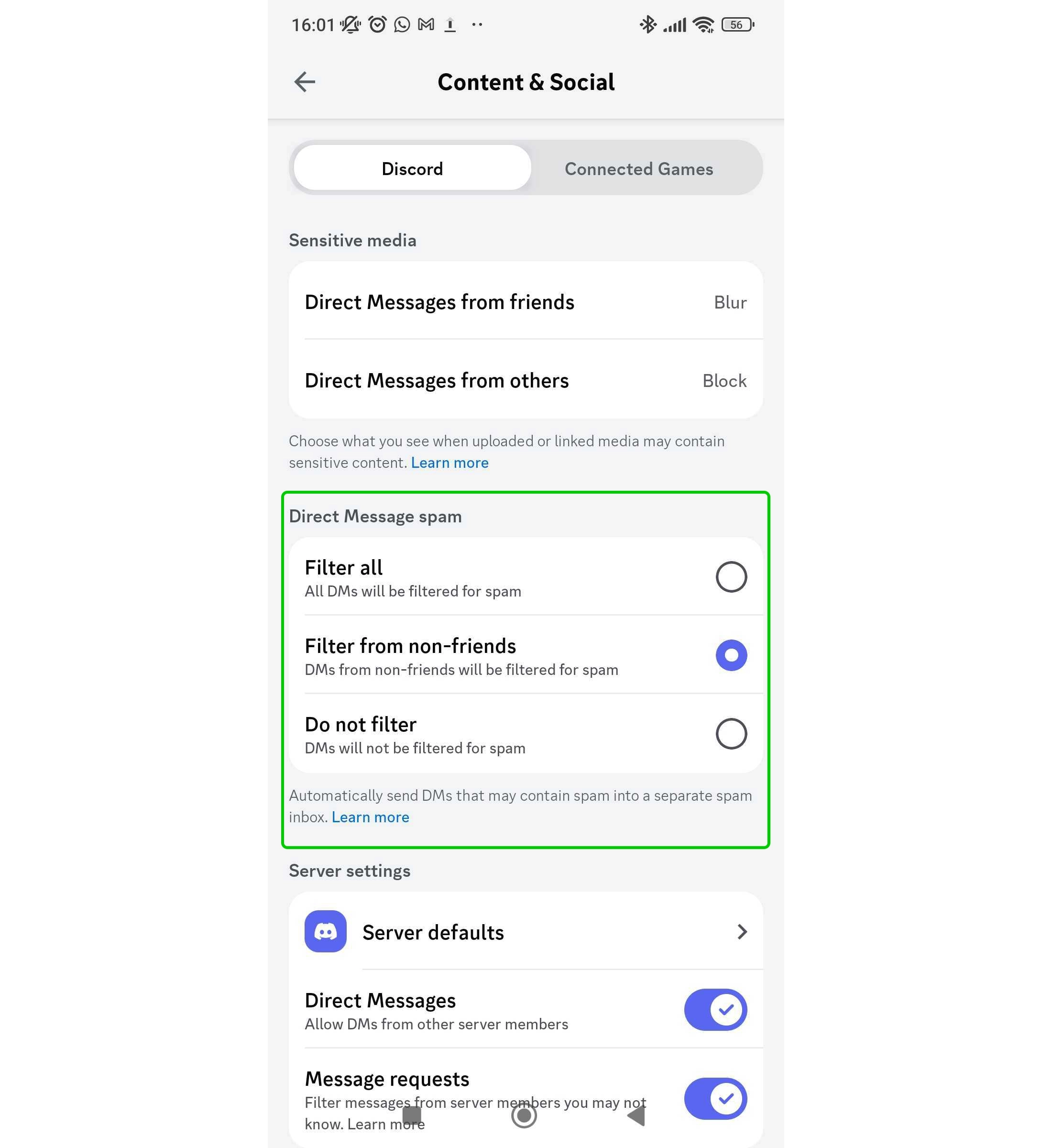
You can choose whether to filter your messages for spam on Discord. This is done through the settings on your child’s account, not through Family Centre. Filtering messages for spam will prevent your child from receiving unsolicited bulk messaging or advertising.
To filter spam:
Step 1 – On the Content & Social screen, navigate to the Direct Message spam section.
Step 2 – Choose to either Filter all messages or Filter from non-friends. This will prevent strangers from spam messaging your child.
Messages that are identified as containing spam will be automatically sent to a separate spam inbox.
How to set parental controls on Discord
View more guides
Discover more parental controls to manage children’s devices, apps and platforms for safer online experiences.