

What you need to know
- Minimum age rating – 13+ (with parent permission)
- Available on – iOS, Android, browser
- Main features – AI-generation, chatting with AI, human-like responses.

How to set parental controls on ChatGPT
Setting up parental controls on your teen’s ChatGPT account can give them a safer experience with the chatbot. However, it must be noted that children can use the chatbot without logging in, which will allow them to avoid any controls you have set.
To set up parental controls, both you and your child must have ChatGPT accounts.
How to link a parent account to a teen account
You must first link your ChatGPT account to your child’s account before you can begin setting parental controls.
A teen can only be linked to one parent or guardian at a time. However, a parent can link multiple teen accounts to their own.
To link ChatGPT accounts:
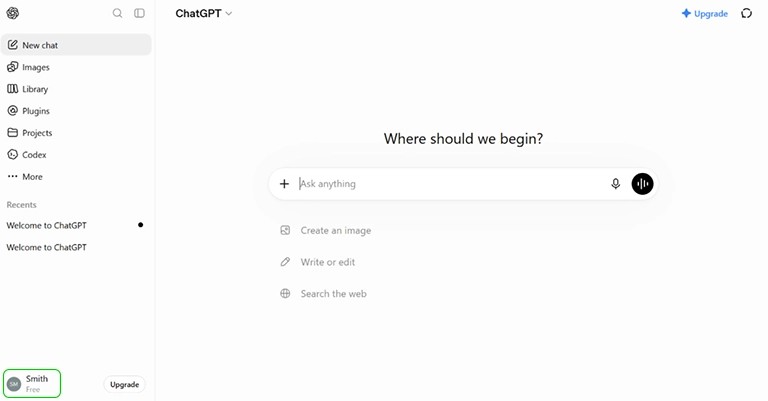
Step 1 – Open ChatGPT while logged into your account and click your profile picture in the bottom left corner.
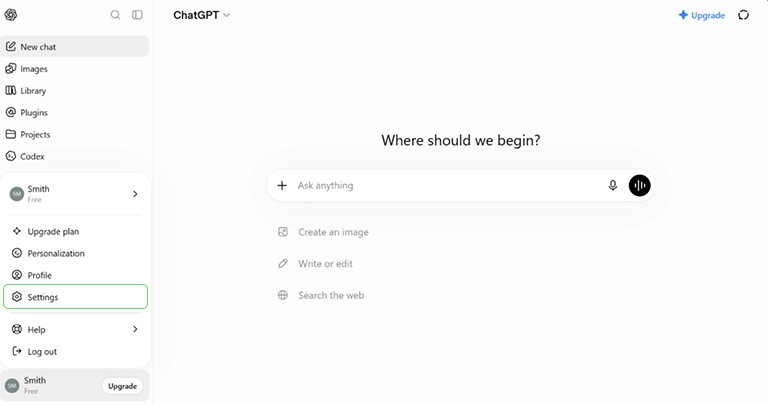
Step 2 – Select Settings.
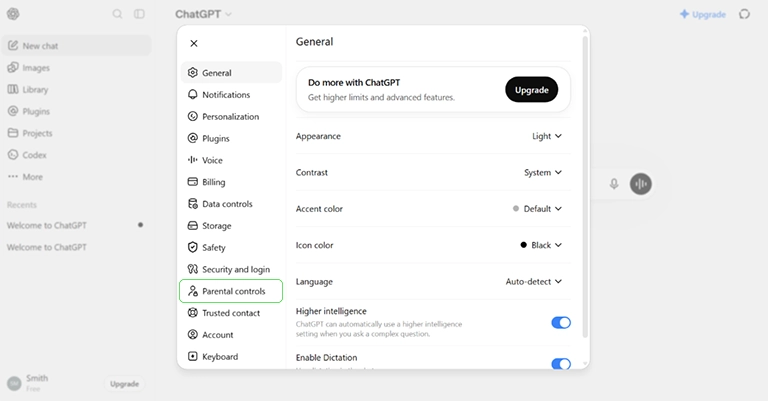
Step 3 – Select Parental controls from the side menu.
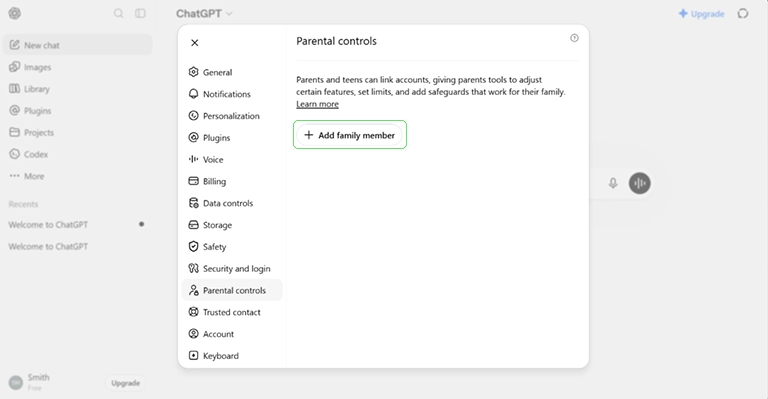
Step 4 – Inside the Parental controls menu, click Add family member.
Step 5 – Enter the email address linked to your child’s ChatGPT account, then select My child and click Send.

Once your child accepts your email invite and signs into ChatGPT, your accounts will be linked and you can begin managing parental controls.
Schedule Quiet hours
Once your accounts are linked, you can schedule downtime when ChatGPT can’t be used.
To set Quiet hours:
Step 1 – Inside the Parental controls menu, select your child’s account.
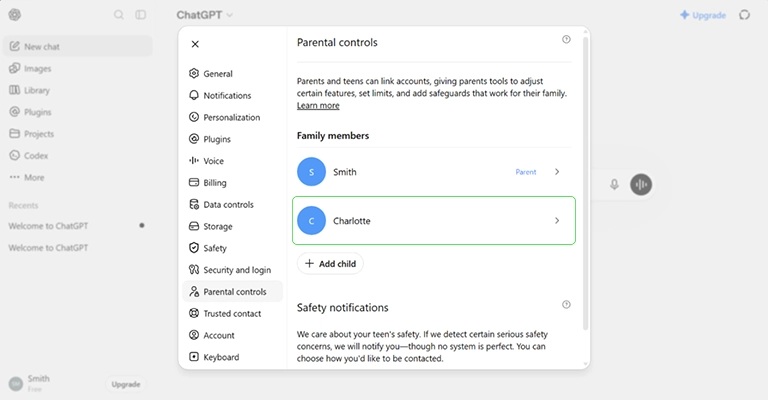
Step 2 – Select Quiet hours.
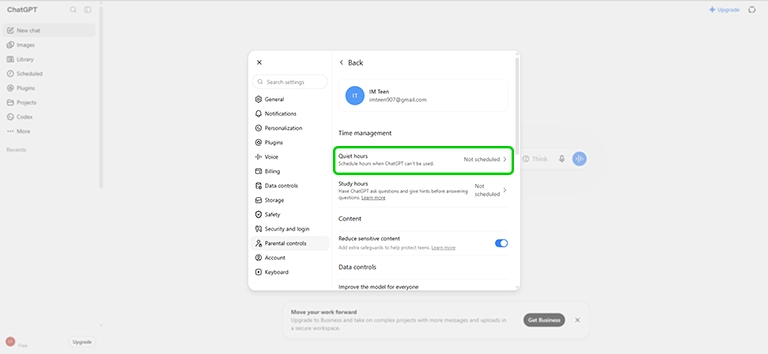
Step 3 – Inside Quiet hours, switch on the toggle to enable Quiet hours.
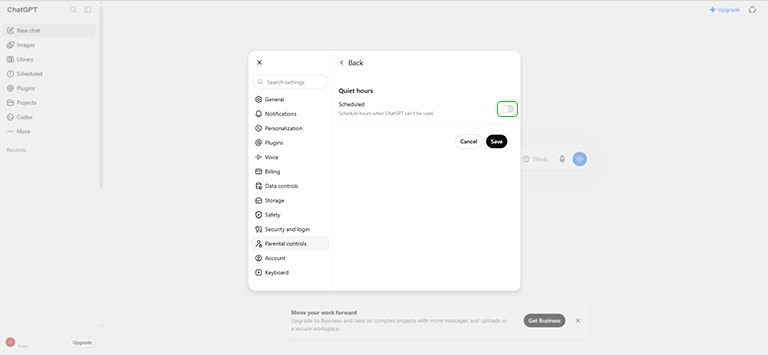
Step 4 – Choose what time Quiet hours begins and when it ends, then click Days.
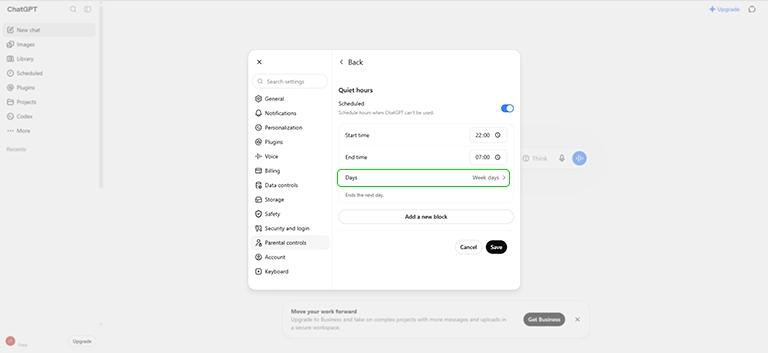
Step 5 – Select the days you wish to have Quiet hours active, then click Done.
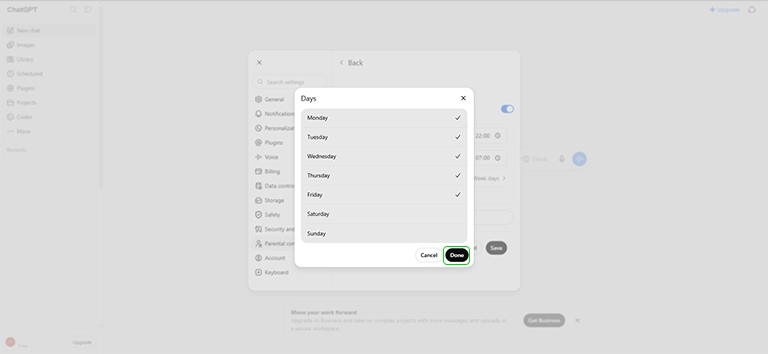
Set up Study Mode
Setting up Study Mode can help children use ChatGPT for schoolwork. ChatGPT can ask questions and provide hints before giving an answer, giving children the opportunity to work through problems and figure out the answer themselves.
To set up Study hours:
Step 1 – Inside the Parental controls menu, select Study hours.
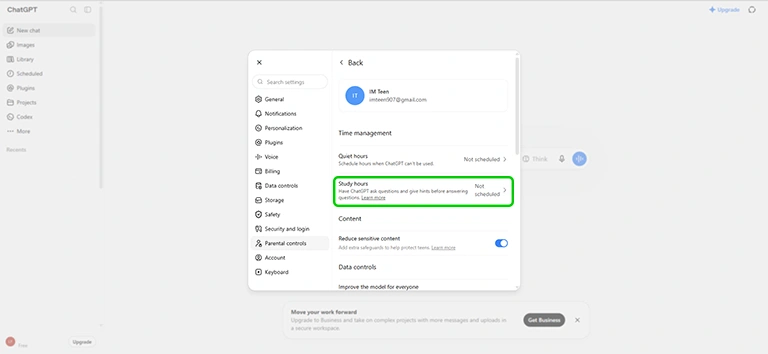
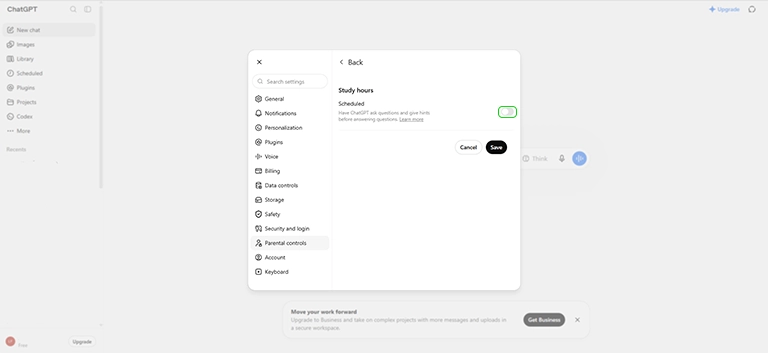
Step 2 – Switch on the toggle to enable Study Mode.
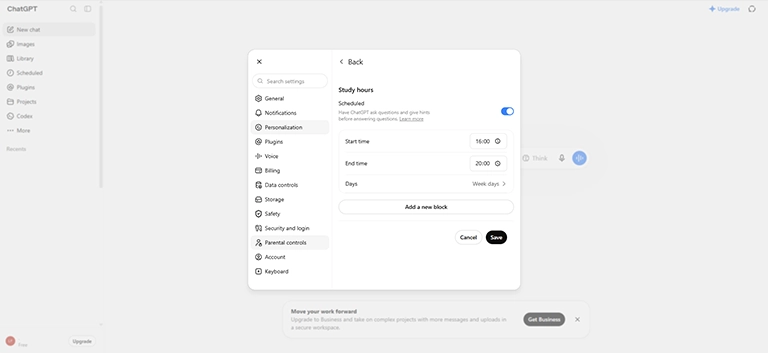
Step 3 – Set which times and days Study Mode will be active, then click Save to confirm the schedule.
Setting controls
Once your accounts are linked, you can begin setting controls on your child’s account.
To set controls:
Step 1 – Inside the Parental controls menu, select your child’s account.
Step 2 – Inside the account setting you can enable or disable toggles to monitor your child’s experience with ChatGPT. This includes safety notifications, which alert you if the system detects signs of serious safety risk, such as indications of self-harm or an account being deactivated for violent threats or acts of violence.
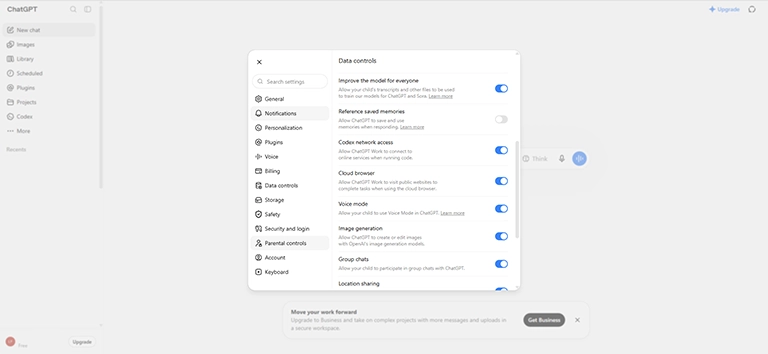
Step 3 – Reduce sensitive content adds extra safeguards to help ChatGPT reduce sensitive, explicit, graphic, or otherwise age-inappropriate responses. For ChatGPT teen accounts Reduce sensitive content is on by default. This helps provide a more age-appropriate experience for teens.
If they’ve been using the chatbot for an extended period ChatGPT also sends your child break reminders.
These settings will be the default for every new chat your child starts. While your accounts are linked, your child won’t be able to change this setting themselves.
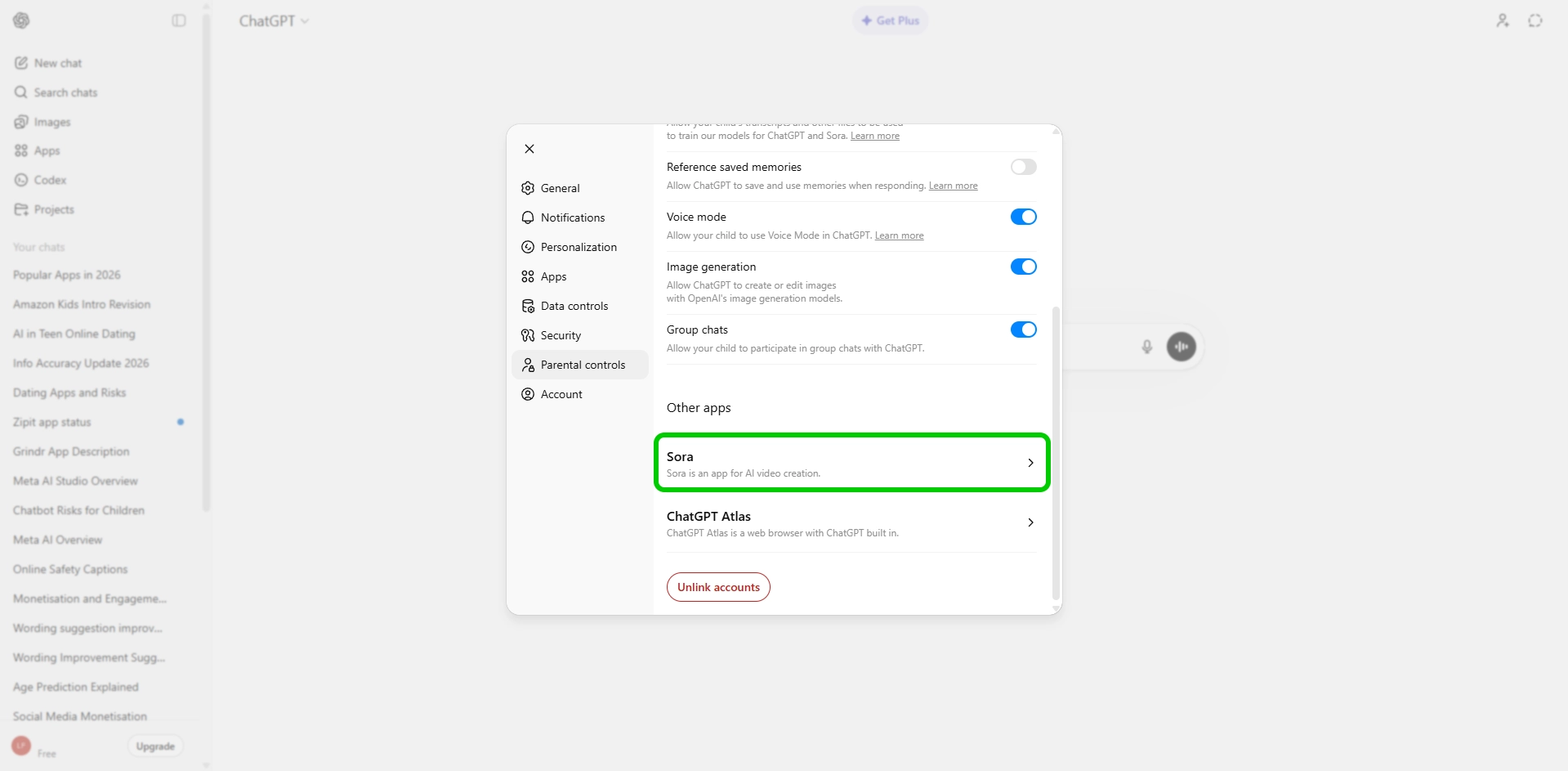
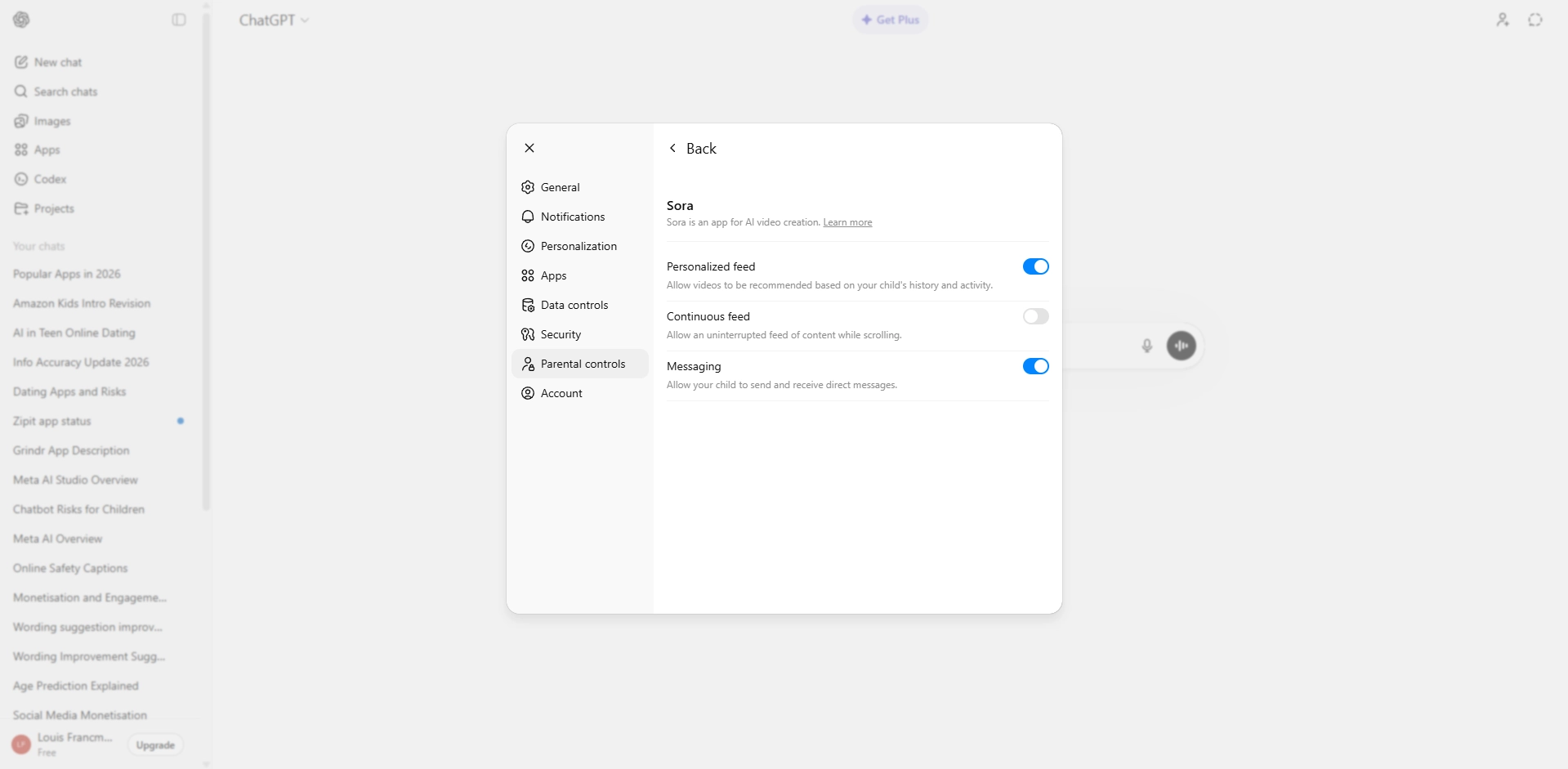
Step 4 – In the settings you can disable features such as continuous feed and messaging by turning off the toggles.
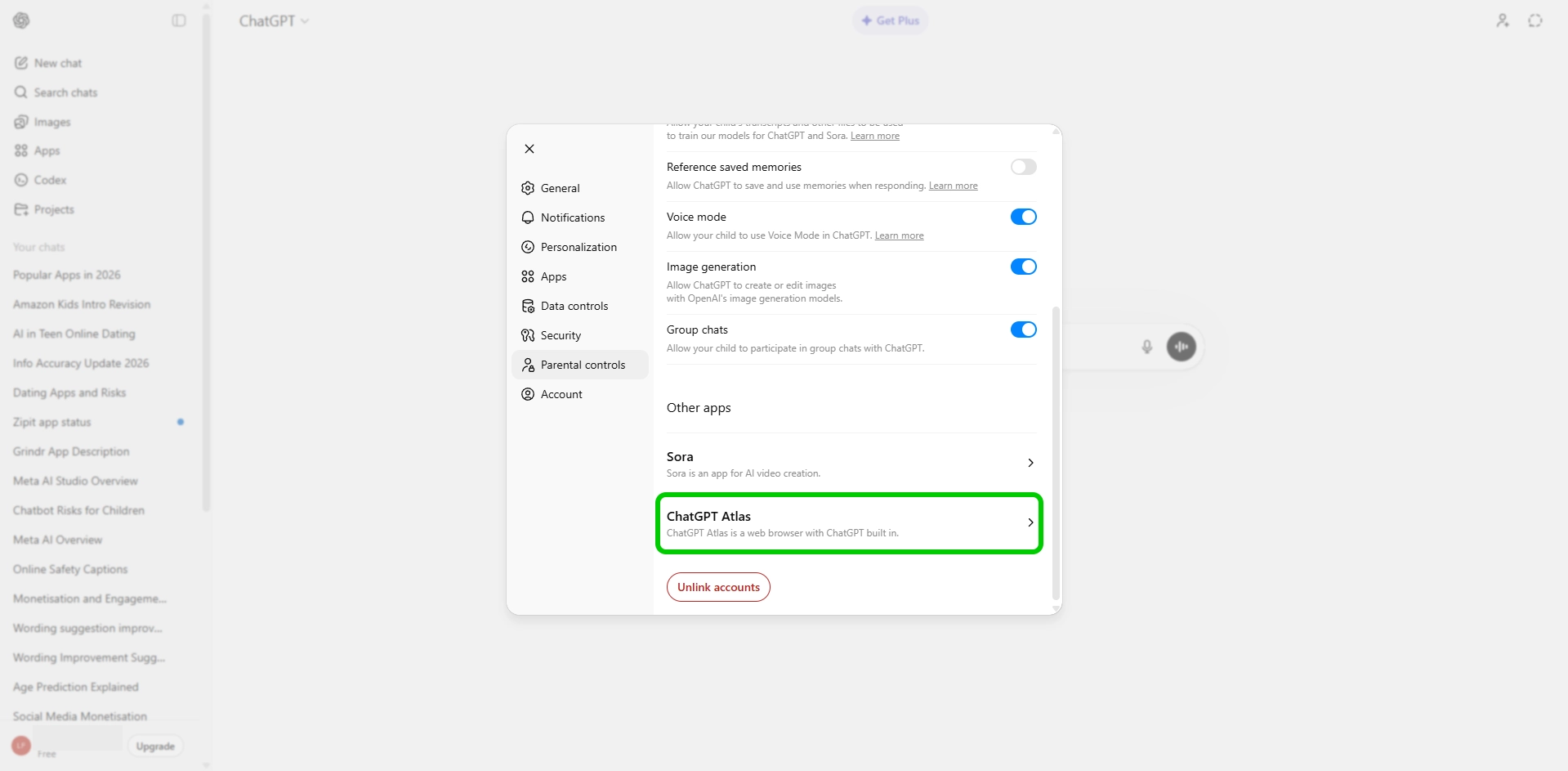
Step 5 – In the Parental control menu, you can also set controls on ChatGPT Atlas, the browser developed by OpenAI.
Once your accounts are linked, your child cannot change any of the parent-managed settings without permission.