
Video guide
How to turn on parental controls with BT WiFi
 Close video
How to set parental controls on BT broadband
You will need access to the My BT account associated with your broadband (username/email and password). You can login to My BT here.
How to activate BT Broadband parental controls
How to activate BT Broadband parental controls
Once you activate parental controls on BT Broadband, you can manage content, block websites and even set certain screen time restrictions. If you need help, you can contact BT here.
To turn on BT parental controls:
Step 1 – Login to MyBT with the username or email you used to sign up to BT Broadband.
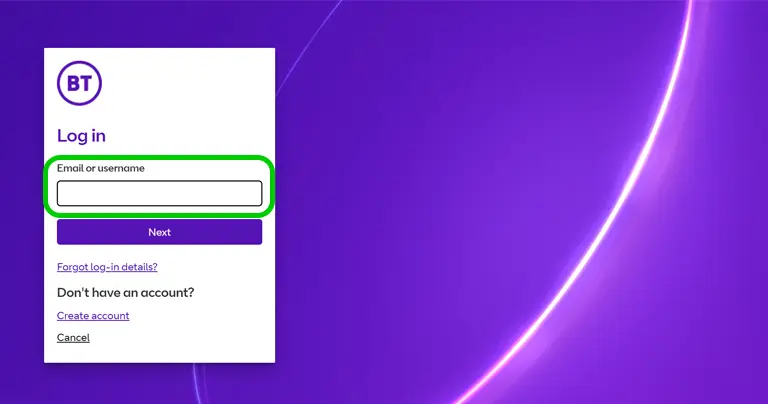
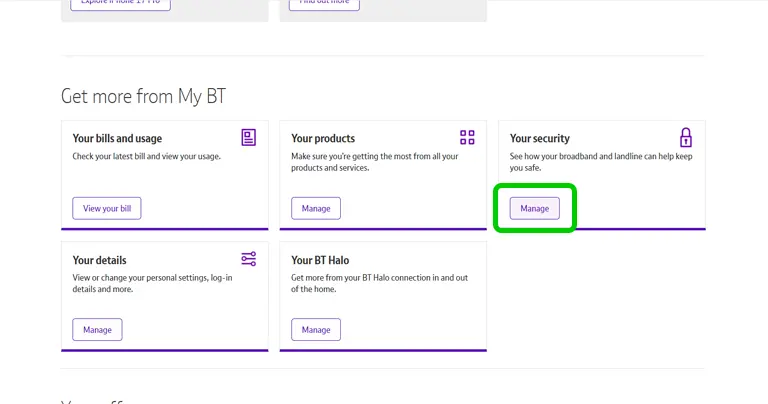
Step 2 – Scroll down to Get more from My BT and select ‘Manage’ under Your security.
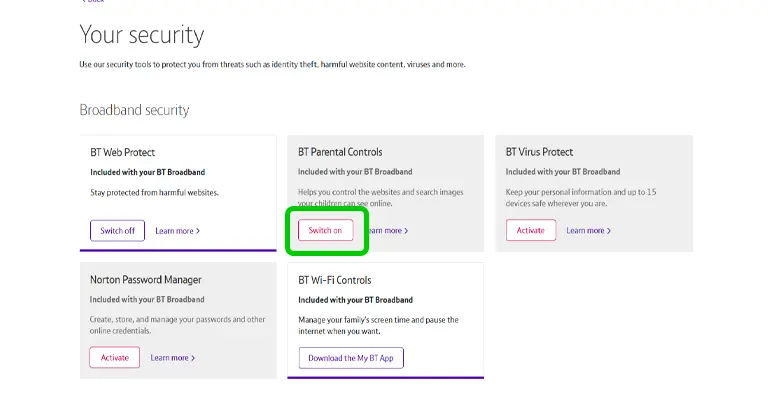
Step 3 – Under Broadband security, select ‘Switch on’ within the BT Parental Controls card.
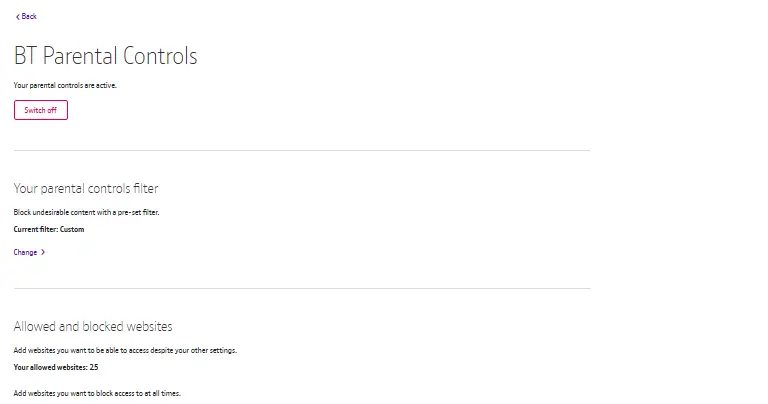
Step 4 – You will now see a range of features which you can customise. This is where you can also turn off parental controls if needed.
Where to set broadband filters
Where to set broadband filters
BT Broadband lets you set content filters across a range of categories. That means any device connected to your home WiFi will have these same content filters active as all other connected devices.
You can choose from pre-set filters or create a custom filter. This will apply primarily to websites your household can visit.
To set your filters:
Step 1 – From the BT Parental Controls menu, scroll to ‘Your parental controls filter’ and select ‘Change’.
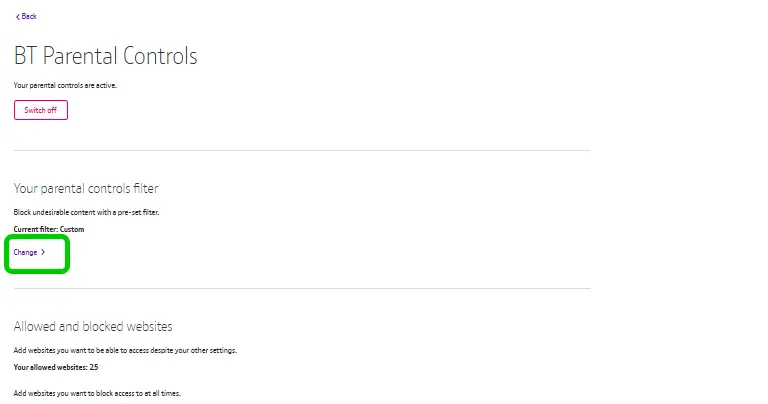
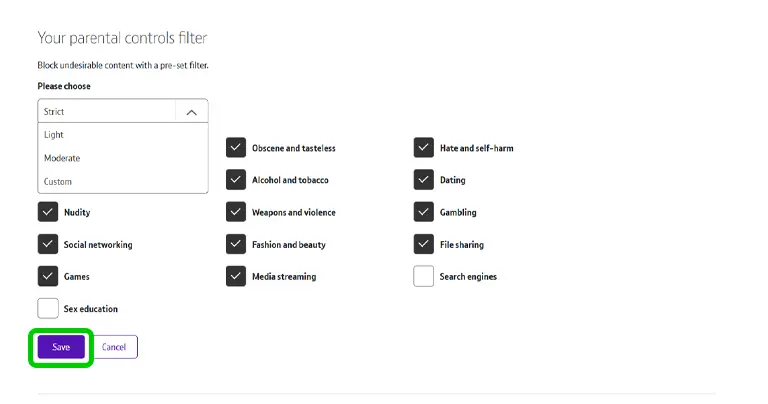
Step 2 – Choose from pre-set filters (Light or Moderate), or choose Custom and select which categories you don’t want to be accessible on devices connected to your broadband. Consider age, hobbies and schoolwork when setting these filters.
Save when finished.
How to block specific websites on BT
How to block specific websites on BT
Along with content filters, you can block specific websites. Use this if you allow access to a certain category but want to block specific websites within the category. You can also block a category but select certain websites from that category to allow.
To block or allow specific website access:
Step 1 – From the BT Parental Controls menu, scroll to ‘Allowed and blocked websites’ and select ‘Change’.

Step 2 – On the left, add websites which you’d like to allow. For example, if you block your family from accessing content within the ‘Sex education’ category overall but do want to allow one specific website, you can add that here.
On the right, add websites which you’d like to block. For example, you might allow the Games category but want to block access to specific ad-heavy websites, and you can add those here.
Save when you’re done.

💡Top tip
It’s easier to block a whole category and add allowed websites but make sure you consider everyone who is connected to the WiFi – from adults to young children. These settings will impact everyone.
Setting WiFi timers on BT Broadband
Setting WiFi timers on BT Broadband
With BT Broadband parental controls, you can set timers for when you want the parental control filters off. For example, if your child visits another parent at the weekends, you might wish to have parental controls turn off automatically during this time.
You can also turn on additional filters which can block distractions from social media, chat and games at specific times. This is to help your child focus on their homework while using the WiFi.
To set up time limits:
Step 1 – From the BT Parental Controls menu, scroll to ‘Your parental controls timings’ and select ‘Change’.
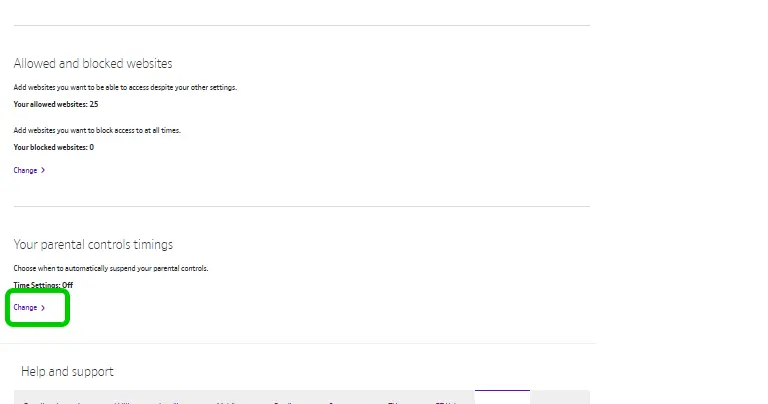
Step 2 – Choose which days you’d like parental controls to be turned off and which days you’d like added restrictions for homework. Save when you’re finished.

💡Top tip
If setting up times for your parental controls to turn off, make sure you set a reminder on your own device for when they’re turning off. This will help you remember to turn them on again if plans change and your child is still on the home WiFi.
How to set parental controls on BT broadband
View more guides
Discover more parental controls to manage children’s devices, apps and platforms for safer online experiences.