

Quick advice
Get your child’s Android smartphone set up safe quickly with these top controls.
Activate parental controls
Turn on Android’s built-in parental controls to set screen time limits and more, protected with a PIN.
Set daily use limits
Help your child limit how much time they spend on their phone by setting daily time limits.
Set downtime for sleep
Make sure your child gets a full night’s rest by turning on automatic locks at night.
Video guide
Android has released new parental controls!
To set it up on your child’s smartphone, first go to the ‘Settings’ and start typing ‘parent’. When you see ‘Parental controls’, tap it. Once in Parental controls, tap the toggle to turn them on.
Enter a parent PIN that only YOU know… and a parent email for if you need to recover the PIN.
You’ll now be able to set daily screen time limits for how long your child can spend on their phone overall, app limits for how much time your child can spend in specific apps, and downtime for when you want your child to focus on sleep instead of scrolling.
You can also restrict web content within the Google Chrome and Google apps. For anything else, you’ll need to explore those individual apps.
Let us know how you get on. Explore more step-by-step parental control guides at internetmatters.org/parental-controls.
 Close video
How to set parental controls on Android
Smartphones with the Android 16 OS (or newer) have built-in parental controls. If you do not see the controls, go to device settings and search ‘update’ to bring your child’s device up to date.
You will need access to your child’s device to set and alter these controls. For settings you can control on your own device, download and use Google Family Link (best for under-13s).
How to activate parental controls on Android
How to activate parental controls on Android
Android released built-in parental controls in December 2025. Your child’s device will need the latest system update for these settings to appear separately from Digital Wellbeing.
Once you turn on parental controls, you can PIN-protect settings for screen time, content and more on your child’s device.
To turn on parental controls:
Step 1 – On your child’s Android phone, swipe down from the top of the screen twice and tap the gear icon that appears at the bottom of the screen.
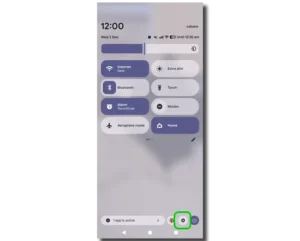
Step 2 – Start typing ‘parental controls’ and click on the Parental controls option.
Note: If you only see Digital Wellbeing and parental controls, you will need to update your child’s operating system. Search ‘update’ instead and then try these steps again.
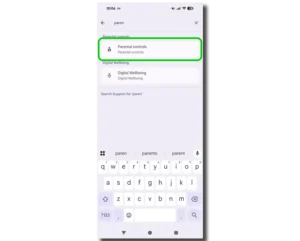
Step 3 – Tap the toggle next to ‘Controls for this phone’ so that you see a tick. Follow the instructions to set up a PIN and recovery email (your parent email).
You will now be able to edit parental controls on your child’s Android phone.
Note: If your child has multiple profiles on their smartphone, you might need to delete them to set these controls. You will receive a notification that disallows parental controls if this is the case.

How to set screen time limits
How to set screen time limits
You can set daily screen time limits on Android phones within the ‘Parental controls’ settings. This is the total time your child can use their device each day. You may wish to consider more allowance at the weekends, based on your child’s interests and needs.
You can also set limits for specific apps to help your child balance how they spend their device time. Downtime limits can also lock the device during important hours (such as when they should be sleeping).
Choose a section to jump to, or follow each step below:
To set daily limits:
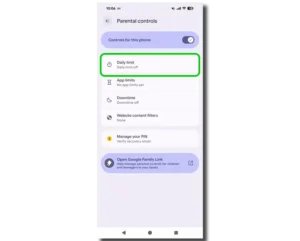
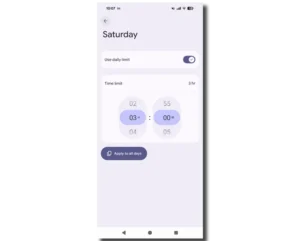
Step 1 – Within the Android Parental controls settings on your child’s phone, tap Daily limit. You may need to re-enter your parent PIN, so have it handy.
Step 2 – Next to Use daily limit, tap the toggle so the tick appears. Enter PIN if prompted.
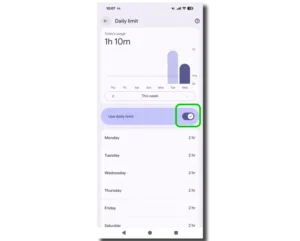
Step 3 – Either leave the default of 2 hours or customise to your child’s needs. You can also set a different limit for each day if necessary.
Your child’s device will now lock when they reach the time limit you’ve set.
💡Top tip
If you are trying to get your child to spend less time on their phone, consider how much time they currently spend on it and adjust accordingly. For example, if they spend 4 hours a day, limiting them to 1 hour could cause meltdowns. Try 3 hours, then work towards 2 hours, etc. gradually.
To set screen time limits on apps:
Step 1 – From the Parental controls menu on your child’s Android phone, select App limits.
Here, you will see a list of apps installed on your child’s device along with how long they’ve spent to help guide the limits you set.
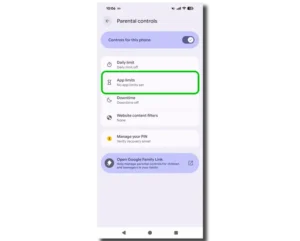
Step 2 – Select each app you’d like to manage. Untick the toggle next to Allow app on any app you don’t want them accessing.
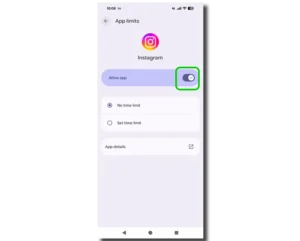
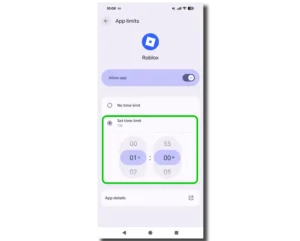
Step 3 – Tap Set time limit to customise how much time your child can spend on the app.
Remember that this limit will be within the over all daily limit you set. So, if you’ve set 2 hours for the daily limit, think about how an app might contribute to that and adjust accordingly.
💡Top tip
Before setting limits, consider what your child uses the app for and whether the limit you set is realistic. Consider discussing with them how long things take. For example, starting and finishing a game on Roblox will take a lot more time and effort than opening up TikTok and scrolling.
To set downtime:
Step 1 – From the Parental controls menu on your child’s Android phone, select Downtime.
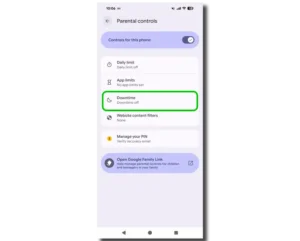
Step 2 – Tap the toggle next to Use downtime until you see the tick to turn it on.
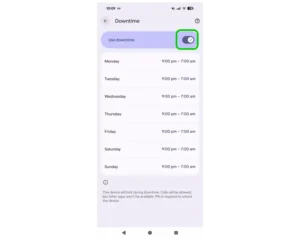
Step 3 – Customise the Downtime hours (or use the default) by day or overall.
Your child’s device will lock during Downtime with only calls allowed. Your parent PIN will be required to access the device during this time.
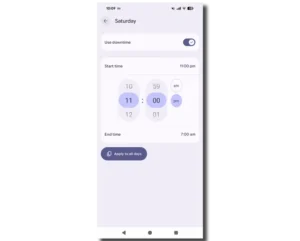
💡Top tip
Consider your child’s age and needs when setting this limit and consider the ‘winding down time’ before bed where you might want the device off. It’s also a good idea to think about device use on Friday and Saturday nights where you might be okay with your child staying up a little later.
How to filter inappropriate content
How to filter inappropriate content
Android parental controls let you restrict web content on Google apps.
If you’d like to restrict content within other apps, either use the App limits setting so your child can’t access those apps, or explore the settings available within each app. You can also find more filters for Google products like YouTube with Google Family Link.
To restrict web content:
Step 1 – From the Parental controls menu on your child’s device, tap Website content filters. You may need to enter your PIN again for these settings, so have it ready.

Step 2 – Next to Block explicit sites, tap the toggle to show the tick. Next to Filter our explicit search results, tap the toggle to show the tick.

Note: These settings only apply to Google Chrome, the Google app and Google Search within these apps. If your child uses a different browser, you will need to apply settings within that browser app or block them from accessing it within App Limits.
Other settings to customise on Android
Other settings to customise on Android
Android parental controls cannot restrict everything, so it’s important to also review the apps your child uses to add additional customisation where needed.
- App downloads: Customise settings within the Play Store
- Spending: Customise settings within the Play Store or individual apps
- Contact from strangers: Customise settings within the individual apps. Find additional parental control guides to help you.
Remember: Parental controls are only a safety net and are not 100% reliable. Regular conversations with your child about online safety and their digital interests will help develop their digital resilience and skills to protect themselves independently.
How to set parental controls on Android

View more guides
Discover more parental controls to manage children’s devices, apps and platforms for safer online experiences.