

Video guide
 Close video
How to set parental controls on the O2 mobile network
You will need your O2 login to make any changes. You can login at o2.co.uk/myvmo2.
Sign into My O2
0
Sign into My O2

Select ‘Age restricted content’
1
Select ‘Age restricted content’
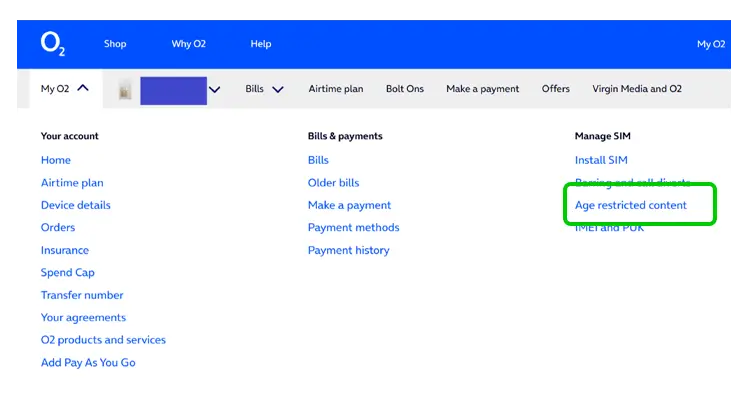
Click on My O2 in the top left of your screen. Under Manage SIM, select Age-restricted content.
Customise content restrictions
2
Customise content restrictions
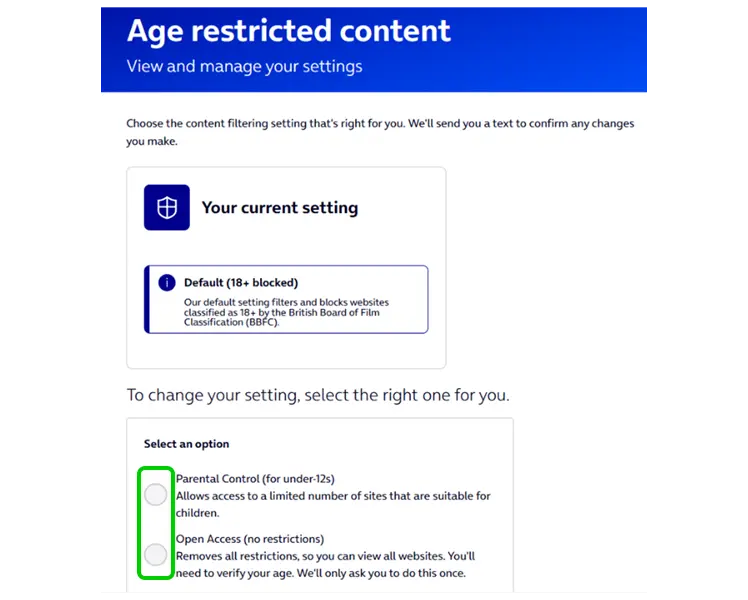
Your child’s O2 mobile network automatically restricts adult content. You can add stricter controls or remove them completely here.
Alternative setup options
3
Alternative setup options
If you struggle to login to My O2 and change the restriction levels that way, you can also visit an O2 store with a valid photo ID or by calling 61818 from the phone you are setting restrictions on.
How to set parental controls on the O2 mobile network

View more guides
Discover more parental controls to manage children’s devices, apps and platforms for safer online experiences.