

How to set parental controls on Microsoft Teams
You will need access to your child’s device and Microsoft Teams account.
Get started
Get started
You can download the app for iOS or Android devices or you can use the web and desktop version. If you already have the app, you can app an existing email address from the Settings menu.
Step 1 – Log in or sign up with your personal account email
Step 2 – Follow the instructions to get started. You’ll be able to choose your name for Teams or if you want to sync your contacts
Where to manage notifications
Where to manage notifications
These settings include how, when, and where your notifications appear, custom settings for channels and chat, appearance and sounds, and turning off specific messages, etc.
To customise your notifications:
Step 1 – Open the menu by selecting your profile icon in the top-left corner.
Step 2 – Tap Notifications.

Step 3 – You can edit the settings to control what you are notified about. To set specific times when notifications are blocked, select Block during quiet hours.
Step 4 – Switch on the toggles to schedule specific hours or days when notifications will be blocked.

Where to manage location
Where to manage location
With Teams, you can share your location. By default, location sharing will be turned on. Disabling it can keep your child’s location safe.
To disable location sharing:
Step 1 – Open the menu by selecting your profile icon in the top-left corner.
Step 2 – Tap Settings.
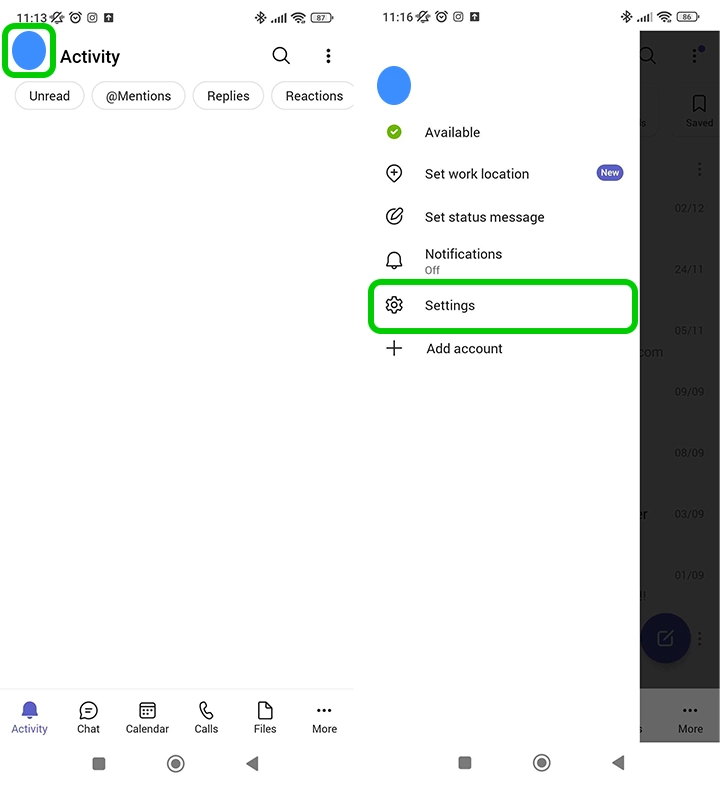
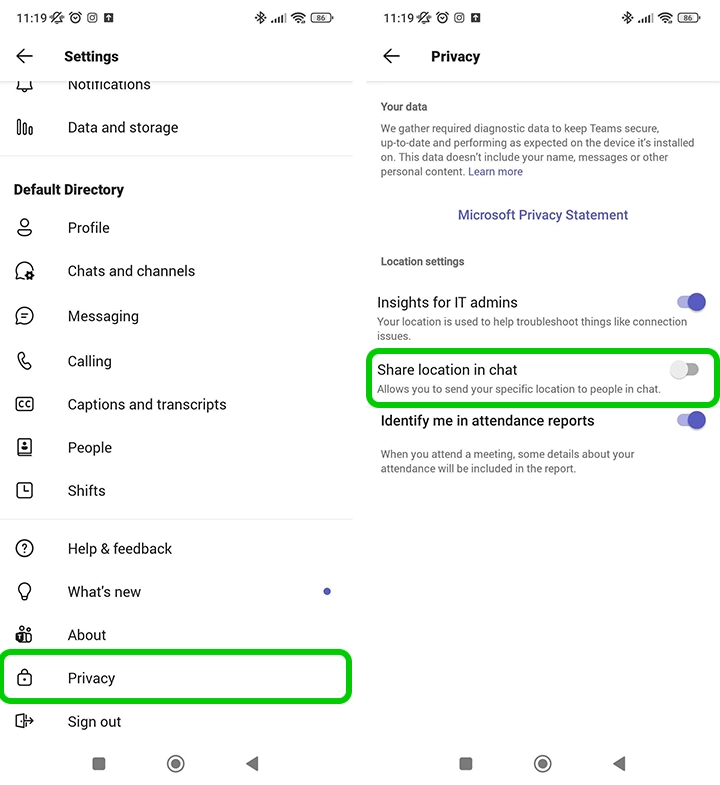
Step 3 – Scroll down and select Privacy.
Step 4 – Toggle off Share location in chat.
Other users will no longer be able to view your child’s specific location.
Set up Safe
Set up Safe
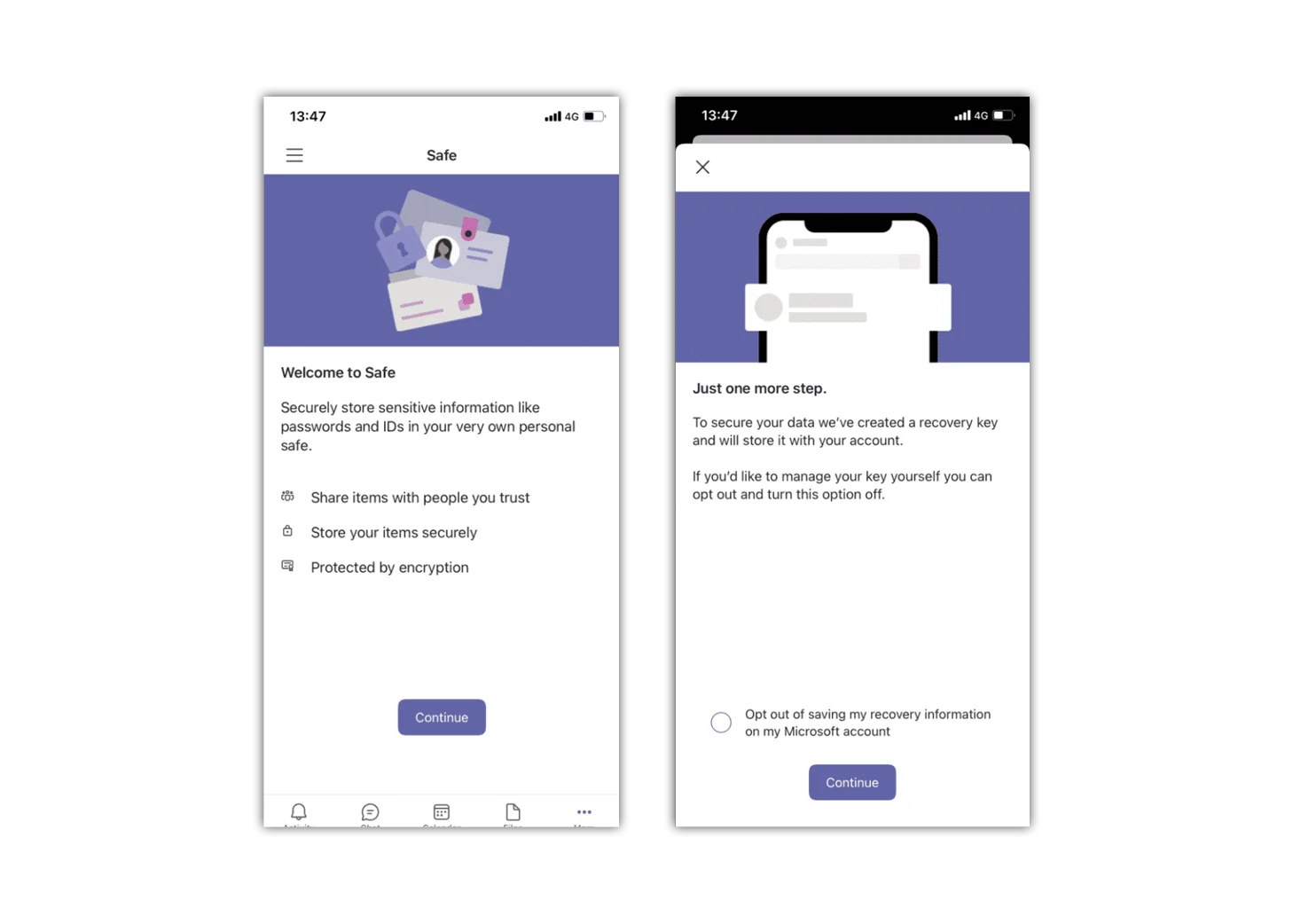
In Safe, you can store your valuable and sensitive information across any of your devices.
To set up Safe:
Step 1 – Tap the menu which is located in the top-left-hand corner
Step 2 – Tap “Settings” and tap “Safe”
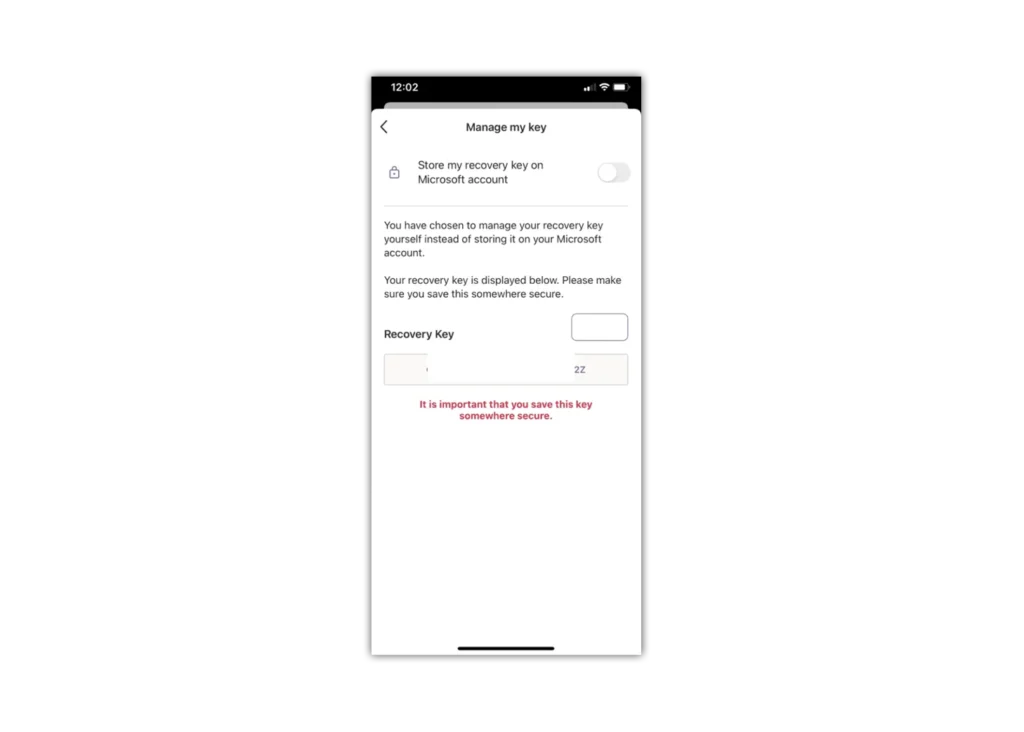
If you want to manage your own master key, select the Opt out of saving my recovery information on my Microsoft account checkbox. If you want Microsoft to manage your master key, leave the box unchecked.
Keep your master key safe
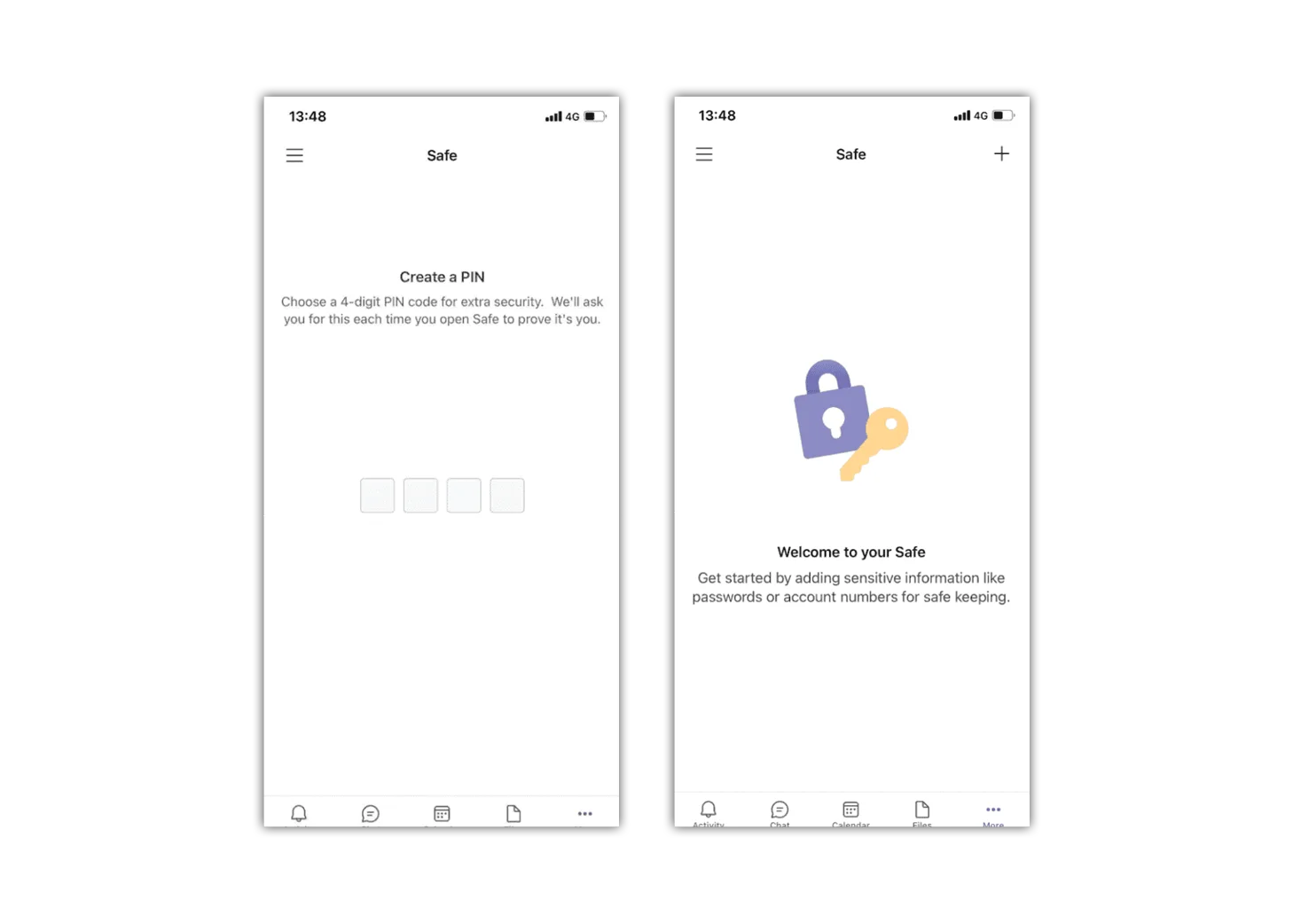
Step 1 – Tap “Get Started”
Step 2 – If you selected to manage your own master key, record your master key and keep it in a secure location. You will need this key to gain access to all of your encrypted data
Step 3 – You can tap and hold and select “Copy” to copy your master key to your device clipboard
Step 4 – You can also tap the “Share Teams iOS” share icon to share your master key
How to set parental controls on Microsoft Teams

View more guides
Discover more parental controls to manage children’s devices, apps and platforms for safer online experiences.