

Quick advice
If your child has a PlayStation device, these top 3 parental controls can keep your child safe while they play.
Inappropriate content
You can set content restrictions on your child’s account according to their age and maturity level.
Screen time
The PlayStation Family app lets you set limits on when and how long your child plays the PlayStation.
Manage spending
Through the app you can set monthly spend restrictions or load limited funds for your child to use.
Video guide
How to set PlayStation parental controls
The following steps use the PlayStation Family app and PS5 console. You will need access to both, along with your PlayStation account username and password.
If your child already has a PlayStation account, you will need those details as well.
Note that you will be able to customise some of these settings via the PlayStation Network page or on the console itself directly. However, we recommend use the PlayStation Family app for ease.
Setting up a child’s account
Setting up a child’s account
PlayStation gives you the option of creating a Family, which makes it easier to manage your child’s safety while they play games.
You are the family manager and you can add another parent or guardian, child members or other adult members who cannot change your child’s settings.
To set up a child’s account:
Step 1 – Download and open the PlayStation Family app. Sign in or create your PlayStation account. Follow the data and notification prompts you receive on your first login.

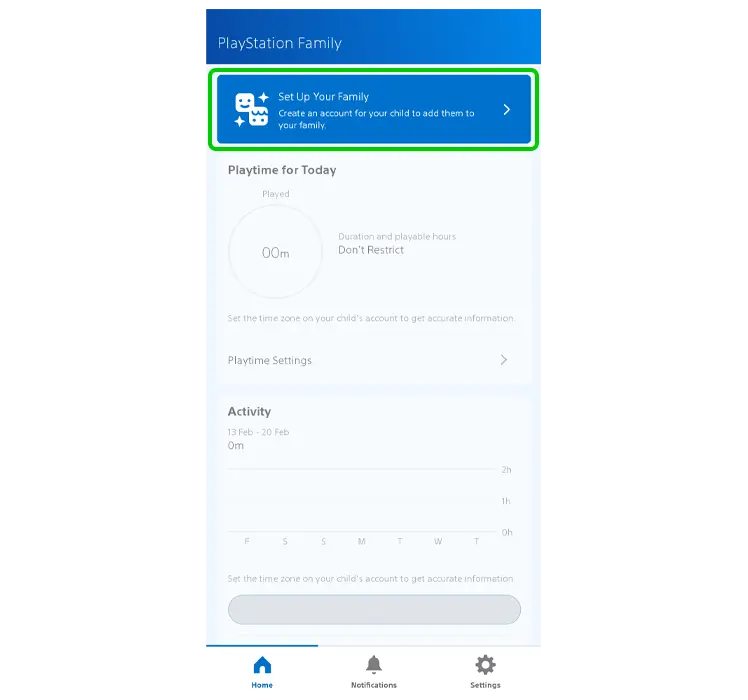
Step 2 – Tap Set Up Your Family at the top of the screen.
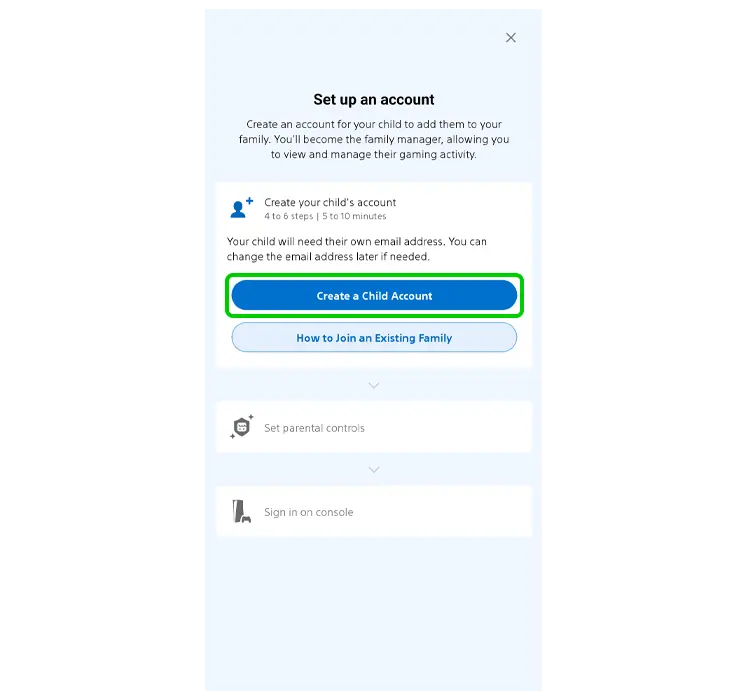
Step 3 – If you’re creating a new child account, tap Create a Child Account. Otherwise, follow instructions for adding an existing user.
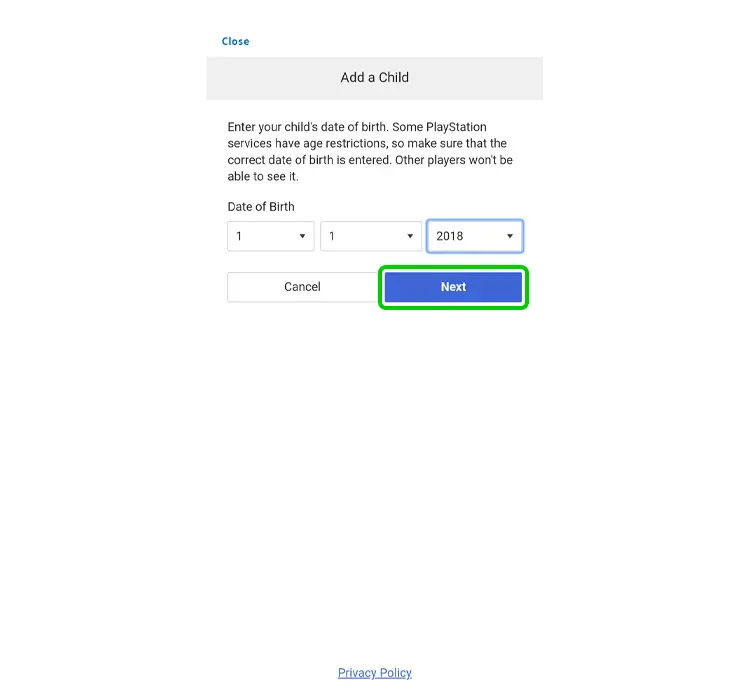
Step 4 – Enter your child’s real birthdate. This won’t be shared with anyone but will make setting safety controls easier. Tap Next.
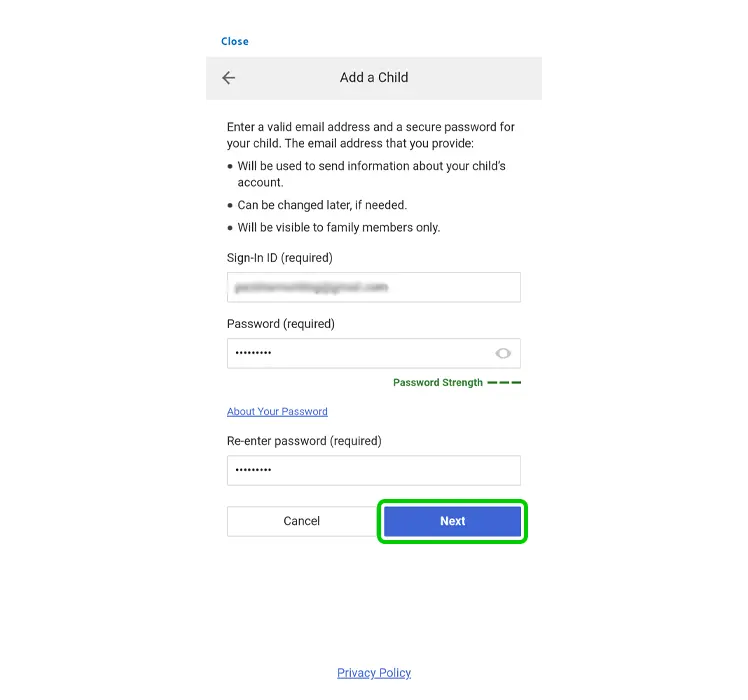
Step 5 – Add their email and create a password. Tap Next. Tap OK.
If your child doesn’t have an email, do this first using your choice of email client.
💡Top tip
When creating a new email for your child, choose something that can grow with them. Note that Google, Apple and Microsoft all have parental controls apps, so create an email using the brand you plan to use for parental controls.
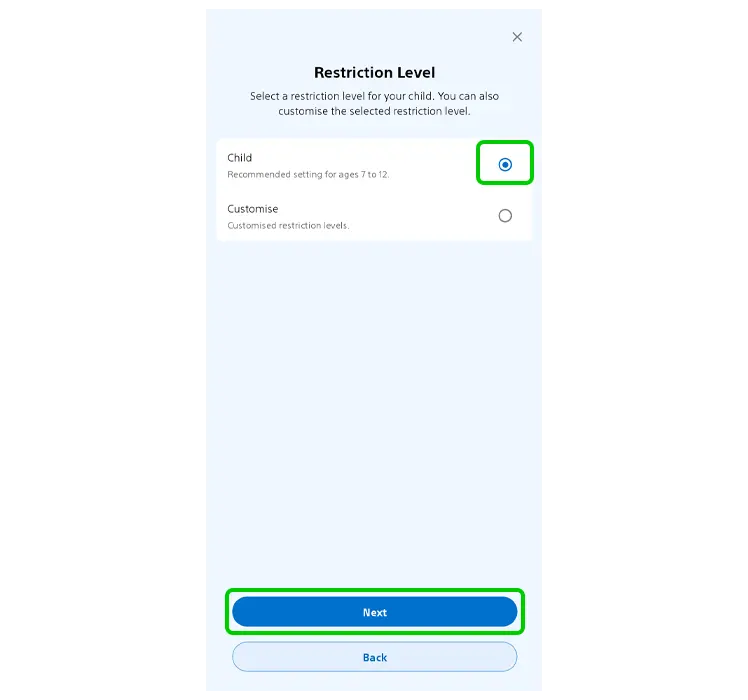
Step 6 – Choose your child’s Restriction Level. ‘Child’ is based on the age your entered, which you can customise further. This is the easiest option. Tap Next.
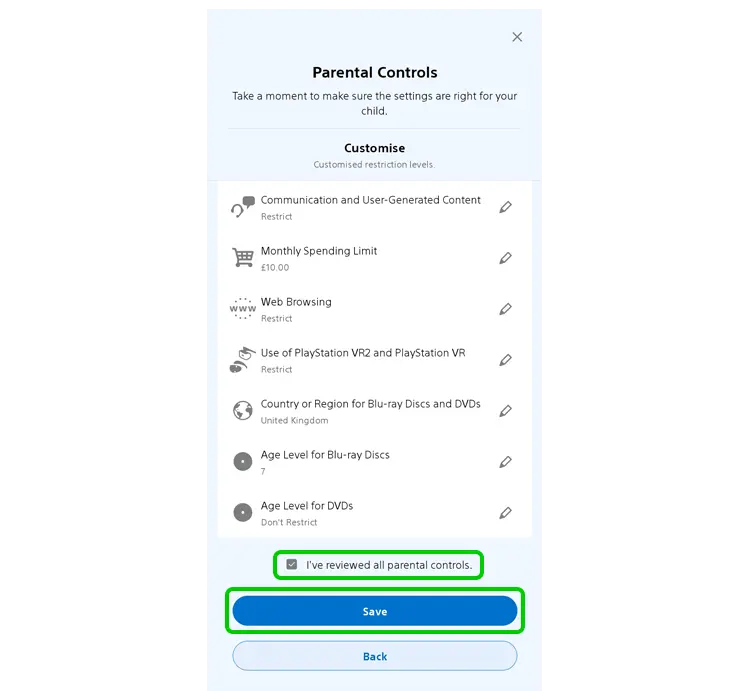
Step 7 – Review all parental controls and make any changes you don’t agree with. Tap ‘I’ve reviewed all parental controls’ and then Save.
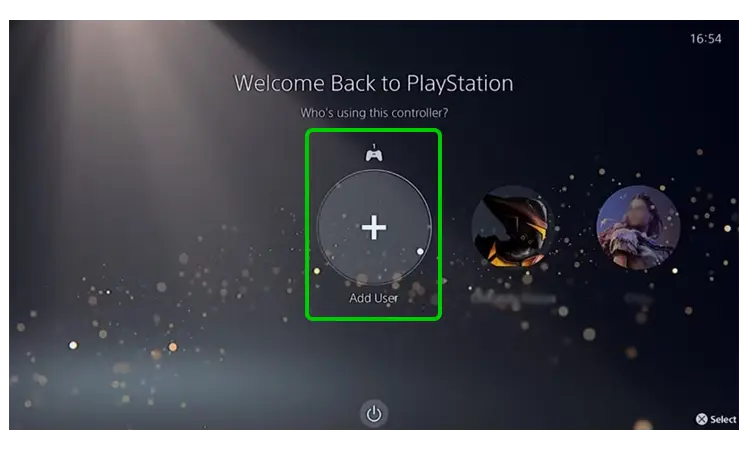
Step 8 – On your family PS5, go to the user selection screen. If your child is not already added, select Add User > Get Started and follow the prompts.
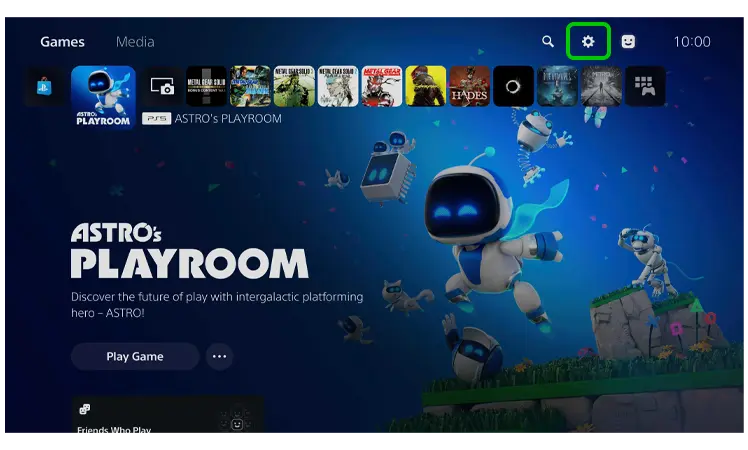
Step 9 – When you’re on their home screen, scroll across the very top menu to the gear icon (Settings).
Step 10 – Select Users and Accounts.
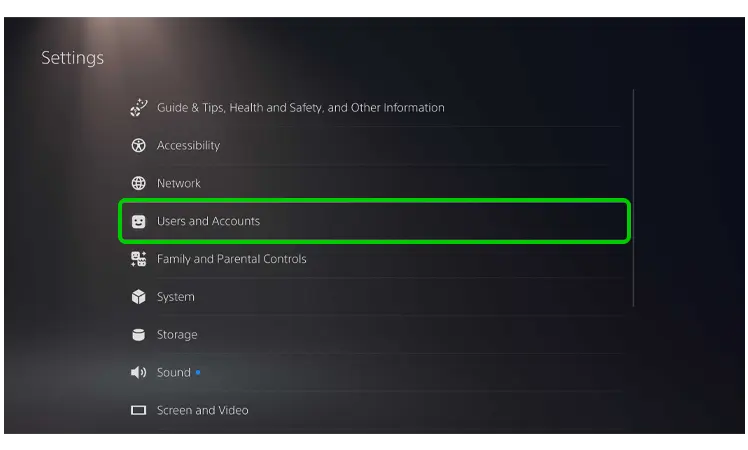
Step 11 – Select Sign In and use the QR code or manual entry to login to the account you set up in the PlayStation Family app.
Follow the prompts and fill in the information it asks for.
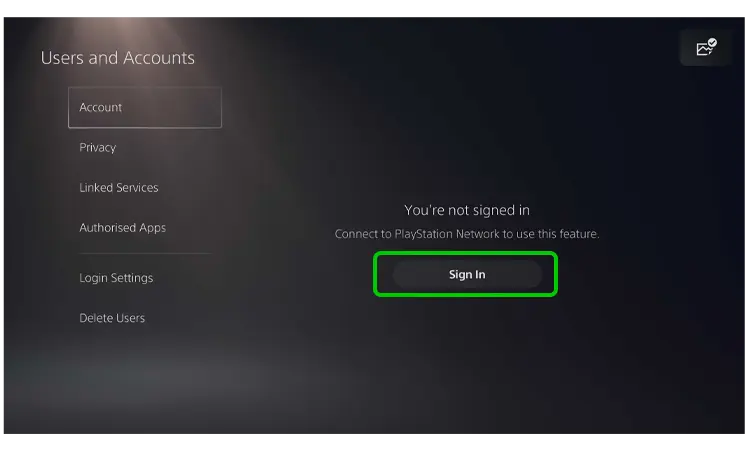
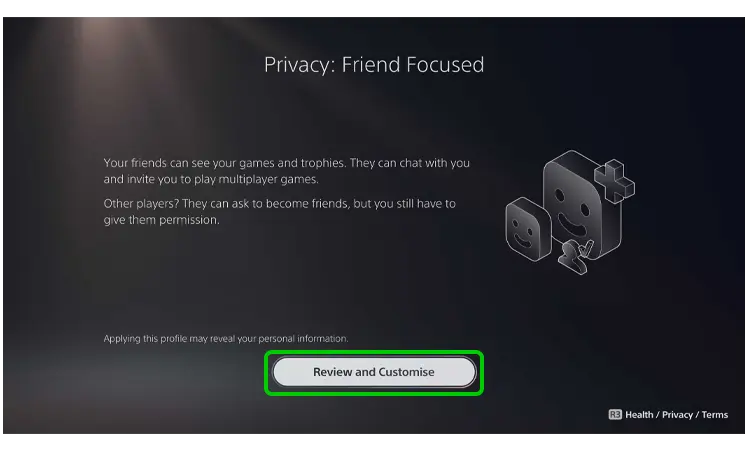
Step 12 – Choose any profile and select Review and Customise.
On the next screen, select Apply.
We will come back to these two settings in the PlayStation Family app.
Step 13 – Verify your child’s email address and then return to the PlayStation Family app.
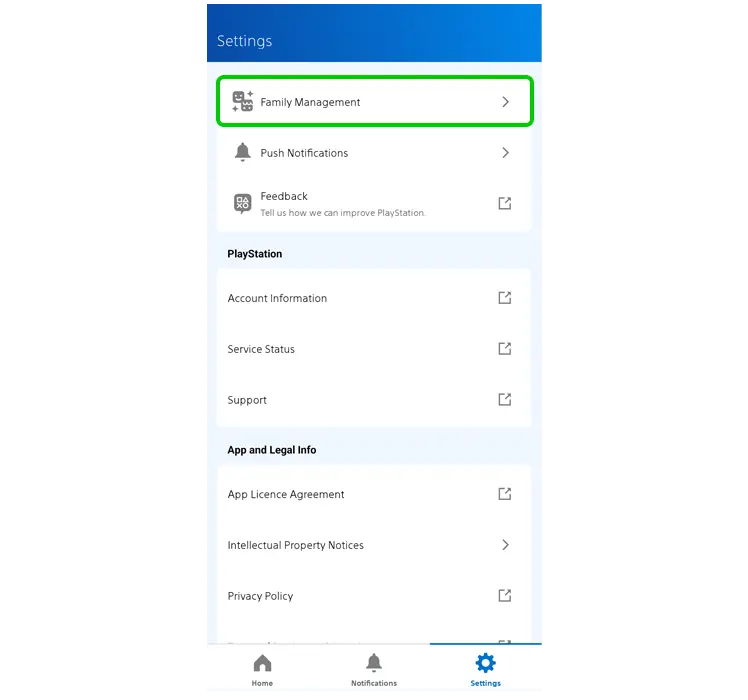
In the bottom right corner, tap Settings.
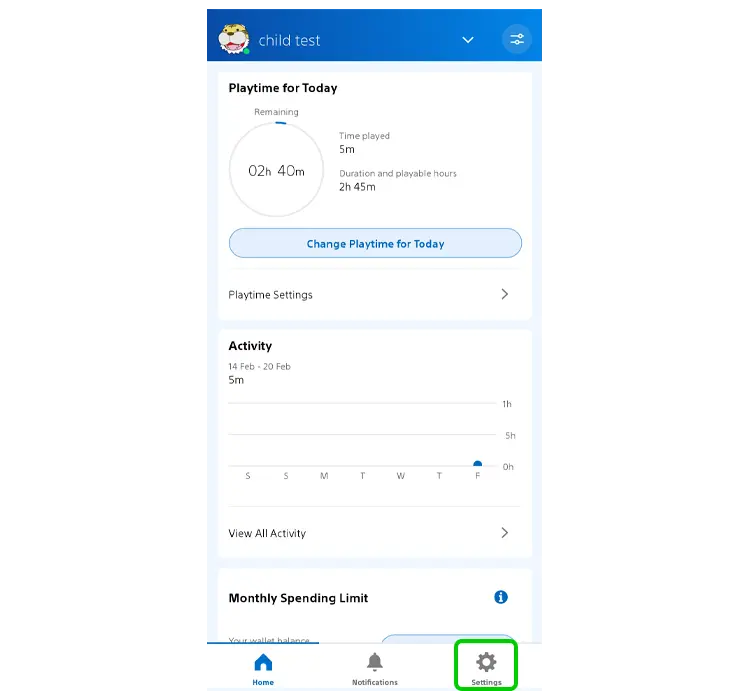
Step 14 – Select Family Management > your child.
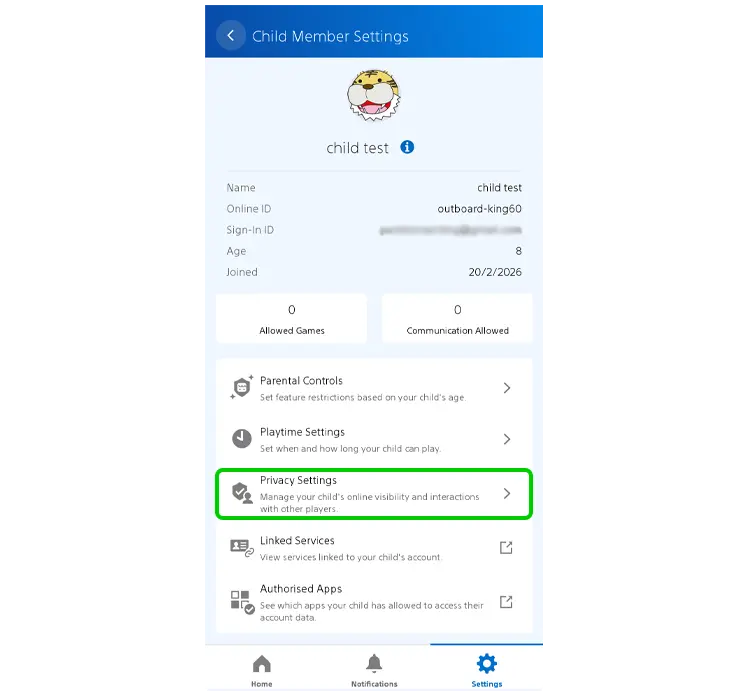
Step 15 – Select Privacy Settings.
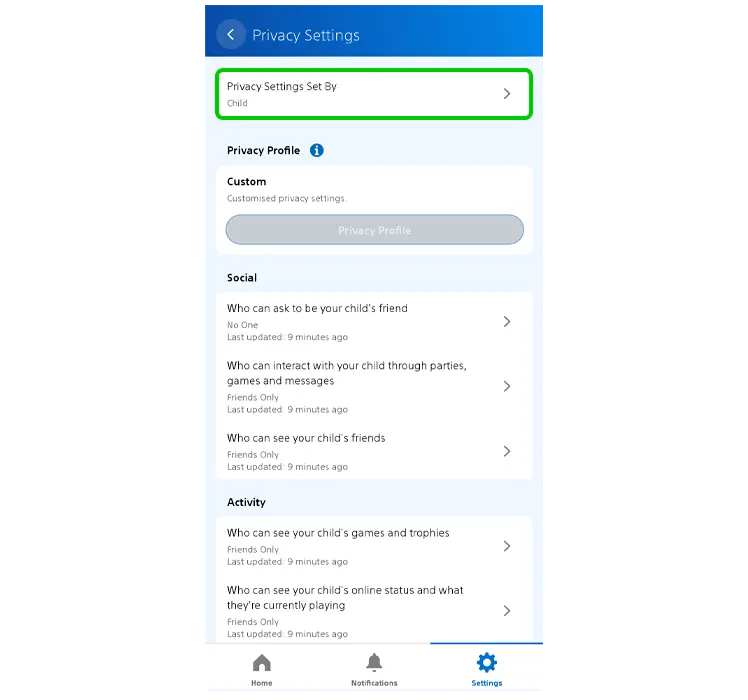
Step 16 – Select Privacy Settings Set By and select Parent/Guardian.
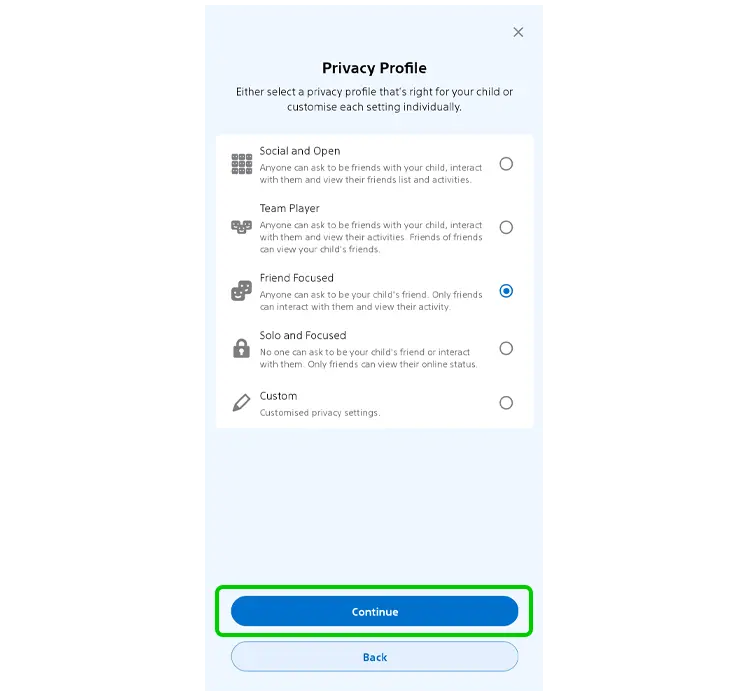
Step 17 – Now you can select the profile type that works best for your child’s age, maturity, skills and needs, which we skipped earlier.
If you do not want your child communicating with anyone, including friends, choose Solo and Focused.
As your child grows, you can change these settings to give them more access to friends and communication features.
Tap Continue.
Step 18 – Review every setting under Privacy Profile and make sure that ‘Allow your child to change this setting’ is turned off (the grey toggle means it’s off) for each setting.
Tick ‘I’ve reviewed all privacy settings‘ and tap Continue.
If your child uses PS4, review each setting as above. Otherwise, tap Save.
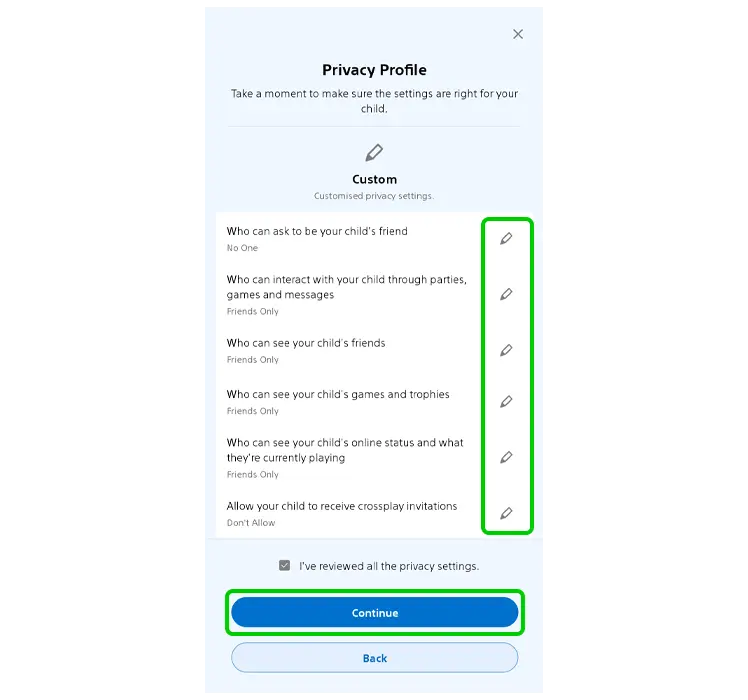
Your child can now use their PlayStation 4 or PlayStation 5 with a safety net in place.
How to set screen time limits
How to set screen time limits
The PlayStation Family app lets you set limits on how much time your child can spend playing games each day and during which hours.
On days they reach their limit, they can ask you for more time, which gives you control over additional screen time.
To set up playtimes:
Step 1 – In the PlayStation Family app, select Settings > Family Management > your child.
Step 2 – Tap Playtime Settings.
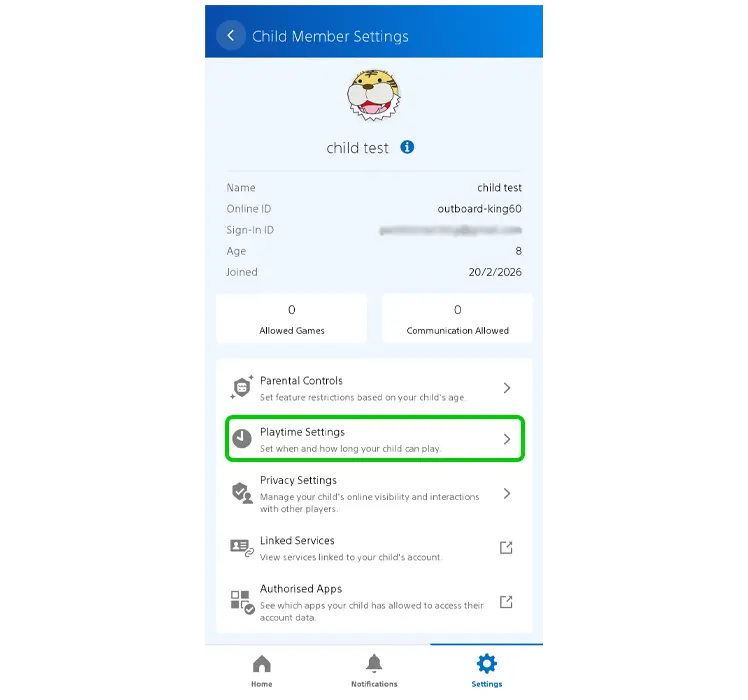
Step 3 – Tap the toggle next to Restrict Playtime to turn limits on.
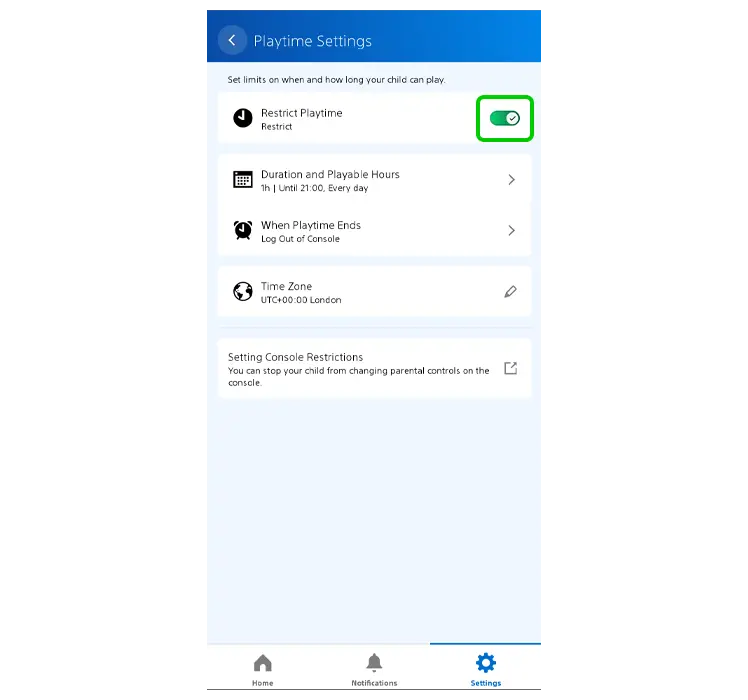
Step 4 – Tap Duration and Playable Hours.
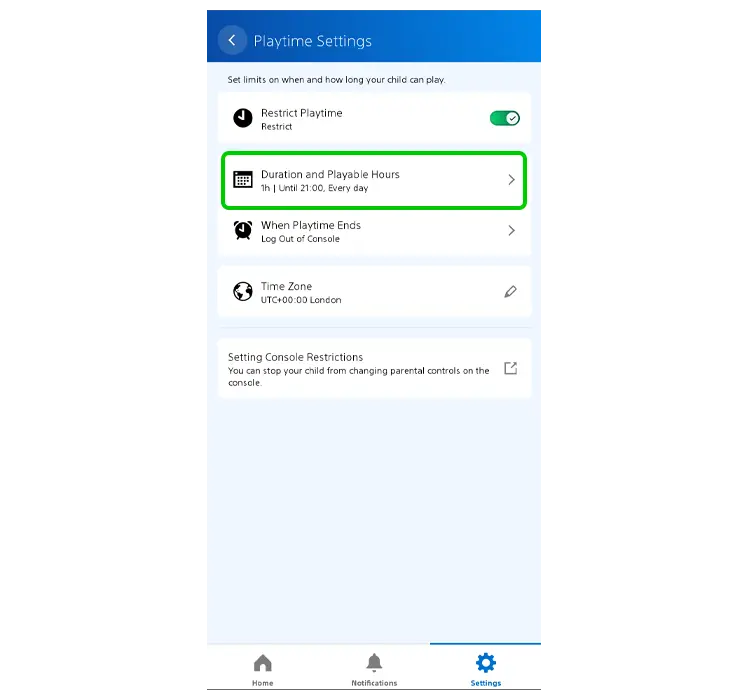
Step 5 – Choose either Same Every Day or By the Days of the Week.
Customising each day means you can give them less time on school nights and more time at the weekends, if that is something you’re interested in.
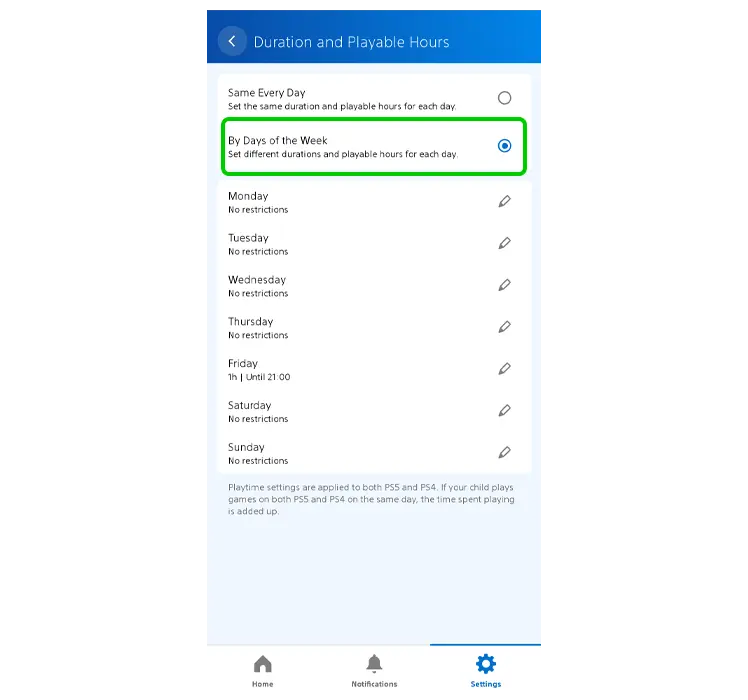
Step 6 – For the daily option, select each day of the week and turn on the toggles for Restrict Playtime Duration and Restrict Playable Hours.
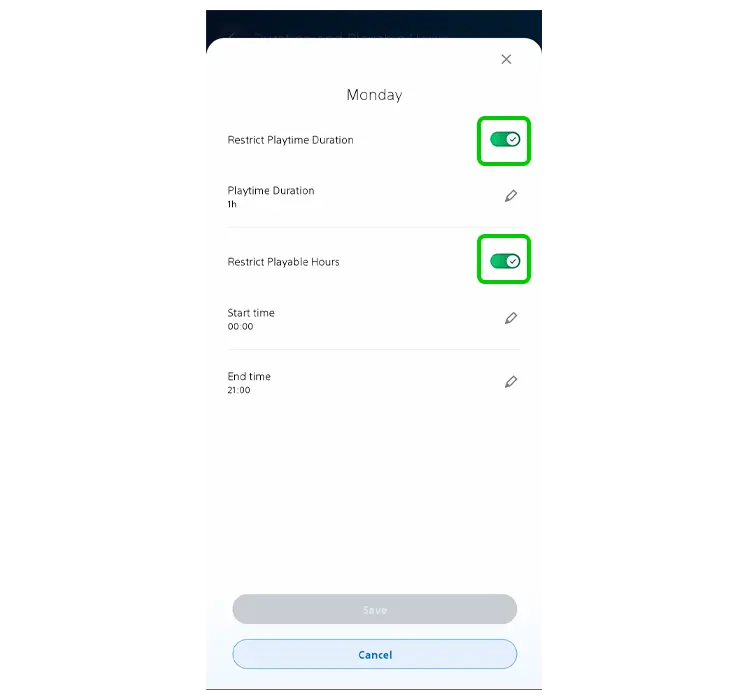
Step 7 – Next to Playtime Duration, select the maximum amount of time you want your child to play video games on their PlayStation console.
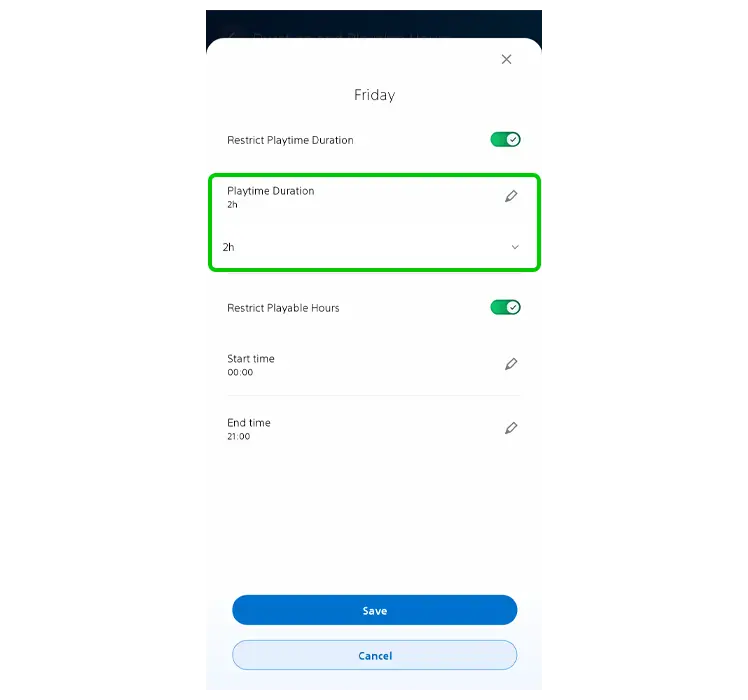
Step 8 – Under Restrict Playable Hours, select the Start time and End time for when you’re happy for your child to play games on their console. They won’t be able to access games outside of these hours.
Tap Save for each day.

💡Top tip
Setting limits by the day of the week means you can still control overall duration at the weekend while giving your child more freedom for when they play. This isn’t possible when the restrictions are the same every day, which can lead to disagreements and a sense of unfairness in older children.
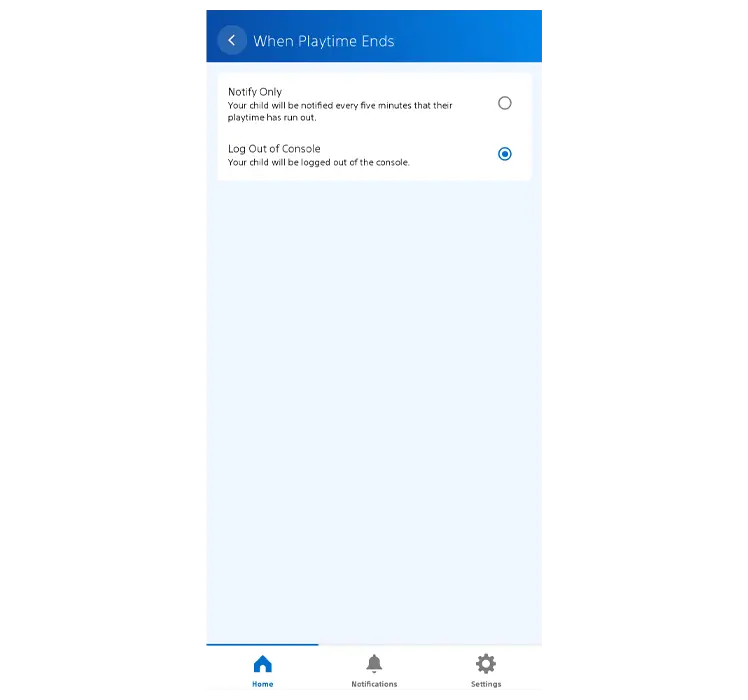
Step 9 – Go back and select When Playtime Ends.
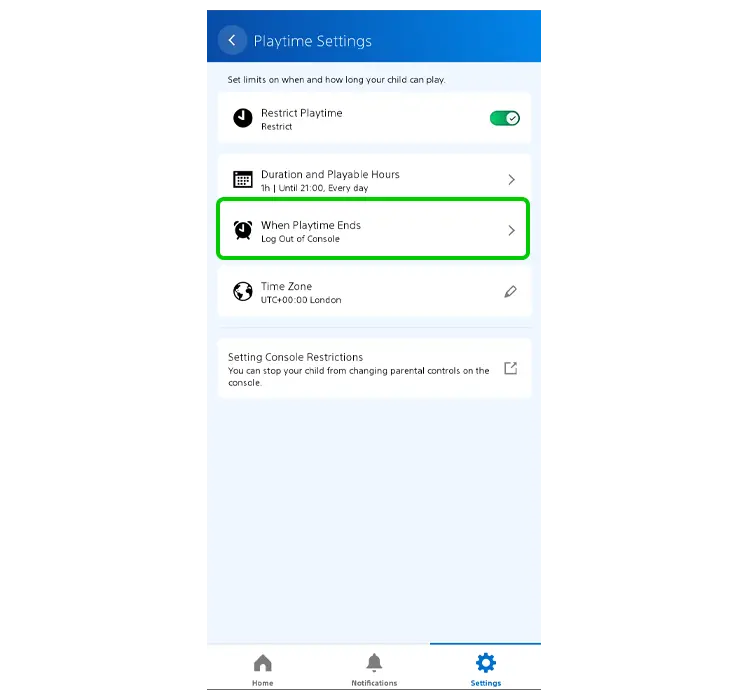
Step 10 – Decide whether your child will receive a notification every five minutes when their time has run out or if the console will log them out.
💡Top tip
For older children, trial the notification route first. If they don’t stick to the limits, then turn on the log out option until you feel they’re ready to try the notification method again. This can help them build a sense of ownership in managing their screen time.
Turn on spending restrictions
Turn on spending restrictions
The PlayStation Family app gives you an easy way to manage in-game and console spending. You can set monthly spend restrictions or load limited funds for your child to use.
To set up spending restrictions:
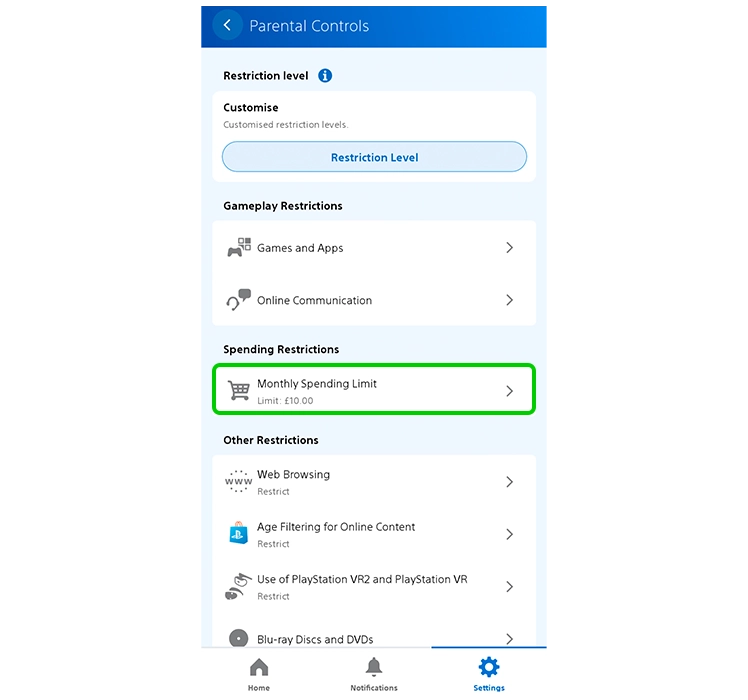
Step 1 – From your child’s Setting screen, select Parental Controls.

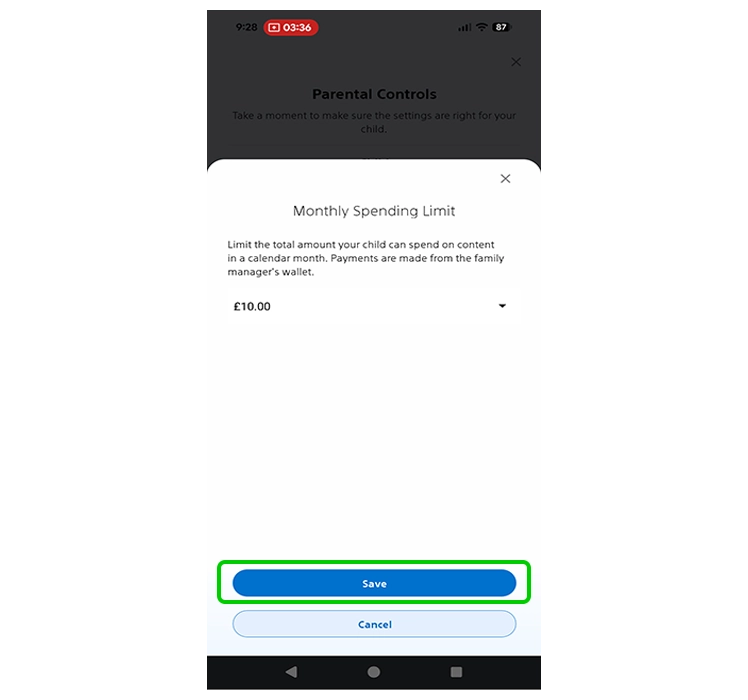
Step 2 – Tap Monthly Spending Limit.
Step 3 – Select Add Funds and follow the instructions for adding money to your child’s account.
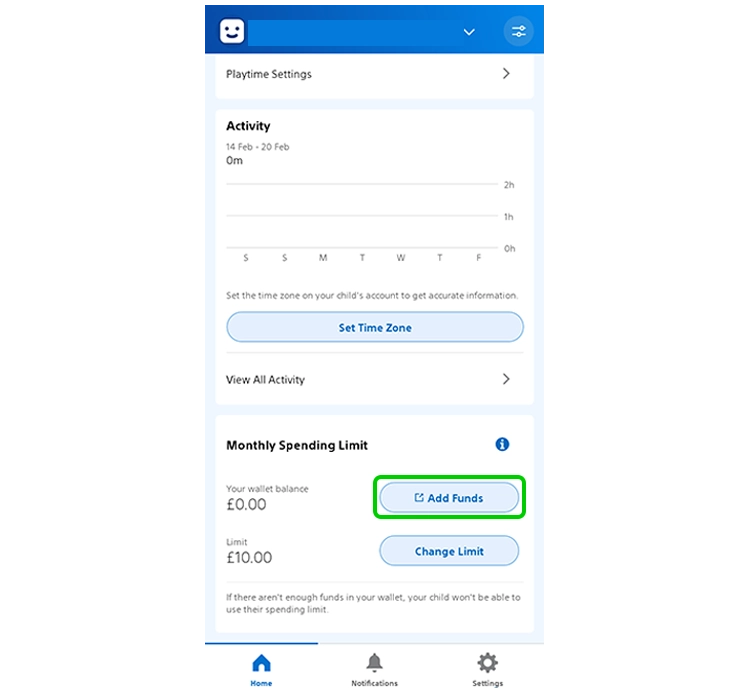
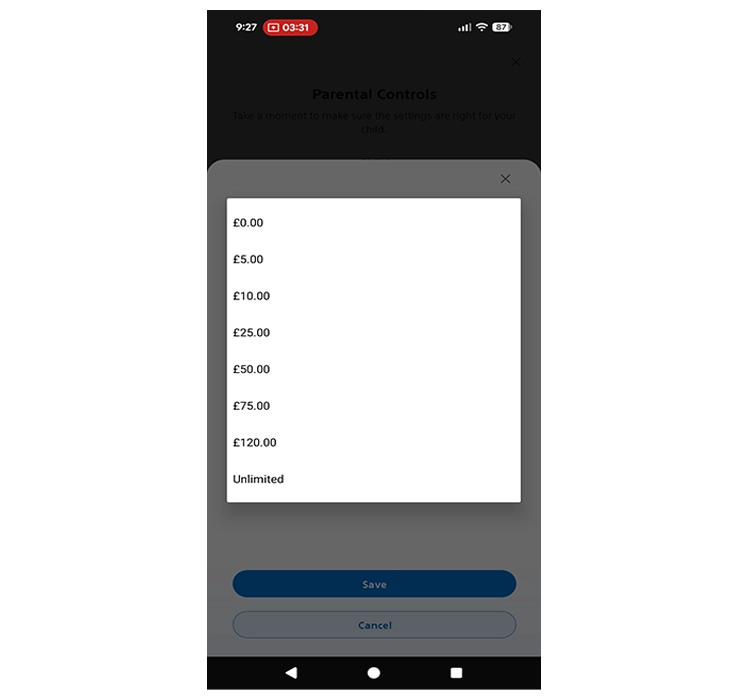
Step 4 – Back in the PlayStation Family app Monthly Spending Limit menu, select Change Limit.

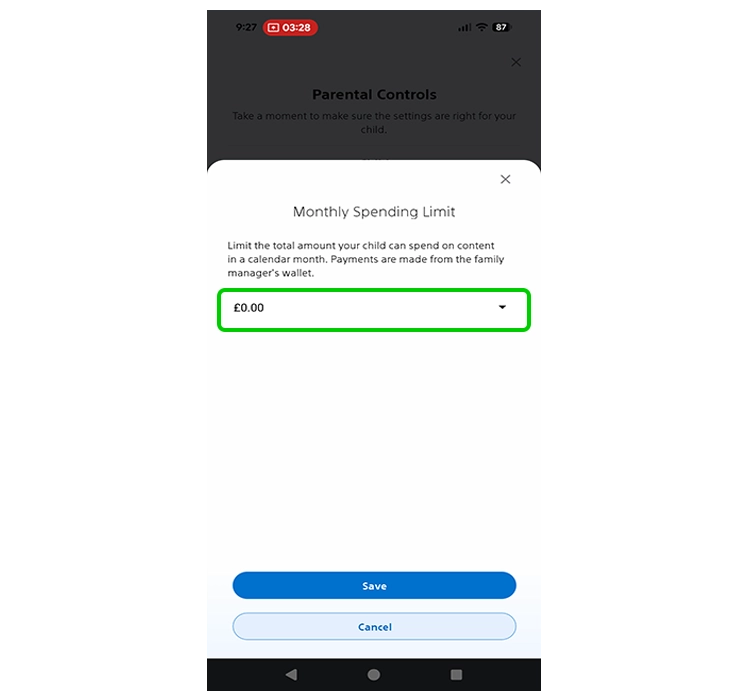
Step 5 – Select from the options available and tap Save.
💡Top tip
If you do not want them to spend any money, you can set the limit to £0. If you don’t set a limit, make sure there isn’t any card attached to their account. Test this by trying to purchase something on their account.
Customise communication
Customise communication
As your child grows, the games they play are bound to become more social. Roblox, Fortnite and Minecraft are all examples of social games which continue to be popular among young people.
You can set limits for communication within their games as well as on their PlayStation console.
To set communication limits:
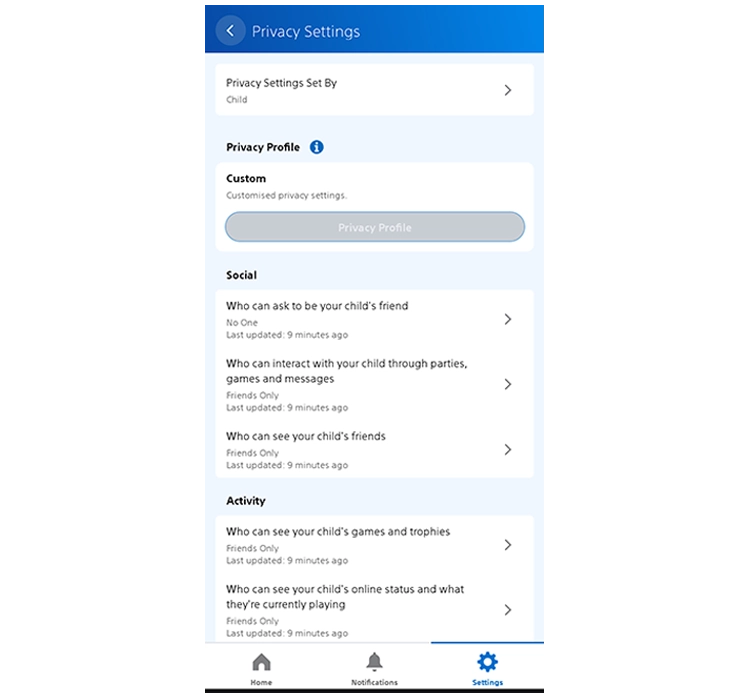
Step 1 – From your child’s Settings menu in the PlayStation Family app, select Privacy Settings.
Step 2 – Go through each setting and change to Friends or No One. If your child is aged 16 or older, you can try opening this up to others, but keep it restricted if they’re any younger.
💡Top tip
Even if you let your child communicate with their friends, make sure any features which let your child accept friend requests or invites is set to No One. Ease up as they get older, but continue to check in on who they have on their friends list.
How to restrict inappropriate content
How to restrict inappropriate content
When you first set up your child’s PlayStation account, there are a several settings you go through, including setting content restrictions.
Generally, these will be set based on your child’s age, but if you’ve customised them, make sure to review them every year as they grow. And remember that just because your child meets age criteria, it doesn’t mean they’re necessarily ready for older content.
To customise content settings:
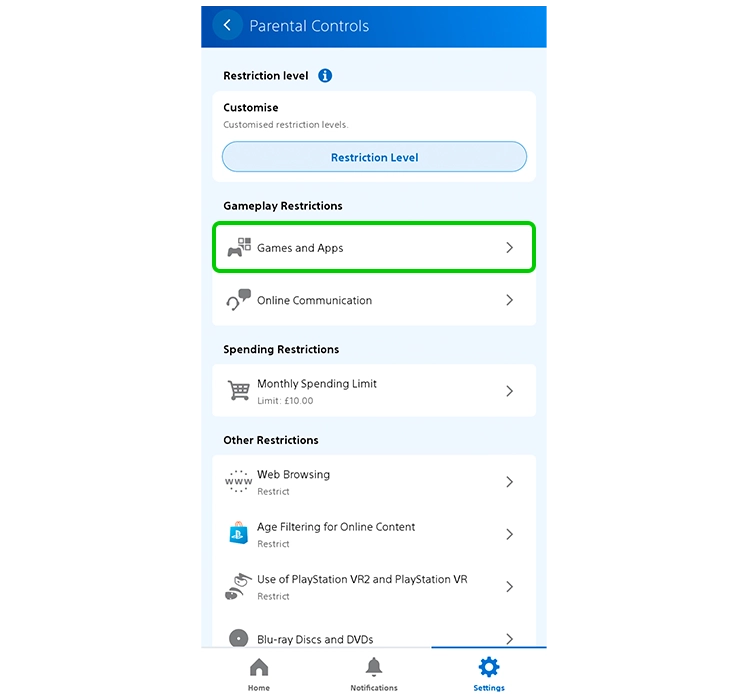
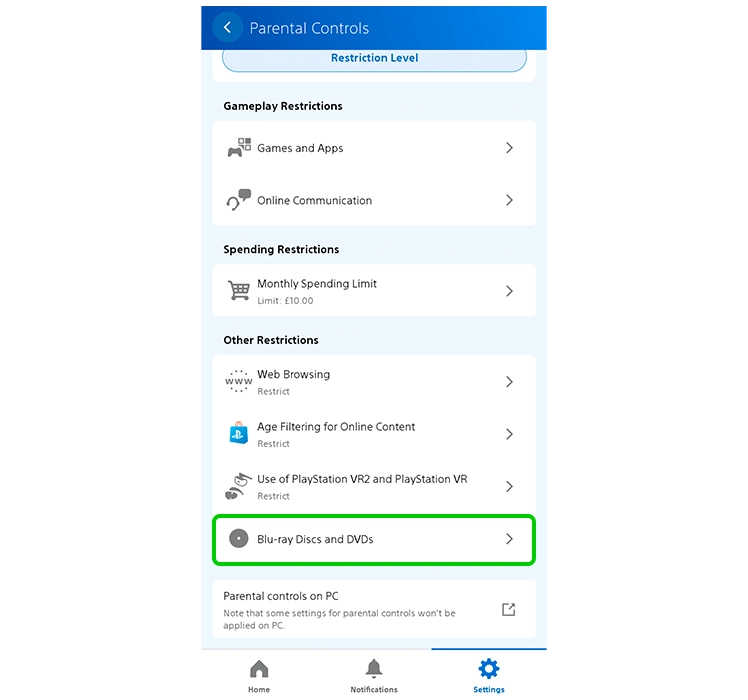
Step 1 – From your child’s Settings menu in the PlayStation Family app, tap Parental Controls.
Step 2 – Under Gameplay Restrictions, tap Games and Apps.
Step 3 – Tap Age Level for PS5 Games. You can lower the age, but you can’t go higher than your child’s actual age (based on their birthday that you entered). Tap Save.
Repeat with Age Level for PS4 and PS3 Games.

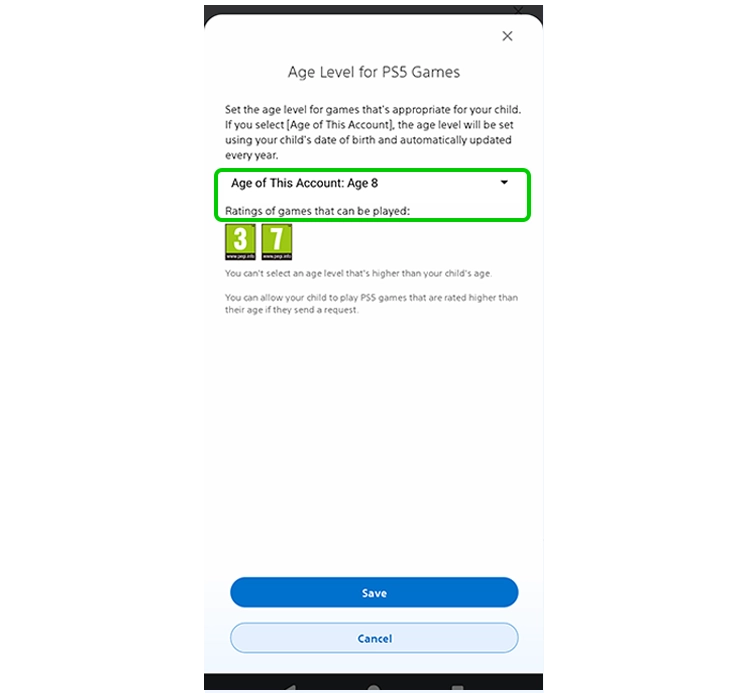

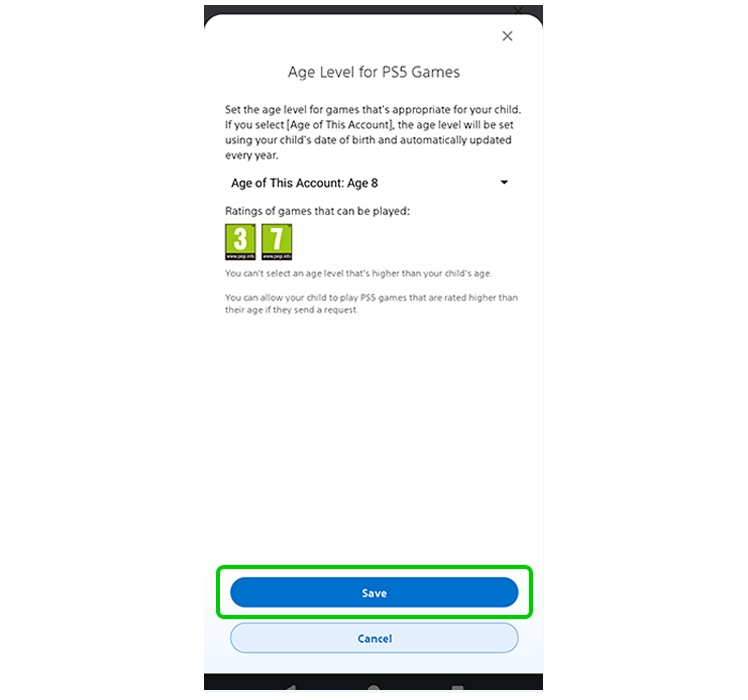
Step 4 – Go back. Under Other Restrictions, review the settings to turn on restrictions and set age limits for Blu-Ray Discs and DVDs.
How to set PlayStation parental controls

View more guides
Lorem Ipsum is simply dummy text of the printing and typesetting industry. Lorem Ipsum has been