
How to set parental controls in the iTunes Store
If setting parental controls through Family Sharing, be sure to set it up first. You can see how to set up Family Sharing here. You can also access your child’s device directly to set restrictions via Screen Time in their device settings.
How to turn on content restrictions
How to turn on content restrictions
Once you’ve added your child to your family with Apple Family Sharing, you can turn on content restrictions fairly easily.
To turn on content restrictions:
Step 1 – Open Family Sharing and select your child.
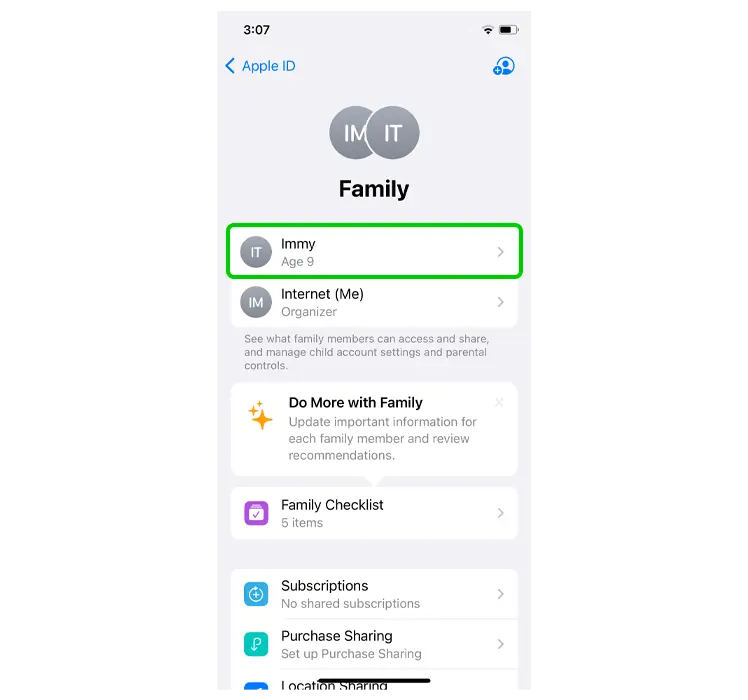
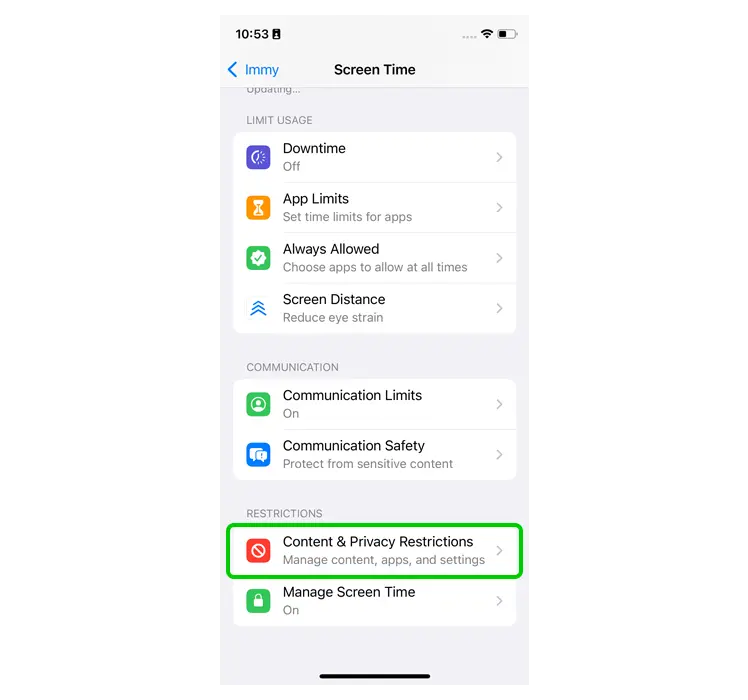
Step 2 – Tap Screen Time and scroll down to Content & Privacy Restrictions.
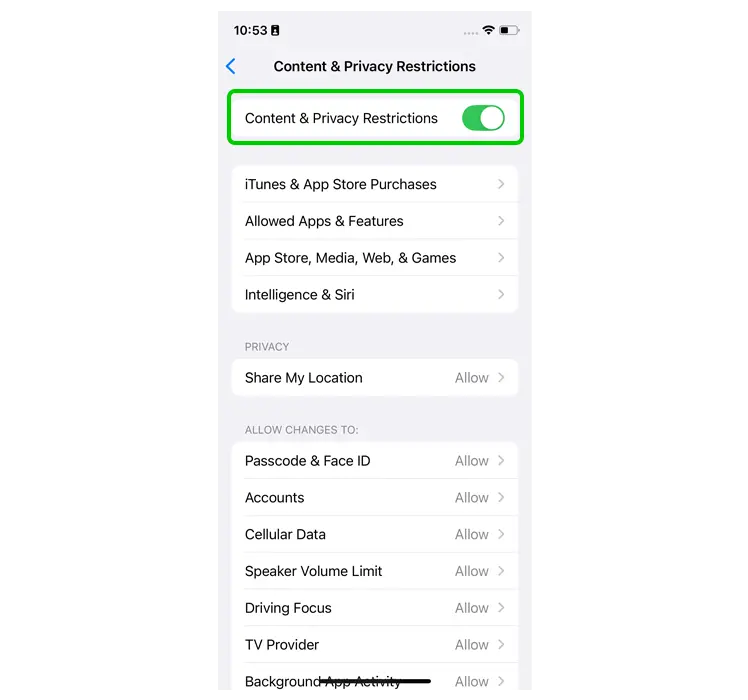
Step 3 – Tap the toggle at the top of the screen.
Content restrictions are now on and ready to customise.
How to set spending limits
How to set spending limits
Setting spending limits can help your child manage their spending without going over budget. It can help them decide where their allowance goes, which can teach key budgeting skills.
To set limits:
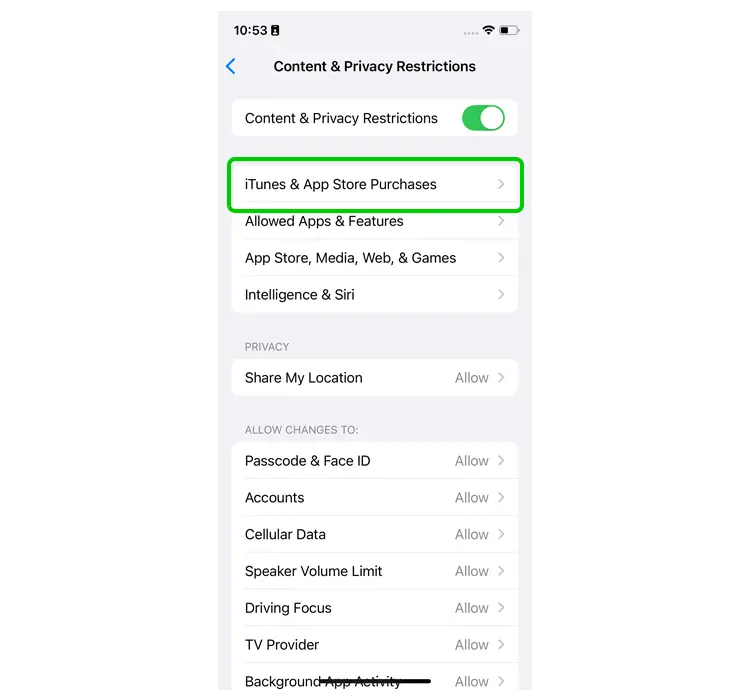
Step 1 – From the Content & Privacy Restrictions menu, tap iTunes & App Store Purchases.
Step 2 – Under Require Password, tap Always Require.

Step 3 – Alternatively, under Store Purchases & Redownloads, tap In-app Purchases and set Don’t Allow.

Where to set app restrictions
Where to set app restrictions
Through Family Sharing, you can set restrictions on what your child can download or delete, and which apps you’re happy for them to access.
To set app restrictions:
Step 1 – From the Content & Privacy Restrictions menu, tap iTunes & App Store Purchases.
Step 2 – Under Store Purchases & Redownloads, customise whether you’re happy for your child to install or delete apps.

Step 3 – Return to the Content & Privacy Restrictions menu and select Allowed Apps & Features.
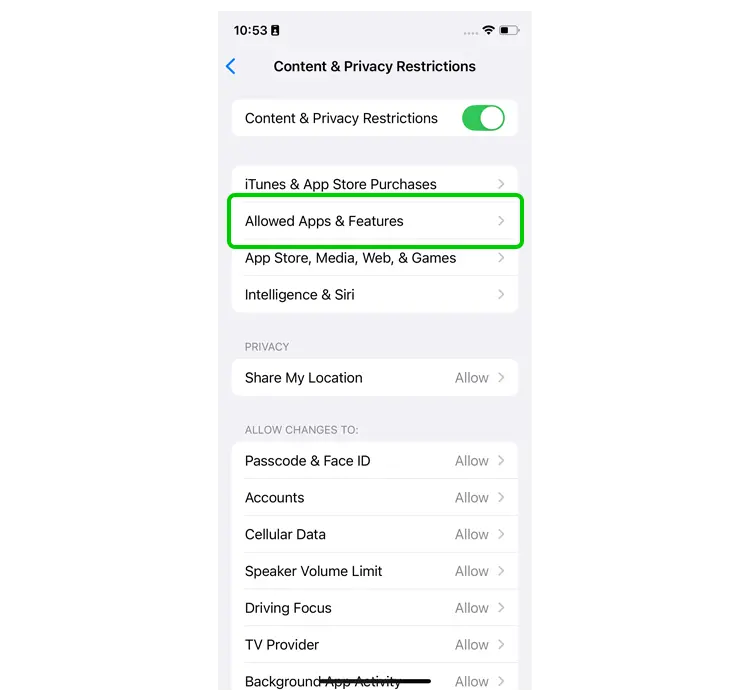
Step 4 – Review the list of apps or features on your child’s device and untick any that you don’t want them to access.

How to set age restrictions on media
How to set age restrictions on media
Setting age restrictions within the iTunes Store can help your child choose content which is appropriate for them.
To set age restrictions:
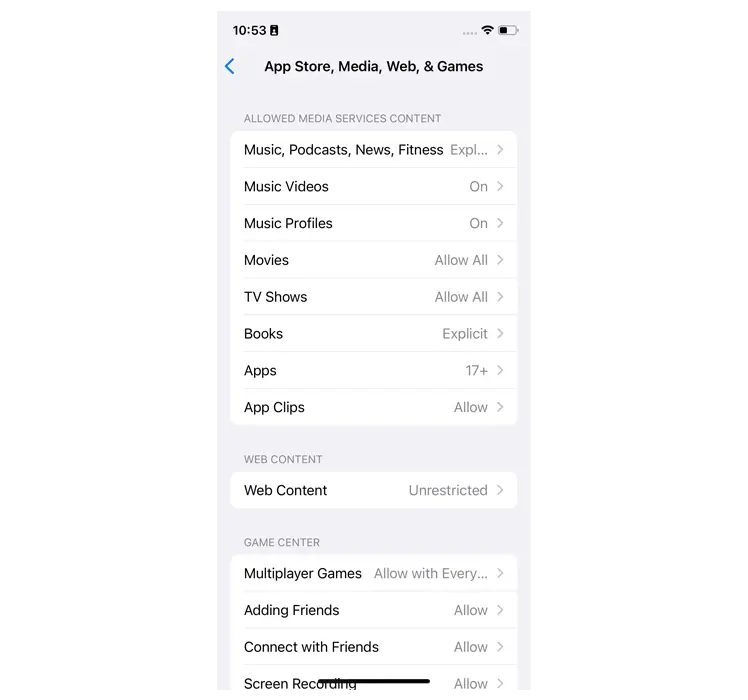
Step 1 – From the Content & Privacy Restrictions menu, tap App Store, Media, Web, & Games.
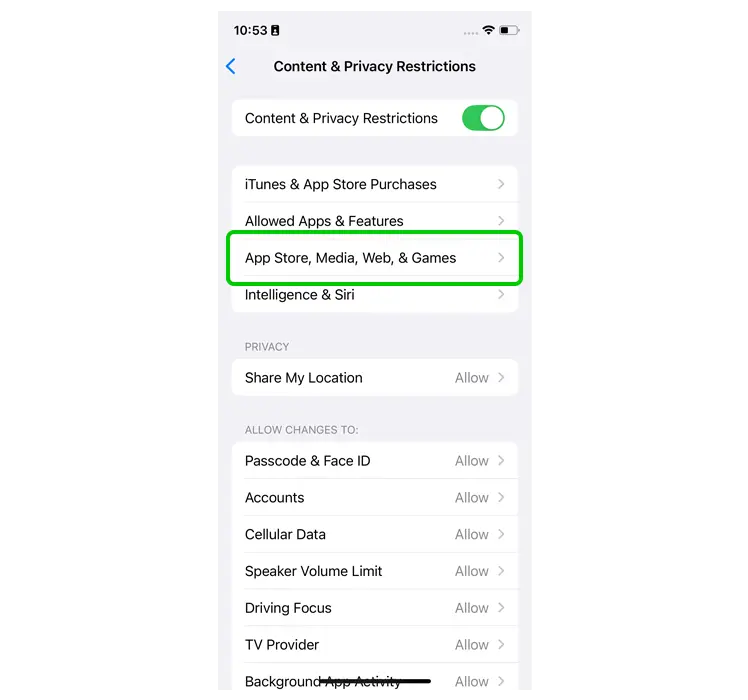
Step 2 – Here, take the time to go through each setting and set restrictions based on your child’s age and maturity.
How to set parental controls in the iTunes Store

View more guides
Discover more parental controls to manage children’s devices, apps and platforms for safer online experiences.